Discover comprehensive solutions and easy-to-follow steps for common issues preventing your Roblox game from launching. This detailed guide covers everything from checking internet connections and system requirements to updating drivers, clearing caches, and performing a clean reinstallation. Understand why Roblox might not be opening on your PC, Mac, or mobile device and learn practical tricks to troubleshoot software conflicts, firewall blocks, and server outages. Get back to playing your favorite Roblox experiences without frustration. We address common error messages and provide actionable advice for gamers of all experience levels to ensure a smooth gaming experience. This resource is designed to help you quickly diagnose and resolve persistent problems, making your Roblox journey enjoyable again.
Hey there, curious friend! So, you're probably wondering why your Roblox sometimes decides to take a coffee break right when you want to play, right? It's super common, and honestly, there are a bunch of reasons why your game might not be opening. Think of it like a puzzle: sometimes it's a simple missing piece, like your internet being a bit wobbly, or maybe the game just needs a quick update. Other times, it's a bit more hidden, like a grumpy file or your computer’s security software being a little overprotective. Don't worry, it's usually nothing too scary! We're here to help you figure out which piece is missing or causing trouble so you can jump back into all those amazing Roblox worlds.
It really boils down to ensuring your computer, your internet, and the Roblox game itself are all on the same page and playing nicely. Often, a quick restart or a check for updates can fix things in a flash. But if not, knowing a few simple tricks, like clearing out old temporary files or giving your graphics drivers a refresh, can make a huge difference. The good news is that most of these issues are totally fixable by you, without needing a tech wizard on speed dial. It’s all about a little bit of detective work and patience.
The coolest takeaway here is that you're not alone in facing these snags. Roblox is a huge, constantly evolving platform, and little glitches are just part of the digital landscape. By learning these troubleshooting steps, you're not just fixing a problem; you're becoming a more empowered gamer, ready to tackle future tech challenges head-on. So let's get you back to building and playing with your friends!
Most Asked Questions about Why Can't My Roblox Open
Welcome to the ultimate living FAQ for tackling those pesky "Roblox won't open" issues! This guide is constantly updated with the latest insights and troubleshooting steps, ensuring you have the most current information to get you back into your favorite experiences. We understand how frustrating it can be when your game client acts up, especially when you're eager to join friends or dive into a new adventure. This comprehensive resource is designed to be your go-to reference, covering everything from basic checks to advanced fixes. We've compiled the most common questions and provided clear, concise answers to help you quickly diagnose and resolve any launch problems. Let's make sure your Roblox journey is as smooth as possible, no matter what challenges arise. Get ready to troubleshoot like a pro!
Beginner Questions
What is the very first thing I should try if Roblox won't launch?
The absolute first step is to restart your computer. This simple action often resolves temporary software glitches or memory conflicts that might be preventing Roblox from opening. It clears out background processes and gives your system a fresh start. Try this before anything else; it's surprisingly effective for many common issues.
Why does Roblox need a stable internet connection to open even if I'm not playing online?
Roblox requires a stable internet connection because it's an online-centric platform, even for launching. The client needs to communicate with Roblox servers to authenticate your account, check for updates, and load game assets. Without a reliable connection, it can't complete these essential startup procedures, causing it to fail before you even get to a game lobby.
How do I know if the Roblox application itself is corrupted or just needs an update?
If Roblox fails to open or crashes immediately after clicking, it often points to corrupted files. If it consistently tries to download updates but never launches, it might be stuck in an update loop. Check the official Roblox Status page; if servers are fine, a reinstallation is often best for suspected corruption, while a client restart might resolve minor update issues.
Can my PC's age or specifications really prevent Roblox from opening?
Yes, your PC's age or specifications can absolutely prevent Roblox from opening. If your computer doesn't meet the minimum system requirements (like an older operating system, insufficient RAM, or an outdated graphics card), the Roblox client might struggle to initialize or simply refuse to launch. Always verify your system against Roblox's stated requirements.
Bugs & Fixes
My Roblox installer gets stuck or fails during installation. How can I fix this?
Installer issues are often caused by internet disruptions, antivirus interference, or leftover files from previous installations. Try temporarily disabling your antivirus, ensuring a stable internet connection, and then running the installer as an administrator. If that fails, manually delete any existing Roblox folders from Program Files and Local AppData before attempting a fresh install.
What should I do if Roblox opens but then immediately closes without an error message?
This common issue often indicates a graphics driver problem or a conflict with other background applications. Ensure your graphics drivers are fully updated. Temporarily disable any overlay software (like Discord or NVIDIA GeForce Experience) and check your Windows updates. A clean reinstall of Roblox can also resolve deeply embedded conflicts causing these instant crashes.
Roblox works on my friend's PC but not mine. What could be unique to my setup?
If Roblox works elsewhere, your issue is specific to your PC. This could be due to your local firewall/antivirus blocking Roblox, outdated graphics drivers, corrupted local game files, or even conflicting background applications unique to your system. Check these areas meticulously, perhaps running Roblox as an administrator to bypass permission issues.
Tips & Tricks
What's the best way to keep my Roblox client updated smoothly?
The best way to keep Roblox updated smoothly is to ensure a stable internet connection whenever you launch the game. Roblox automatically checks for and applies updates. Additionally, regularly updating your operating system and graphics drivers ensures your system is always ready for the latest game versions, minimizing potential conflicts or errors during the update process.
Are there any specific browser settings that might interfere with Roblox launching?
Yes, certain browser settings or extensions can interfere. Ad blockers or privacy extensions might block pop-ups or scripts essential for Roblox to launch from the website. Try disabling these extensions or using a different browser when launching Roblox. Ensure pop-ups are allowed for the Roblox site, as the client often launches through a small browser-initiated prompt.
How can I prevent "An error occurred during Roblox installation" messages?
To prevent installation errors, ensure you have a strong, uninterrupted internet connection throughout the process. Temporarily disable your antivirus and firewall, as they can sometimes incorrectly block necessary installation files. Clear any previous Roblox installation files manually before retrying the installation, and always run the installer as an administrator for proper permissions.
Still have questions?
If you've tried everything and Roblox is still giving you trouble, don't despair! The Roblox support team is ready to help with more personalized solutions. Check out their official guides for advanced troubleshooting, or submit a support ticket with all the details of your problem. You'll find more useful resources on the official Roblox Help Center website.
Ever found yourself staring at your screen, eagerly clicking the Roblox icon, only for absolutely nothing to happen? Or maybe it starts to load, teases you with a brief glimpse of the logo, and then poof—it’s gone? "Why can't my Roblox open?" is a question that echoes through many a gamer's mind, often leading to frustration and a desperate scramble for solutions. It feels like your portal to countless worlds, minigames, and creative adventures has suddenly slammed shut. You're ready to dive into a new obby, build an epic mansion, or hang out with friends, but Roblox just isn't cooperating. This common headache can stem from a variety of sources, ranging from simple network hiccups to more complex software conflicts. Don't worry; you're not alone in this digital dilemma. We’ve all been there, scratching our heads and wondering what went wrong with our beloved game client. Fortunately, most of these issues are solvable with a bit of troubleshooting. This comprehensive guide will walk you through the most common reasons why Roblox might be playing hard to get and provide you with actionable steps to get you back into the game as quickly as possible. We'll cover everything from quick fixes to deeper dives, ensuring you have all the tools you need to tackle those pesky launch problems head-on. Let's get your Roblox adventure back on track!
Understanding Why Roblox Might Not Launch
When Roblox refuses to open, it can feel incredibly baffling. It was just working yesterday, right? This section explores the fundamental reasons behind such launch failures. Identifying the root cause is the first critical step towards finding an effective solution. We will delve into common technical snags. Understanding these underlying issues will empower you to troubleshoot effectively. You can pinpoint problems with greater accuracy. This approach saves time and reduces frustration.
Common Culprits Behind Roblox Launch Failures
Internet Connectivity Issues: Roblox requires a stable internet connection to launch and function properly. A weak Wi-Fi signal or an interrupted connection can often prevent the client from even starting. Your game client needs to communicate with Roblox servers. Without a reliable connection, it simply cannot initiate the game.
Outdated Game Client: Roblox frequently releases updates to improve performance, add new features, and fix bugs. An outdated game client might become incompatible with the latest server updates. This incompatibility can lead to launch failures. Always ensure your client is current. Older versions might struggle to connect.
Corrupted Game Files: During installation or updates, game files can sometimes become corrupted. These damaged files can prevent the game from launching correctly. A corrupt installation often manifests as crashes. It prevents the game from even reaching the main menu.
System Compatibility Problems: Your computer or device needs to meet Roblox's minimum system requirements. Older operating systems or insufficient hardware resources can cause launch issues. Always check if your device meets these specifications. Incompatible hardware will struggle with the game.
Firewall or Antivirus Interference: Security software, while essential, can sometimes mistakenly block legitimate applications like Roblox. Your firewall or antivirus might perceive the game as a threat. This can prevent it from connecting to servers or even starting. You may need to adjust settings.
Graphics Driver Issues: Outdated or corrupted graphics drivers can severely impact game performance and launch capabilities. Roblox relies heavily on your graphics card for rendering. Ensure your drivers are always up-to-date. Obsolete drivers cause numerous display problems.
Roblox Server Status: Occasionally, the problem isn't on your end at all. Roblox servers can experience downtime, maintenance, or unexpected outages. When servers are down, no one can play. It’s always good to check their status first. This saves you much unnecessary troubleshooting.
First Steps When Roblox Won't Open
Before diving into complex solutions, start with these simple yet effective troubleshooting steps. Many common launch issues can be resolved with quick checks. These basic actions often clear up temporary glitches. You will be surprised how often these work. They are a good starting point for everyone. Always begin with these easy fixes first.
Quick Fixes for Launch Problems
Restart Your Computer: It sounds cliché, but a simple restart can resolve a multitude of software conflicts. Restarting clears temporary data and reloads system processes. This often fixes minor glitches. It’s an easy, non-invasive first step. Always try this before anything else.
Check Your Internet Connection: Ensure your Wi-Fi or Ethernet connection is stable and active. Try opening a web page or another online application to confirm connectivity. A strong internet connection is paramount for Roblox. Unstable networks cause many issues. Make sure your connection is solid.
Verify Roblox Server Status: Visit the official Roblox Status page or check community forums like Twitter. This confirms if there are widespread issues affecting everyone. If servers are down, you simply have to wait. There is no solution on your end. Patience is key here.
Run Roblox as Administrator: Sometimes, Roblox requires elevated permissions to access certain system files. Right-click the Roblox Player icon and select "Run as administrator." This can bypass permission restrictions. It ensures the game has necessary access. This simple trick often works wonders.
Disable VPN or Proxy: If you are using a VPN or proxy server, it might interfere with Roblox's connection. Try disabling it temporarily and then launching the game. VPNs can sometimes route your connection inefficiently. They might even block necessary game ports. A direct connection is often best.
Deeper Troubleshooting for Persistent Issues
If the quick fixes haven't resolved your issue, it's time to dig a little deeper. These steps address more intricate software and system-related problems. They require a bit more involvement from your side. But don't worry, we'll guide you through each one. These solutions tackle more persistent Roblox problems. They aim to restore full functionality.
Advanced Solutions to Get Roblox Running
Update Graphics Drivers: Outdated drivers are a frequent cause of game launch failures. Visit your graphics card manufacturer's website (NVIDIA, AMD, Intel) to download the latest drivers. Install these updates to ensure optimal performance. Keeping drivers current prevents many headaches. It improves overall system stability.
Clear Roblox Cache and Temporary Files: Corrupted cache files can prevent Roblox from launching. To clear them, type "%localappdata%\Roblox" into your Windows search bar and delete everything inside the "Versions" folder. You can also delete items in the "Temp" folder. This process often cleans up old, problematic data. It forces Roblox to download fresh files. Always remember to back up anything important first.
Reinstall Roblox Completely: This is a powerful solution for deeply ingrained issues. First, uninstall Roblox from your computer via "Add or Remove Programs." Then, manually delete any leftover Roblox folders in "%localappdata%\Roblox" and "Program Files (x86)\Roblox". Finally, download and install a fresh copy from the official website. A clean reinstallation often resolves many persistent problems. It provides a completely fresh start for the game. This can feel like a big step.
Check Firewall and Antivirus Settings: Temporarily disable your firewall or antivirus software to see if it's blocking Roblox. If the game launches, add Roblox to your software's exception list. This ensures future protection while allowing the game to run. Be cautious when disabling security software. Re-enable it immediately after testing. You don't want to leave your system vulnerable.
Adjust Compatibility Settings: For older operating systems or specific software conflicts, running Roblox in compatibility mode might help. Right-click the Roblox Player executable, go to "Properties," then "Compatibility," and select an older Windows version. This can trick the game into thinking it's running on a different system. It helps resolve compatibility issues. Experiment with different settings if needed.
Verify System Requirements: Double-check that your computer meets the minimum system requirements for Roblox. An outdated CPU, insufficient RAM, or a weak GPU can prevent the game from launching or performing well. Upgrading hardware might be necessary if your system is too old. Ensure your machine can handle the game. This check is crucial for smooth operation.
Check for Windows Updates: Ensure your operating system is fully updated. Microsoft frequently releases patches that improve system stability and compatibility with applications. An outdated OS can sometimes cause unexpected software issues. Keeping Windows up-to-date is always a good practice. It helps everything run smoothly.
Run System File Checker (SFC): Corrupted system files can sometimes impact game launches. Open Command Prompt as an administrator and type "sfc /scannow." This utility will scan for and repair corrupted Windows system files. It can fix underlying OS problems. This ensures your system is healthy. It's a useful diagnostic tool.
Roblox on Different Platforms: Specific Considerations
While many troubleshooting steps are universal, each platform has its unique quirks. Roblox is available on various devices, and each requires a slightly different approach. Understanding these platform-specific nuances is crucial. This section highlights tailored solutions. It helps users on different devices. You'll find targeted advice here. These tips are designed for your specific setup.
Mac and Mobile Device Troubleshooting
Mac Specifics: For Mac users, ensure your macOS is updated to a supported version. Clear application cache files by going to ~/Library/Caches and deleting Roblox-related folders. Reinstalling Roblox on Mac involves dragging the application to the Trash and clearing preferences files. Always restart your Mac after uninstallation. This ensures a clean slate. Mac users might also face Gatekeeper issues.
Mobile (iOS/Android) Specifics: On mobile devices, clearing the app cache and data is often the first step. Go to your device settings, find Roblox under "Apps," and select "Clear Cache" then "Clear Data." If that fails, uninstall the app, restart your device, and then reinstall it from the App Store or Google Play. Ensure your device's operating system is up-to-date. Mobile connectivity can also be a factor. Check your Wi-Fi or cellular data. A strong signal is always helpful.
When All Else Fails: Contacting Roblox Support
Sometimes, despite all your efforts, Roblox still won't open. This can be frustrating, but don't lose hope. There might be a more specific, underlying issue that requires expert attention. Roblox has a dedicated support team ready to assist users with technical problems. Reaching out to them is a sensible next step. They can provide personalized assistance. They might have insights you don't. Don't hesitate to seek their help.
Getting Help from the Experts
Gather Information: Before contacting support, collect all relevant details. Note down any error messages, the steps you've already tried, your device specifications, and when the issue started. The more information you provide, the faster they can help. Be precise and thorough in your description. Clear communication aids quick resolution.
Submit a Support Ticket: Visit the official Roblox Support page and fill out a detailed support ticket. Clearly describe your problem and the troubleshooting you've attempted. Be patient, as response times can vary depending on ticket volume. Follow their instructions carefully. They are there to guide you. Provide screenshots if possible. Visuals can be very helpful.
Quick Human-Friendly Cheat-Sheet for This Topic
Feeling overwhelmed? Don't sweat it! Here's a super quick rundown of what usually helps when Roblox is being a diva:
The Classic Restart: Seriously, just turn it off and on again. Your computer, your router, everything. It's like magic for glitches!
Internet Check-Up: Make sure your Wi-Fi isn't playing hide-and-seek. A stable connection is Roblox's best friend. Try a quick speed test.
Are Roblox Servers Napping? Quickly check status.roblox.com. If they're down, grab a snack and come back later. Not your fault!
Run as Admin: Right-click that Roblox icon and hit "Run as administrator." Sometimes it just needs a little more authority to get going.
Clear the Clutter: Old, grumpy files can mess things up. Clear your browser cache and maybe even Roblox's temporary files. It's like spring cleaning for your game.
Fresh Start with a Reinstall: If all else fails, a full uninstall and reinstall is often the ultimate reset. It's a bit of work, but super effective.
Update Your Gear: Keep your graphics drivers and operating system shiny and new. Old tech can cause real headaches for modern games.
Now, let's get into some real talk about those burning questions you're probably asking yourself. I get why this stuff can be super confusing sometimes, so let's break it down like we're just chatting over coffee.
Beginner / Core Concepts
This section covers the absolute basics, the 'why' behind common hiccups. We're starting simple, like learning to ride a bike before hitting the BMX track.
- Q: Why won't Roblox open even after I click on it repeatedly?
A: Oh, I totally get why this feels like it's taunting you! When Roblox doesn't respond to multiple clicks, it's often a sign that a background process is stuck or something's blocking its launch. It's like your computer is trying to open the door, but it's jammed. The first thing I'd recommend is a good old system restart. Seriously, it's the tech equivalent of a magic wand for clearing out those pesky stuck processes and giving everything a fresh start. You'd be amazed how often this simple trick works its charm. Beyond that, it could be a sneaky antivirus program or even a temporary internet blip preventing the initial connection. We'll dive into those a bit more, but for now, give that restart a whirl. You've got this! - Q: Is my internet connection always the reason Roblox isn't opening?
A: That's a super common thought, and I get why so many people jump to it first! While a flaky internet connection is definitely a top culprit for Roblox not opening (it's gotta talk to those servers, right?), it's not always the *only* reason. Think of it like this: your car needs gas to run, but if the engine's broken, gas won't help. Roblox needs internet, but it also needs healthy game files and a happy computer. Sometimes, it could be outdated graphics drivers, a corrupted game installation, or even your firewall being a little too protective. So, yes, always check your Wi-Fi, but keep an open mind for other possibilities too. It's all part of the troubleshooting adventure! - Q: How can I tell if Roblox servers are down instead of it being my computer's fault?
A: That's a brilliant question, and it's definitely one that used to trip me up too! It's super frustrating to troubleshoot your own PC for ages only to find out Roblox itself is taking a nap. The quickest and most reliable way to check is to head over to the official Roblox Status page. You can usually find it with a quick Google search for "Roblox server status." They'll post real-time updates there if there are any widespread issues or planned maintenance. Also, checking social media like Twitter (often searching #RobloxDown) can give you a quick pulse from other players. If everyone else is complaining, it's probably not just you. This little check saves so much time and headache. You'll feel like a pro once you add this to your troubleshooting toolkit! - Q: What are "corrupted game files" and how do they stop Roblox from opening?
A: Ah, "corrupted files" – sounds super sci-fi, right? But it's actually a pretty common digital hiccup. Imagine your Roblox game as a huge instruction manual. If a few pages get torn out or smudged during a download or update, your computer can't follow the instructions to launch the game properly. It's like trying to bake a cake with half the recipe missing; things just don't work out! These corrupted bits of data prevent the game from initiating or loading correctly, often leading to crashes or it just not opening at all. It's not usually a sign of anything majorly broken with your PC, just a little digital imperfection. A clean reinstall often sorts it right out, giving you a fresh, perfect instruction manual. You'll get it sorted!
Intermediate / Practical & Production
Alright, let's get a bit more hands-on. These are the practical steps and common fixes that often rescue your Roblox sessions.
- Q: My antivirus software keeps flagging Roblox. What should I do without turning off my protection completely?
A: This is a classic dilemma, and I totally get not wanting to expose your PC! Your antivirus is just doing its job, sometimes a little too enthusiastically, mistaking Roblox for a bad guy. The trick here is to "whitelist" or "add an exception" for Roblox in your antivirus settings. Every antivirus program is a little different, but generally, you'll go into its settings, look for an "exclusions," "exceptions," or "allow list" section, and then add the Roblox Player executable file and maybe even the entire Roblox folder. This tells your antivirus, "Hey, this one's cool, let it pass!" That way, you keep your digital defenses up while still letting your game launch freely. Always consult your specific antivirus software's documentation for the exact steps, but you'll usually find the option pretty easily. You'll be a security pro in no time! - Q: I've heard about clearing the Roblox cache. How exactly do I do that, and will it delete my games?
A: Clearing your cache sounds a bit daunting, doesn't it? But trust me, it's like hitting the refresh button for Roblox, and no, it absolutely won't delete your game progress or creations! Cache files are just temporary data that Roblox stores to help it load faster next time. Sometimes these files get a little wonky and cause problems. To clear them on Windows, you'll want to type "%localappdata%\Roblox" into your search bar (or "Run" dialog). Once you're in that folder, you'll see a "Versions" folder. You can usually delete the contents within that "Versions" folder. You might also find a "Temp" folder on your PC; clearing its contents too can sometimes help. This process simply forces Roblox to redownload fresh, clean temporary files next time it launches. It's a really safe and often effective troubleshooting step. Give it a try, it often works wonders! - Q: My graphics drivers are updated, but Roblox still won't open. What else could be causing graphical issues?
A: That's super frustrating when you've done the "right thing" by updating drivers and it still doesn't fix it! I get it, sometimes technology just likes to be mysterious. If drivers are up to snuff, it might be other software interfering or even a DirectX issue. First, ensure your Windows (or macOS) is completely up to date; sometimes OS updates include critical graphics components. You could also try running Roblox in a compatibility mode for an older Windows version, just in case there's a specific conflict with your current OS build. Another thought: if you have any overlay programs (like Discord overlay or NVIDIA GeForce Experience overlay), try disabling them temporarily. They can sometimes clash with games trying to initialize graphics. It's a process of elimination, but you'll get there! - Q: Why does Roblox install a new update every time I try to open it? It's really slow!
A: Ugh, I know, it's like Roblox loves to keep you waiting, isn't it? This usually happens because your Roblox client isn't successfully retaining its updates or is constantly redownloading corrupted files. It's a strong indicator that something is interfering with the update process itself or that the installed files aren't sticking. It could be your antivirus scanning and 'quarantining' parts of the update, or perhaps your internet connection is dropping mid-download, corrupting the new files, and forcing a re-attempt. Sometimes, insufficient disk space can also cause this. A full reinstallation after manually deleting all Roblox-related folders (including those in %localappdata% and Program Files x86) often clears this up. It gives Roblox a completely fresh start to install and retain its updates properly. You'll love having quicker launch times! - Q: Roblox starts but immediately crashes to desktop. What does that usually mean?
A: Oh, the immediate crash – that's a classic head-scratcher! I get how irritating that can be when you just want to jump into a game. When Roblox starts and then instantly vanishes, it usually points to a more fundamental issue with how the game client is interacting with your system's hardware or core software. Think of it like a quick compatibility check that fails. Common culprits here include severely outdated or corrupted graphics drivers (even if they seemed updated, sometimes a clean install helps!), conflicts with other background applications or overlays, or even a problem with DirectX or other Windows components. Sometimes, a full system file scan (`sfc /scannow` in an admin Command Prompt) can reveal underlying OS corruption. It's often a sign that Roblox isn't happy with how it's trying to render graphics or access system resources. You'll conquer this! - Q: Can third-party software or browser extensions prevent Roblox from opening?
A: Absolutely, that's a fantastic question, and yes, they definitely can! It's like having too many cooks in the kitchen; sometimes, software you wouldn't even think about can clash with Roblox's launch process. Browser extensions, especially those that modify web content or block ads, can interfere with the initial launch sequence from the website. For standalone applications, things like game overlays (think Discord or NVIDIA GeForce Experience), screen recording software, or even system optimizers can sometimes create conflicts. They try to hook into the game process, and if there's a disagreement, Roblox might just refuse to open. It's always a good idea to temporarily disable any non-essential background programs or browser extensions if you're hitting a roadblock. It helps narrow down the culprit efficiently. Keep an eye on those sneaky background apps!
Advanced / Research & Frontier
For those tougher nuts to crack, these solutions delve deeper into system diagnostics and more technical considerations. You're becoming a true tech wizard!
- Q: What are the specific minimum system requirements for Roblox, and how do I check if my PC meets them?
A: This is a key question for real troubleshooters, and I totally appreciate you digging into the nitty-gritty! Roblox generally isn't super demanding, but knowing the minimums is vital. For Windows, you're looking at Windows 7, 8.1, 10, or 11 (64-bit). You'll need at least 4GB of RAM, and a processor from 2005 or newer (think Intel Pentium 4 or AMD Athlon 64 X2). Graphics-wise, any DirectX 9 or 10 compatible GPU should work, but a modern one is better. For Mac, macOS 10.13 or higher. To check your PC specs, on Windows, right-click "This PC" (or "My Computer") and select "Properties." This shows your OS, processor, and RAM. For graphics, type "dxdiag" into the Windows search bar and check the "Display" tab. On Mac, click the Apple menu and "About This Mac." Knowing these helps immensely in diagnosing performance issues or launch failures if your hardware is just too old. It's like knowing your car's engine size; it tells you what it can handle! - Q: Can corrupted Windows user profiles lead to Roblox not opening? If so, how do I fix that?
A: Wow, you're really going deep into the system, and yes, that's an insightful question! While less common, a corrupted Windows user profile absolutely *can* cause applications, including Roblox, to behave erratically or fail to launch. It's like your personal settings and files for that user account get a little jumbled, preventing programs from reading their necessary configurations. If you suspect this, the most straightforward fix is to create a new local user account on your Windows PC. Log into the new account and try launching Roblox from there. If it works perfectly on the new account, then your original profile is indeed likely the issue. You can then migrate your files to the new profile or, if you're comfortable, delve into more complex Windows profile repair steps, but creating a new one is usually the simplest route. This definitely takes a bit more effort, but it's a solid diagnostic step! - Q: Are there specific network port configurations that Roblox requires that my router might be blocking?
A: That's a super advanced question, and you're thinking like a network engineer! For most users, Roblox generally works fine without specific port forwarding, as it typically uses standard outgoing ports (like UDP 49152-65535, among others for game servers). However, in some very restrictive network environments, especially corporate or school networks, or if you have very custom router settings, specific ports might be blocked. If your router has a strict firewall or you've messed with port forwarding settings, you *might* need to ensure outgoing connections are allowed. For the average home user, this is rarely the cause, but if you've exhausted all other options and suspect your network is super locked down, you could look into ensuring standard UDP/TCP outgoing connections on high-numbered ports are open. Always consult your router's manual or ISP for advanced network configuration. This is definitely a niche troubleshooting step, but it shows you're leaving no stone unturned! - Q: How does the "Roblox bootstrap" process work, and when does it fail?
A: Ah, the "bootstrap"—you're getting into the nitty-gritty startup mechanics, which is awesome! Think of the Roblox bootstrap as a tiny, essential launch crew. When you click to open Roblox, this little program (the bootstrap) kicks in first. Its job is to check for updates, make sure your game client is the latest version, and then actually launch the main Roblox Player. It's like the initial push that gets the rocket off the ground. The bootstrap often fails when it can't connect to the update servers (internet issues!), when its own files are corrupted, or if it's blocked by antivirus/firewall software. If the bootstrap can't do its job, the main Roblox application never even gets a chance to start. So, if you're seeing update failures or the game just never loads past a tiny pop-up, the bootstrap is often the initial point of failure. Fixing its ability to connect or replacing its files (via a clean reinstall) is key. You're really understanding the core! - Q: What role does DirectX or OpenGL play in Roblox launching, and how do I troubleshoot issues related to them?
A: That's a fantastic, deep-dive question! DirectX (for Windows) and OpenGL (historically more Mac/Linux, though Roblox generally uses Metal on modern macOS) are crucial APIs that allow games like Roblox to communicate with your graphics card. They're like the translators that let the game tell your GPU what to draw on screen. If your DirectX or OpenGL installation is corrupted, outdated, or clashing, Roblox won't be able to properly initialize its graphics, leading to launch failures or immediate crashes. Troubleshooting involves ensuring your Windows is fully updated (which often updates DirectX components), updating your graphics drivers (which come with the latest DirectX/OpenGL runtime files), and sometimes even manually installing the DirectX End-User Runtime Web Installer from Microsoft. On Mac, ensuring your macOS is current helps with Metal/OpenGL compatibility. If your system's "translator" is broken, Roblox simply can't speak to your GPU. Keeping these up-to-date and healthy is critical for any game! You're really thinking like a developer now!
There you have it, fellow gamer! We've covered a ton of ground, from quick fixes to deep dives. Remember, most technical issues are just puzzles waiting to be solved. With these tips and a bit of patience, you'll be back building, exploring, and having a blast in Roblox in no time. Happy gaming!
Check internet connection, restart your device, update drivers, clear Roblox cache, reinstall Roblox, disable firewall/antivirus, verify system requirements, check Roblox server status.
35


How To FIX Roblox Not Opening In Microsoft Store YouTube . How To Fix Roblox Not Opening Or Launching In Windows 11 YouTube . Can T Open Roblox Studio Platform Usage Support Developer Forum . Why Is Roblox Not Working March 2026 24 Fixes That Actually Work Why Is Roblox Not Working 2025 24 Fixes That Actually Work . How To Fix Roblox Won T Open On PC Laptop YouTube



Fix Roblox Not Launching On PC Laptop 2025 Roblox Not Opening YouTube . Roblox Troubles Lets Get You Playing . How To Fix Roblox Not Launching Fix Roblox Won T Open YouTube . How To Solve Roblox Not Opening Problem Roblox Open Problem How . Roblox Not Working Here S Why And How To Fix It How To Resolve Roblox Not Opening
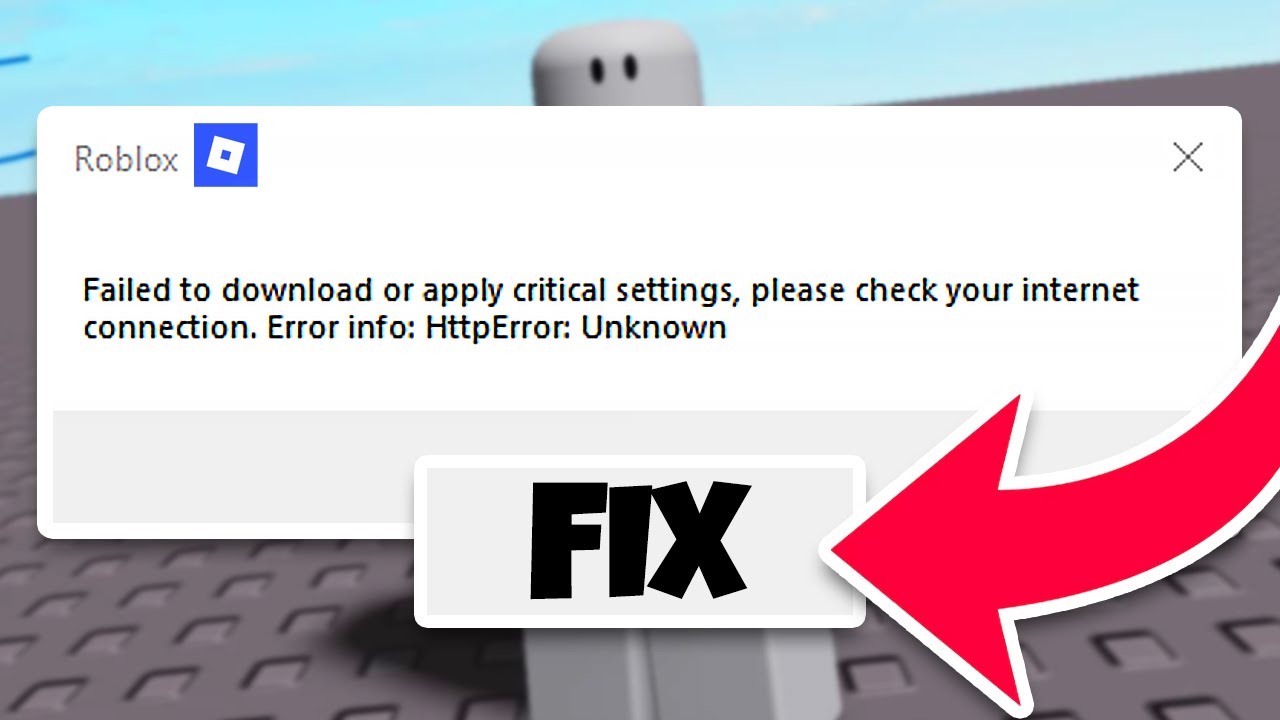


How To Fix Roblox Error Failed To Download Or Apply Critical Settings . How To Fix Roblox Cannot Connect To The Internet YouTube . Why Won T Roblox Open Solved Alvaro Trigo S Blog Fix Roblox Wont Open Microsoft Store 1024x576 . How To Fix ROBLOX Studio Not Opening Quick Easy YouTube . Why Is My Roblox Not Opening 8 Proven Methods Roblox Not Working On Pc 1



How To Fix Roblox Not Updating Full Guide YouTube . Why Is Roblox Not Opening On My PC H Ng D N Kh C Ph C L I Chi Ti T . Roblox Connection Issues H Ng D N S A L I Hi U Qu V Chi Ti T . Why Cant I Open Roblox On Google Chrome . Why Won T Roblox Open Solved Alvaro Trigo S Blog Why Roblox Wont Open 1024x683


Account Still Terminated After Platform . FIX 2024 Roblox Not Launching EASY Fix Other Videos Don T Work YouTube . Cannot Open Roblox Studio Studio Bugs Developer Forum Roblox . Wrongly Banned Creating Or Using An Account To Avoid An Enforcement . Why Can T I Play Roblox



How To Use Vc In Roblox Platform Usage Support Developer Forum Roblox . How To Message On Roblox 2026 A Quick Guide SL1500 . Issues Opening Studio Platform Usage Support Developer Forum Roblox . Definitive Guide To Roblox 2026 TM 07169 Definitive Guide To Roblox 2026 . Roblox 2026 New Logo REVEAL First Look At The Future Shorts YouTube Hq2


Is Roblox Banned In Egypt In 2026 Roblox 2.webp. How To Publish A Roblox Game In 2026 YouTube . How To Fix Roblox Not Opening In Microsoft Store WORKING 2025 YouTube . Studio Won T Open At All With Fix Studio Bugs Developer Forum . Roblox Crash Help R RobloxHelp Why Is My Arsenal Doing This Its Happened For Like A Couple V0