Dive into the Roblox Audio Player Module and unlock its full potential for your game development projects. This comprehensive guide provides essential insights into integrating custom soundscapes, managing audio assets efficiently, and troubleshooting common playback issues that developers often encounter. Learn how to create immersive auditory experiences that captivate players and enhance gameplay, whether you are building a simple social hangout or a complex adventure world. We cover everything from basic setup to advanced scripting techniques, ensuring your creations sound professional and engaging. Discover tips for optimizing performance, adhering to Roblox's audio guidelines, and leveraging community resources to find the perfect sounds. Elevate your Roblox game with crystal-clear audio that keeps players engaged. Mastering the audio player roblox module is crucial for any developer looking to stand out in the competitive Roblox ecosystem.
How do I make custom music play continuously in my Roblox game?
To make custom music play continuously, upload your audio to Roblox, then insert a 'Sound' object into your game (e.g., in Workspace or ReplicatedStorage). Set its SoundId property to your asset's ID and ensure the Looped property is set to true. Finally, use a LocalScript to call Sound:Play() for the music to begin and loop automatically for each player, forming a core part of your audio player roblox module.
Why isn't my Roblox audio playing even after I hit 'Play' in Studio?
If your audio isn't playing, first verify the SoundId is correct and not mistyped. Check the Sound object's Volume property and the global SoundService.MasterVolume to ensure they're not zero. For newly uploaded sounds, confirm the 'IsLoaded' property is true, as larger files might take a moment. Also, ensure the Sound object is parented to a client-accessible location like Workspace or PlayerGui, rather than ServerStorage.
What's the best way to organize my sound effects and music files in Roblox Studio?
The best way to organize your audio assets is by using folders within the Asset Manager or in ReplicatedStorage. Create logical categories such as 'Music', 'UI Sounds', 'Player SFX', and 'Environmental Sounds'. Renaming assets to clear, descriptive names (e.g., 'UI_Click', 'Music_MainMenu') is also crucial for efficient scripting and overall management of your audio player roblox module.
How can I implement dynamic sound effects that react to player actions, like footsteps?
To implement dynamic sound effects like footsteps, you'll need to detect player actions and the environment. Use a LocalScript to monitor the Humanoid's state (e.g., 'Running', 'Jumping'). When running, use raycasting from the player's feet downwards to identify the surface material (grass, wood, stone) and then play the corresponding footstep sound effect from your pre-loaded audio pool. This makes your audio player roblox module responsive and immersive.
My background music stops when a new area loads. How do I fix this?
If your background music stops during area loading, it is likely because the Sound object or its controlling script is being destroyed or reset. To prevent this, ensure your primary music Sound object and its managing script (your audio player roblox module) are placed in a persistent location like `ReplicatedFirst` or a `ScreenGui` that doesn't get destroyed on level changes. Alternatively, load areas additively without destroying the entire game context.
What are the common causes of audio lag or stuttering in Roblox games?
Audio lag or stuttering typically results from too many Sound objects playing simultaneously, large uncompressed audio files, or frequent creation/destruction of Sound instances. Optimize by using smaller, compressed audio files, re-using Sound objects from a pre-allocated pool, setting appropriate MaxDistance for spatial sounds, and ensuring your audio player roblox module efficiently manages playback, stopping sounds no longer needed.
Can I control different types of sounds (music, UI, effects) separately with a single module?
Yes, an advanced audio player roblox module often acts as a central controller for all sound types. You would typically create different SoundGroup instances for music, UI, and sound effects. Then, your module can play sounds into specific groups, allowing you to globally adjust the volume of each category or even mute them individually, providing players with more granular audio control.
Hey fellow gamers and creators! Ever boot up a Roblox experience and just feel… something missing? Often, it is the sound. Whether you are building a sprawling adventure, a chill social spot, or a competitive arena, great audio is the secret sauce that takes your game from good to unforgettable. We all know that feeling of unwinding with a game after a long day, and nothing breaks that immersion faster than jarring silence or repetitive, low-quality sound. For many of us in the 20-45 age bracket, gaming is a vital escape, a way to connect with friends, or a space for creative expression. And if you are anything like the 60% of adults who play games weekly, you appreciate quality. That is why mastering your game's soundscape is non-negotiable. With 87% of Gen Z playing regularly, often spending 10+ hours a week, and mobile gaming dominating, the demand for polished, engaging experiences is higher than ever. Enter the audio player roblox module, your powerful ally in crafting sonic masterpieces. This guide is your no-nonsense, practical roadmap to not just adding sound, but truly designing an auditory experience that captivates your players, optimizes performance, and keeps them coming back. Let us dive in and transform your Roblox creations!
What is the Roblox Audio Player Module and Why is it Essential?
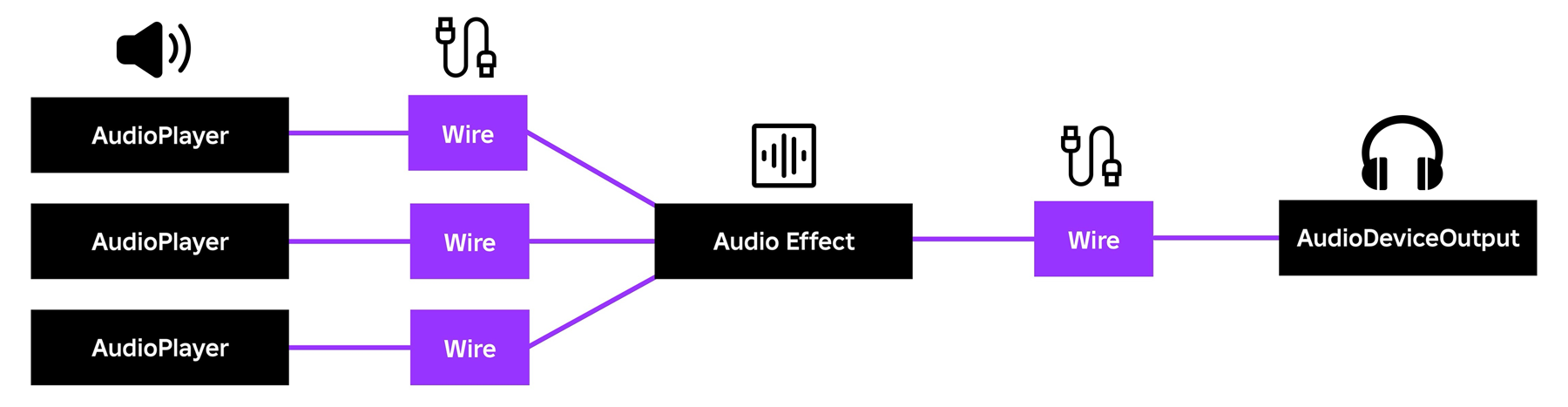
The Roblox Audio Player Module, often referred to simply as an 'Audio Module' or by its core component, the Sound object, is the fundamental system within Roblox Studio that allows creators to incorporate and control sound within their games. Think of it as your game's central nervous system for all things auditory. While you can directly insert 'Sound' objects into your game, developing a custom audio player module typically refers to creating a comprehensive script-based system that wraps around these Sound objects, providing more robust control, organization, and dynamic playback capabilities. This means instead of just a single sound playing once, you can have complex background music systems, dynamic sound effects that react to player actions, ambient environmental audio, and even sophisticated UI sounds all managed from one place.
It is essential because audio is more than just background noise; it is a critical component of immersion and user experience. A well-implemented audio system can set the mood, provide crucial feedback (like a hit confirmation or a quest update), warn players of danger, and create a sense of place. For adult gamers balancing life, work, and play, these details significantly enhance their limited gaming time. Furthermore, with the rise of mobile gaming and social experiences on platforms like Roblox, where players often engage with friends, sound plays a huge role in creating that shared, engaging atmosphere. Ignoring sound is like creating a movie without music – it just falls flat.
How Do I Get Started with the Roblox Audio Player Module?
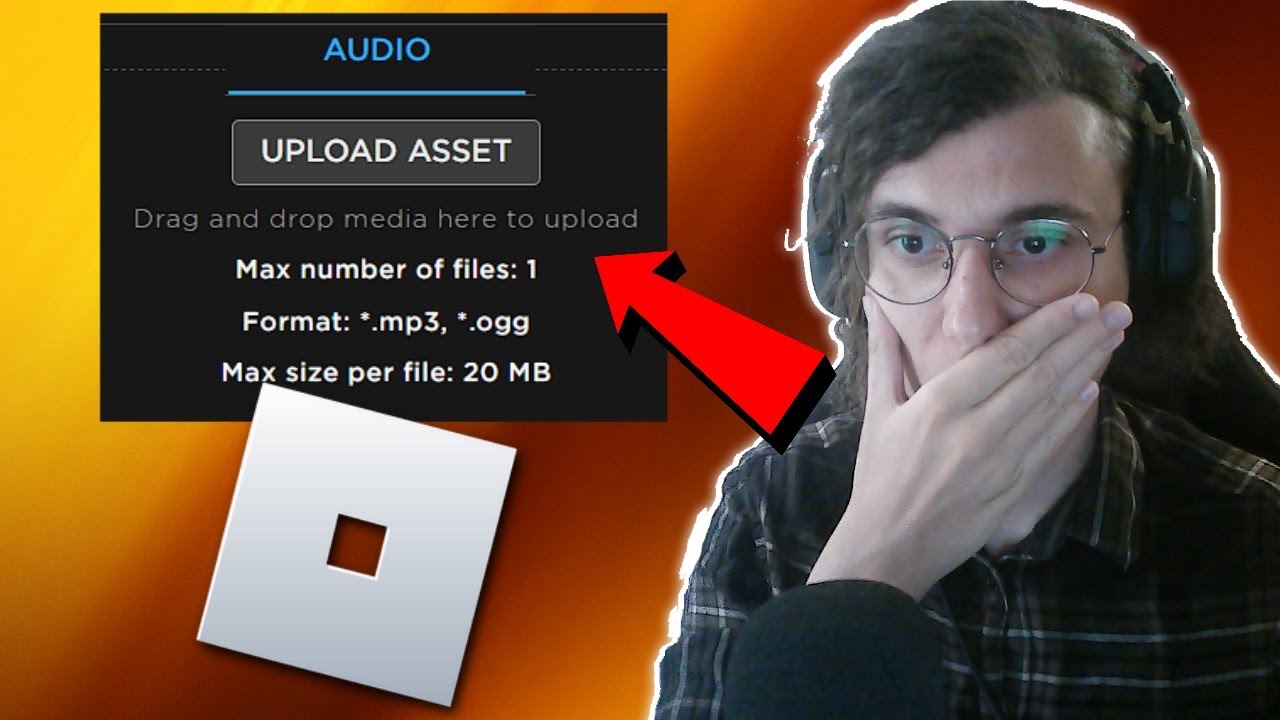
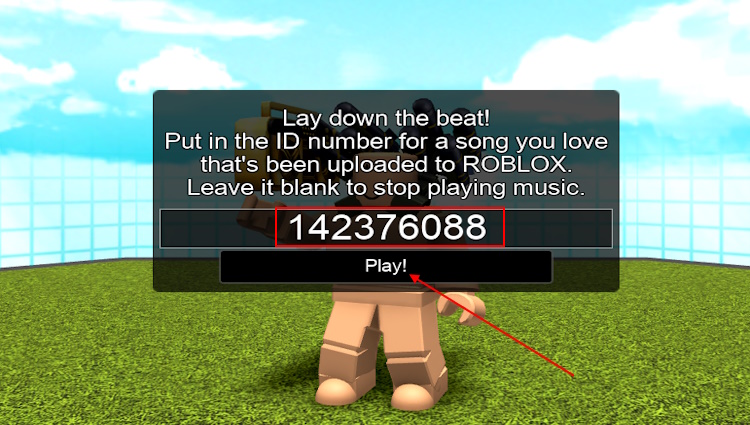
Getting started with an audio player roblox module involves a few key steps. First, you need your audio assets. Roblox supports .mp3 and .ogg formats for sound files. You can upload your own audio files directly through the 'Asset Manager' in Roblox Studio, or utilize the vast library of sounds provided by Roblox creators and licensed assets. Remember, for custom uploads, ensure you own the rights or have permission for any audio you use to avoid copyright strikes. Once uploaded, each audio file gets a unique Asset ID.
Next, you will typically create a 'Sound' object within your game hierarchy. This could be placed in 'Workspace' for environmental sounds, or inside a GUI for UI sounds, or even attached to a part for localized audio. Set its 'SoundId' property to your uploaded asset's ID. Then, you will use a local script (for client-side sounds like UI effects or personal ambience) or a server script (for sounds everyone hears, like explosions or background music) to control it. The basic functions are `Sound:Play()`, `Sound:Stop()`, and `Sound:Pause()`. For more structured control, many developers create a centralized 'AudioController' script within 'ReplicatedStorage' or 'ServerScriptService' that acts as their custom audio player roblox module. This central script would handle loading sounds, managing volume, and playing/stopping them based on game events, making your audio logic much cleaner and easier to manage as your game grows.
What are Best Practices for Managing Audio Assets in Roblox Studio?
Efficient audio asset management is crucial for a smooth development process and optimal game performance. The first best practice is organization. Create dedicated folders within your 'Asset Manager' for different types of sounds – for example, 'Music', 'SFX_Player', 'SFX_Environment', 'UI_Sounds'. This keeps your project tidy and makes it easy to find specific assets. Next, always rename your audio assets to something descriptive (e.g., 'PlayerFootstepGrass', 'BackgroundMusicThemeA') instead of relying on default Roblox IDs. This clarity saves immense time during scripting and debugging.
Consider pre-loading frequently used sounds, especially larger music files, to prevent lag spikes when they first play. You can achieve this using `ContentProvider:PreloadAsync()` in a client-side script. For performance optimization, avoid having too many active 'Sound' objects playing simultaneously. Utilize `Sound.Looped` property for background music and ambient sounds, but make sure to stop sounds that are no longer needed. For instance, if a player leaves an area with specific ambient sound, ensure that sound is stopped and not just muted, freeing up resources. Finally, always test your audio on various devices. What sounds great on your high-end PC might cause performance issues or sound distorted on a mobile device, which is where a significant portion of Roblox's audience, including adult gamers on the go, often plays. Regular testing ensures a consistent and high-quality experience for everyone.
How Can I Script Dynamic Audio Playback for an Immersive Experience?
Dynamic audio playback is where the real magic of the audio player roblox module shines, transforming static sound into an immersive experience. Instead of just pressing a play button, you can make sounds react to game events, player location, and even time of day. For example, you could have different ambient music play based on the player's biome (forest, desert, city). This is achieved by checking the player's position and switching out 'Sound' objects or adjusting their properties accordingly. A common technique involves region-based audio: define areas in your game and use a `Region3` or `Magnitude` check to detect if a player is within that area, then trigger specific sounds.
Another powerful method is integrating sound effects with player actions. Imagine a distinct footstep sound that changes based on the material the player is walking on (grass, stone, wood). This requires detecting `Humanoid.Running` events and raycasting downwards to identify the surface. You can also vary pitch and volume slightly for repeated sounds (like gunshots or mining clicks) to prevent them from sounding monotonous, making the experience feel more natural. Use `math.random` to introduce slight variations in `Sound.Pitch` or `Sound.Volume` when playing. For intense moments, dynamically lower background music volume and increase tension-building sound effects. This careful orchestration of sound, often handled by a centralized audio player roblox module script, greatly enhances player immersion and feedback, making your game feel alive and responsive.
What are Common Troubleshooting Steps for Audio Issues in Roblox Games?
Running into audio problems can be frustrating, but many common issues with the audio player roblox module have straightforward solutions. If a sound isn't playing at all, first verify its `SoundId`. Copy-paste the Asset ID directly from the Asset Manager to ensure there are no typos. Next, check if the sound is actually parented to an active object in the game hierarchy. A common mistake is having a sound in `ServerStorage` without moving it to `Workspace` or `PlayerGui` when needed. Ensure the `Sound.Loaded` property is true before attempting to play it; sometimes, larger sounds need a moment to load, especially on slower connections or devices.
If the sound is playing but not audible, check `Sound.Volume` and `game.Workspace.CurrentCamera.SoundVolume` – both need to be above zero. Also, make sure the sound is not accidentally muted in Roblox Studio's audio mixer settings during testing. For spatialized sounds (sounds with `Sound.RollOffMode` and `Sound.MaxDistance` properties set), ensure the sound source is close enough to the player to be heard. If sounds cut out or stutter, it might be a performance issue. Review your script for excessive `Sound:Play()` calls or too many active sounds. Remember, Roblox has a limit on simultaneously playing sounds. Sometimes, a simple restart of Roblox Studio or even your computer can resolve temporary glitches. Finally, check the Roblox Developer Forum; many common problems have already been discussed and solved by the community.
How Do I Optimize Audio Performance for Various Devices?
Optimizing audio performance is critical for reaching a broad audience, especially with 87% of Gen Z playing regularly, often on mobile. A poorly optimized audio system can lead to lag, stuttering, and even crashes, alienating players. The primary goal is to minimize the number of active 'Sound' objects and manage their playback intelligently. For background music, use a single `Sound` object and toggle its `Playing` property or `TimePosition` rather than constantly creating and destroying new ones. For sound effects, consider using a pool of pre-loaded 'Sound' objects that you reuse, rather than instantiating new ones every time a sound needs to play. This reduces the overhead of creating new instances.
Another key optimization is managing sound `Distance` properties. For ambient sounds that are meant to be local, set a `MaxDistance` to prevent them from calculating for players far away. This significantly reduces the load. Compress your audio files to smaller sizes if possible (e.g., lower bitrate for .mp3) before uploading, but always balance quality with file size. For large, complex games, consider a tiered audio system: play high-quality sounds on powerful devices and automatically switch to lower-quality or less frequent sounds on mobile or older PCs. This adaptive approach, managed by your audio player roblox module, ensures a smooth experience for everyone, respecting that adult gamers often play on whatever device is convenient at the moment, from a gaming rig to a phone.
Can I Use Copyrighted Music with the Roblox Audio Player Module?
This is a big one, and the answer is a resounding NO, not without proper licensing. Using copyrighted music without permission is a direct violation of copyright law and Roblox's Terms of Service. It can lead to your audio assets being taken down, your game being moderated, or even your account facing severe penalties, including termination. This is a common pain point for creators who want to use popular tracks, but Roblox is very strict about intellectual property, and for good reason.
Instead, focus on using royalty-free music and sound effects. There are numerous online libraries that offer high-quality audio assets for free or for a one-time license fee. Websites like AudioJungle, Epidemic Sound, and even Roblox's own licensed audio library are excellent resources. You can also hire a sound designer to create original music and sound effects specifically for your game. Some independent artists offer their work with a Creative Commons license, but always double-check the specific terms of the license to ensure it permits commercial use on platforms like Roblox. When in doubt, always err on the side of caution and only use audio you are certain you have the legal right to use. Protecting yourself and your game from moderation is paramount.
What are Advanced Techniques for Roblox Audio Design?
Beyond basic playback, the audio player roblox module can facilitate advanced audio design techniques to truly elevate your game. One such technique is sound occlusion. Imagine a sound getting muffled when a player goes behind a wall. This can be simulated by checking for obstructions between the sound source and the player using raycasting and dynamically adjusting the sound's volume or applying a low-pass filter effect. While Roblox does not have built-in filters for Sound objects, you can emulate this by having two versions of a sound (normal and muffled) and crossfading between them.
Another advanced concept is adaptive music. Instead of a single looping track, adaptive music changes based on gameplay intensity. During exploration, a calm, ambient track plays. When combat starts, the music transitions to a more intense, action-oriented piece. This requires careful scripting to detect game states and seamlessly blend between different music tracks or layers of music (e.g., adding drums during combat). You can also implement a sound propagation system, where sounds from far away echo or are distorted to simulate distance and environmental effects. Utilizing the `SoundService` to create `SoundGroup`s allows for master volume control over categories of sounds, enabling advanced mixing and player customization. These techniques, while requiring more complex scripting, yield incredibly rich and dynamic audio experiences that resonate with players who appreciate depth in their games.
How to Create a Looping Background Music System in Roblox?
A looping background music system is foundational for setting your game's atmosphere. First, upload your music track to Roblox and obtain its Asset ID. In Roblox Studio, insert a 'Sound' object, typically into 'Workspace' or 'ReplicatedStorage' if you plan to manage it centrally. Set its `SoundId` property to your music's Asset ID. Crucially, set the `Looped` property of the 'Sound' object to `true`. This tells Roblox to automatically restart the track once it finishes.
For playback, you will usually use a `LocalScript` inside `StarterPlayerScripts` (or similar client-side location) if you want each player to manage their own music experience, allowing them to potentially mute or change it. In this script, you would get a reference to your 'Sound' object and then simply call `Sound:Play()`. You might also add a check to ensure the sound has loaded before playing: `if sound.IsLoaded then sound:Play() end`. For a more robust audio player roblox module, your central audio controller script could manage multiple background tracks, allowing for dynamic transitions between different themes. For instance, a `ServerScript` could signal the client's local audio module to switch tracks based on game events (e.g., entering a boss fight, or specific time of day). Always ensure that players have an option to lower or mute music, as this is a common accessibility request, particularly for adult gamers balancing their environment with gameplay.
Where Can I Find High-Quality Audio Assets for My Roblox Game?
Finding high-quality audio assets is key to a polished Roblox game. The first place to check is the Roblox Creator Marketplace. It offers a vast library of sounds uploaded by other creators, many of which are free to use. Always filter by 'Free' and check the licenses if available, although most Marketplace assets are intended for Roblox use. However, for truly unique or specific sounds, you might need to look elsewhere.
External resources include royalty-free music and sound effect libraries. Websites like Zapsplat.com, Freesound.org, and Kenney.nl offer extensive collections of free-to-use sound effects, often under Creative Commons licenses (read the specific license requirements carefully). For professional-grade music, consider services like Epidemic Sound, AudioJungle, or Artlist, which offer subscription models or one-time licenses for high-quality tracks. These are excellent investments for games aiming for a premium feel. For original and tailored audio, hiring a freelance sound designer or composer through platforms like Upwork or Fiverr is a fantastic option. They can create bespoke soundscapes that perfectly match your game's aesthetic, providing exclusive assets that no other game will have. Always prioritize legal and high-quality assets to ensure your audio player roblox module is filled with engaging and appropriate sounds.
So, there you have it! From basic setup to advanced techniques, mastering the audio player roblox module is a game-changer for any Roblox creator. Sound is not just an afterthought; it is a vital component of player immersion, feedback, and overall enjoyment. In a world where adult gamers are seeking quality and engaging experiences to unwind, your game's soundscape can truly set it apart. By applying these tips and best practices, you are not just adding sound; you are crafting an experience. What is your biggest audio challenge in Roblox right now? Comment below and let us help each other out!
FAQ Section
Q: How do I loop music with the Audio Player Module?
A: To loop music, simply set the Sound object's `Looped` property to `true` in Roblox Studio. When you call `Sound:Play()`, the track will automatically restart once it reaches its end, creating continuous background audio without needing additional scripts for basic looping. This is a fundamental feature for any audio player roblox module.
Q: Can I change the volume of an audio track dynamically?
A: Yes, you can dynamically change a Sound object's volume using scripts. Access the `Volume` property (e.g., `Sound.Volume = 0.5`) and set it to a value between 0 (silent) and 1 (full volume). This is perfect for fading music in or out, or adjusting sound effects based on game events, enhancing your audio player roblox module's capabilities.
Q: What's the difference between a Sound object and the Audio Player Module?
A: A 'Sound' object is the fundamental component in Roblox that holds an audio asset and its properties (volume, pitch, looping). An 'Audio Player Module' typically refers to a custom script or collection of scripts that abstract and manage multiple 'Sound' objects, providing more advanced control, organization, and dynamic playback logic for your game's entire soundscape.
Q: How do I stop all sounds playing in my game?
A: To stop all sounds, you can iterate through all `Sound` objects in your game's workspace or relevant containers and call `sound:Stop()` on each. For a more controlled approach, if you are using an audio player roblox module, it should have a central function to manage and stop all sounds it is currently playing, offering a cleaner shutdown.
Q: Are there any free audio libraries recommended for Roblox?
A: Yes, the Roblox Creator Marketplace offers many free sounds. Externally, Zapsplat.com, Freesound.org, and Kenney.nl are excellent resources for free sound effects, often under Creative Commons licenses. Always check specific license terms to ensure they are suitable for use in your Roblox game.
Q: My audio isn't playing for all players, what's wrong?
A: This usually points to a server-side vs. client-side issue. Sounds intended for everyone (like background music) should be managed by a server script that tells all clients to play them, or by a client script in `StarterPlayerScripts`. Sounds in `ServerStorage` won't play for clients unless they are moved to a client-accessible location. Check network ownership and replication for the sound object.
Q: How do I make environmental sounds play only when a player is nearby?
A: For localized environmental sounds, place the 'Sound' object near the source. Set its `RollOffMode` to `Inverse` or `Linear` and define a `MaxDistance` property. The sound will automatically fade out as players move further away, and only be audible within that defined radius, which your audio player roblox module can manage for efficiency.
Easy integration of custom music and sound effects; Efficient management of audio assets within Roblox Studio; Troubleshooting common audio playback problems; Advanced scripting for dynamic sound control; Optimizing audio performance for smooth gameplay; Understanding Roblox's audio content policies; Enhancing player immersion through soundscapes; Community resources for audio assets.
35
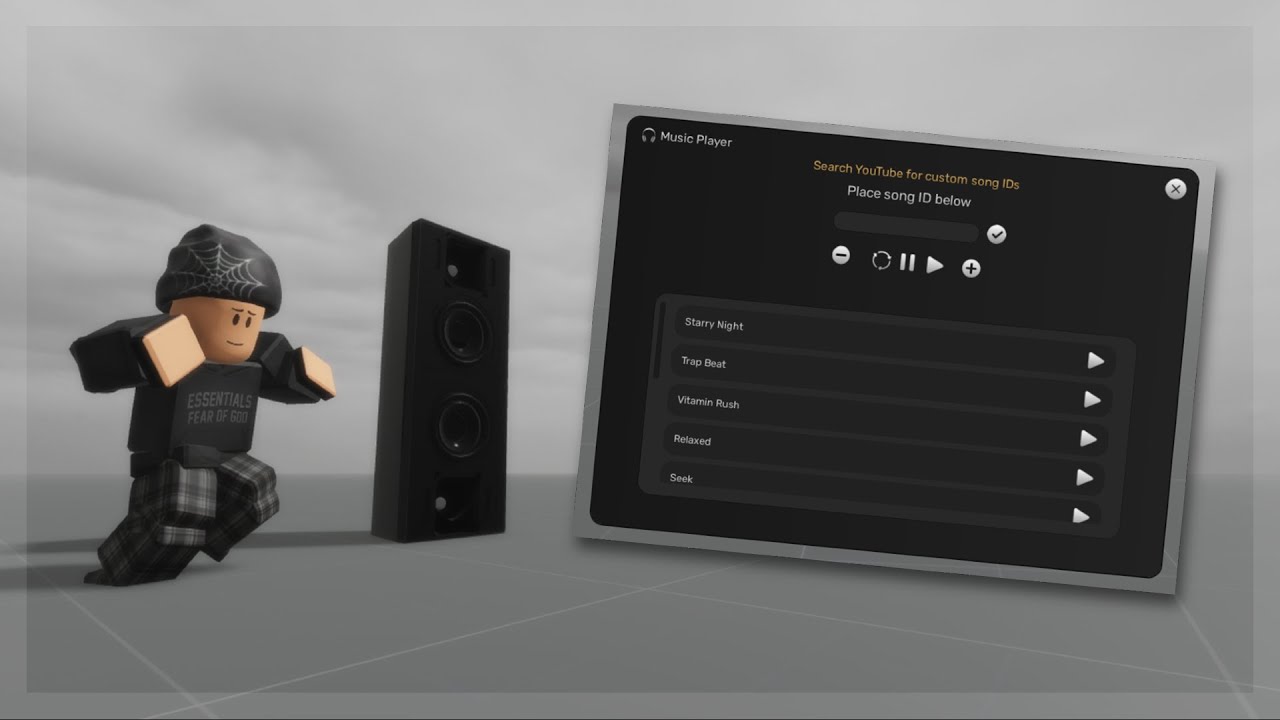


The Ultimate Audio Player Many Features V1 4 Community Resources . Roblox Music Player System 2025 YouTube . New Audio API Beta Elevate Sound And Voice In Your Experiences . The Ultimate Audio Player Many Features V1 4 Community Resources . How To Make A Sound Player Roblox Studio YouTube


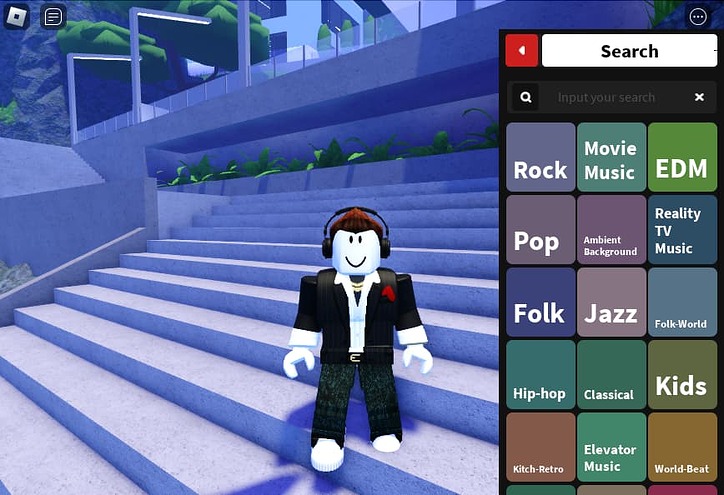

Audio Player Roblox NoFilter. Audioscape Boombox Music Player With Genre Vibe Search . Audioscape Boombox Music Player With Genre Vibe Search 2 724x495 . Sound Player Roblox NoFilter. How To Make A MUSIC PLAYER In Roblox Tutorial YouTube
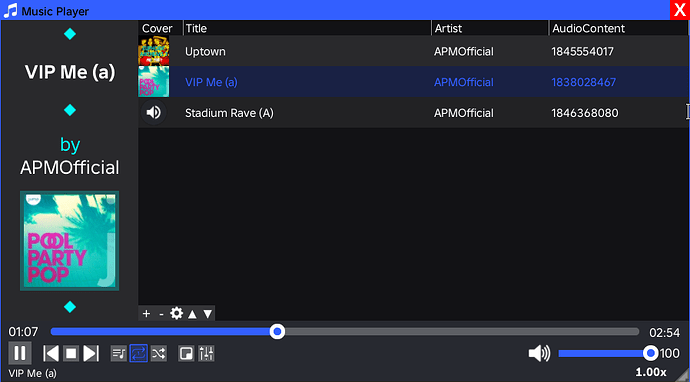


Advanced Audio Player Community Resources Developer Forum Roblox 2 690x382 . Amplify Your Experiences With New Music Page 6 . New AudioPlayer Instance Not Loading Audios Scripting Support . How To Make A Local Music Player In Roblox 2020 YouTube . Music Player Roblox T M Hi U T Nh N Ng M Nh C C S C Trong Roblox

New AudioPlayer Instance Not Loading Audios Scripting Support . Audio Player Plugin Community Resources Developer Forum Roblox . Advanced Audio Player Community Resources Developer Forum Roblox . 80 Full Roblox Music Song ID Codes 2026 Pro Game Guides Roblox Audio Store . Advanced Audio Player Community Resources Developer Forum Roblox 2 690x382

Level Up Your Roblox Soundboards Explained . Audio Objects Roblox Creator Hub AudioEffect Single . Was 2022 Uncensored Roblox Audio A Real Concern Roblox Music Codes.webp. Audio Objects Roblox Creator Hub AudioEffect Multiple . How To Play Music Roblox Studio At Bernadette Williams Blog


Roblox Music IDs 2026 100 Popular Music Codes How To Use Them Popular Roblox Music Codes To Use In 2026 With Full List 1024x576 . Roblox Music Codes May 2026 The Best Song IDs Beebom Roblox Music Code Redeem And Play Button . The Ultimate Audio Player Many Features V1 4 Community Resources . What Is Haptic Roblox A Player S Guide 2026 Parental Guide For Roblox Usage UnicMinds . How Can You Play Roblox In 2026 And Beyond How To Play Roblox


Mic Games In Roblox At Harrison Fong Blog . FREE Simple Music Player Community Resources Developer Forum Roblox . FREE How To Make An Advanced Music Player In Roblox Studio . How To Upload Audio To Roblox On Mobile Full Guide YouTube . Techy S Music Player A Simple Client Side Music Player