Ever found yourself in Roblox, witnessing an epic build, a hilarious glitch, or a triumph with friends, and wished you could instantly freeze that moment in time? For many busy US gamers, averaging around 36 years old and dedicating 10+ hours a week to their passion, capturing these fleeting digital memories on PC is essential. Whether it is to share with family, post on Discord, or simply document progress, knowing how to take a screenshot quickly and efficiently without disrupting your valuable play session is a must-have skill. This comprehensive guide will walk you through every method, from simple keyboard shortcuts to advanced capture tools like the Xbox Game Bar, ensuring you never miss another shareable Roblox moment. We will cover how to take a screenshot on Roblox PC using native Windows features, third-party applications, and even specific in-game options. Get ready to easily snap, save, and share your favorite Roblox experiences, making your gaming more connected and memorable.
How do I quickly capture a moment in Roblox on PC?
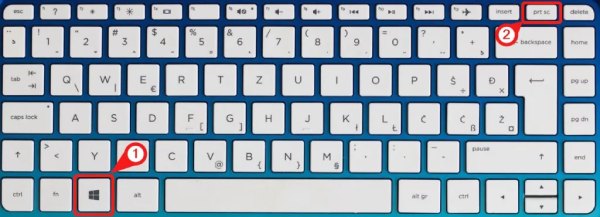
The quickest way to capture a screenshot in Roblox on your PC is by using the **Print Screen (PrtSc)** key. Simply press PrtSc to copy the entire screen to your clipboard, or Alt+PrtSc to capture just the active window. You then paste it into an image editor like Paint or a messaging app. This method is fast and built into Windows, making it ideal for those unexpected, fleeting Roblox triumphs or funny glitches you want to share immediately without pausing the action. For a more direct save, press **Windows key + Print Screen** simultaneously, and Windows will automatically save the screenshot to your Pictures/Screenshots folder, letting you get back to gaming faster.
What's the best way to get a high-quality Roblox screenshot for sharing?
For high-quality Roblox screenshots perfect for sharing on social media or with your online gaming community, the **Xbox Game Bar** (Windows key + G) is an excellent option. It offers a dedicated "Capture" widget that allows you to take screenshots, record video, and even capture a retrospective buffer of the last 30 seconds of gameplay. The Game Bar captures high-resolution images directly, often without performance impact, and integrates well with Windows' gaming features. After capturing, you can easily access your screenshots via the Game Bar's gallery or directly from your Videos/Captures folder, ensuring you get a crisp, shareable image of your Roblox adventures.
Where do my Roblox screenshots go after I take them on PC?
The location of your Roblox screenshots depends on the method you use. If you press **Windows key + Print Screen**, Windows automatically saves the image as a PNG file in your "Pictures" folder, specifically within a subfolder named "Screenshots." If you use the **Snipping Tool** or **Snip & Sketch**, you'll typically be prompted to save the image to a location of your choosing, or it will remain in the application for immediate editing and saving. For screenshots taken with the **Xbox Game Bar**, they are stored in your "Videos" folder, inside a "Captures" subfolder. Understanding these default locations helps busy gamers quickly retrieve and manage their captured Roblox moments.
Can I crop or edit Roblox screenshots right after taking them on PC?
Absolutely! Windows offers several built-in tools for immediate cropping and basic editing of your Roblox screenshots. The **Snipping Tool** and its successor, **Snip & Sketch** (accessible via Windows key + Shift + S), are perfect for this. After capturing a region of your screen, these tools open the image in a basic editor where you can crop, highlight, or draw on it before saving. For full-screen captures using the Print Screen key, pasting into **Paint** or the Photos app allows for quick resizing, cropping, and minor adjustments. This immediate editing capability is great for gamers who need to highlight specific details or remove distracting elements before sharing their Roblox moments.
Is there a way to screenshot Roblox on PC without showing my taskbar or other desktop elements?
Yes, there are several effective ways to screenshot Roblox on PC without clutter from your taskbar or other desktop elements, giving you a clean game image. The **Alt + Print Screen** key combination captures only the active window, meaning if Roblox is your active window, it will screenshot just the game. Similarly, the **Snipping Tool** or **Snip & Sketch** (Windows key + Shift + S) allows you to select a specific rectangular area, letting you precisely capture only the Roblox game window. The **Xbox Game Bar** also focuses primarily on game content, effectively minimizing desktop intrusions. These methods are invaluable for creating professional-looking or focused screenshots of your Roblox gameplay.
Why would a busy adult gamer need to take screenshots in Roblox?
Busy adult gamers often find themselves needing to take screenshots in Roblox for a variety of practical and social reasons. For those balancing work and family, quick screenshots are invaluable for sharing funny or impressive moments with friends or kids later, documenting progress in a complex Roblox experience, or even troubleshooting a bug that's eating into limited playtime. They might capture a unique item found, a new build, or an epic social gathering with online friends, making these fleeting digital memories tangible. It's about efficiently preserving the fun, building connections, and optimizing their precious gaming time, turning a quick in-game moment into a shareable story without much fuss.
Are there any Roblox specific tools or settings to help with screenshots?
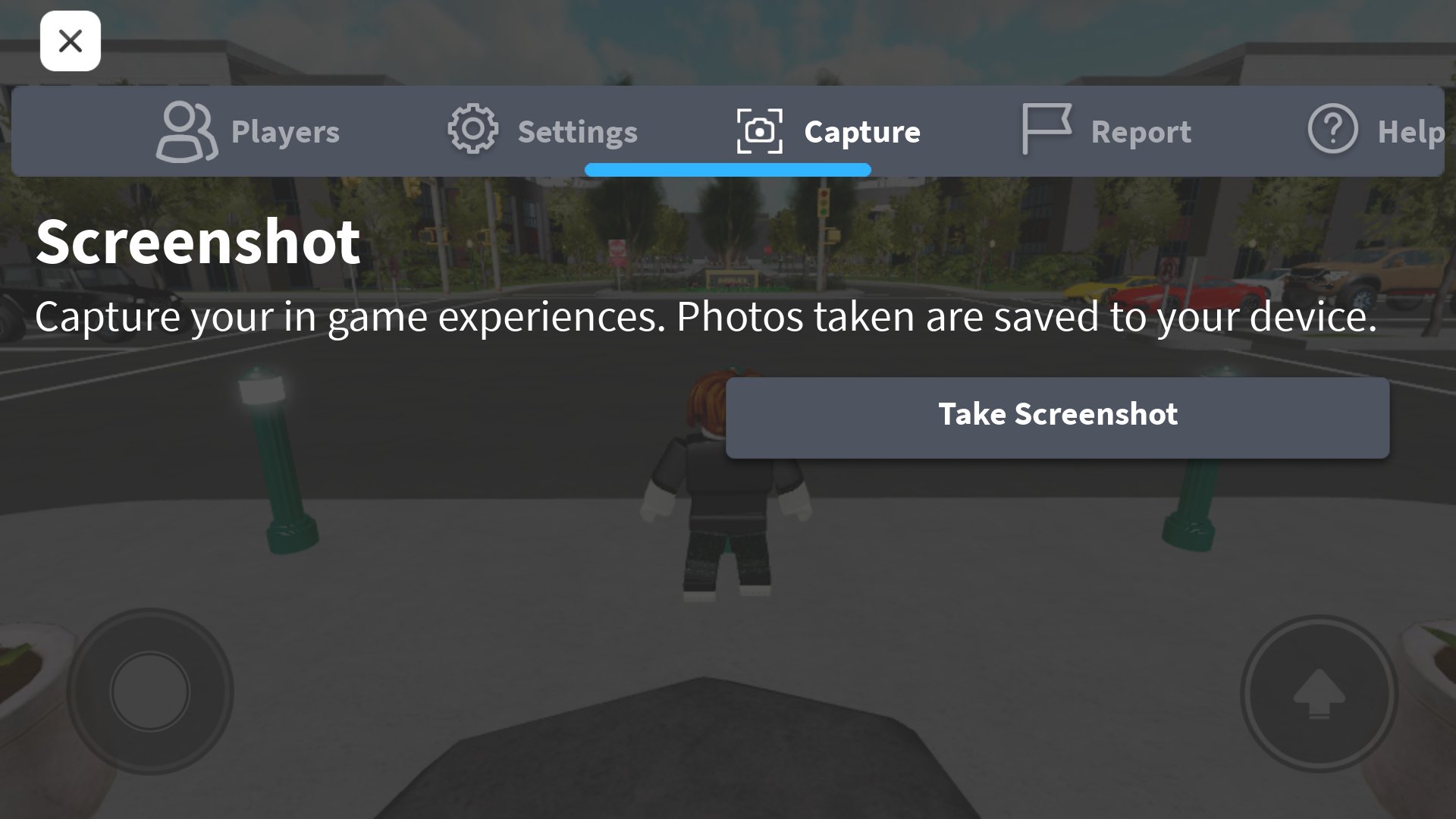
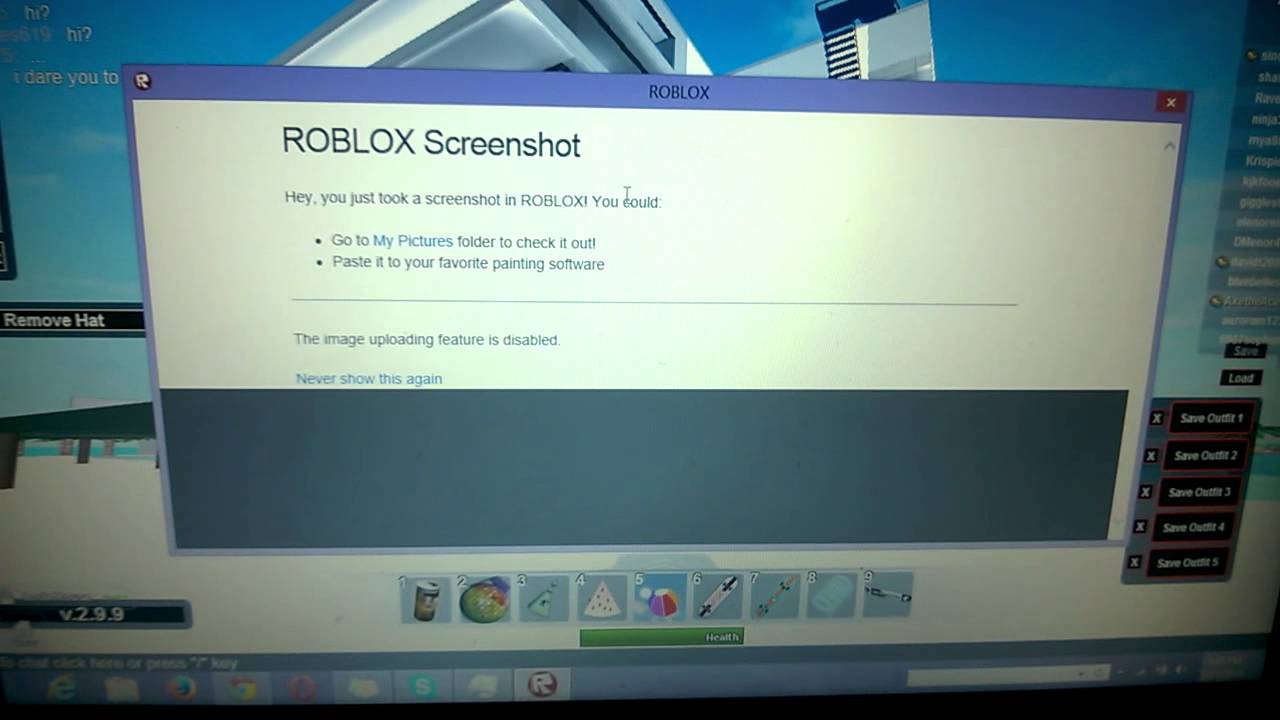
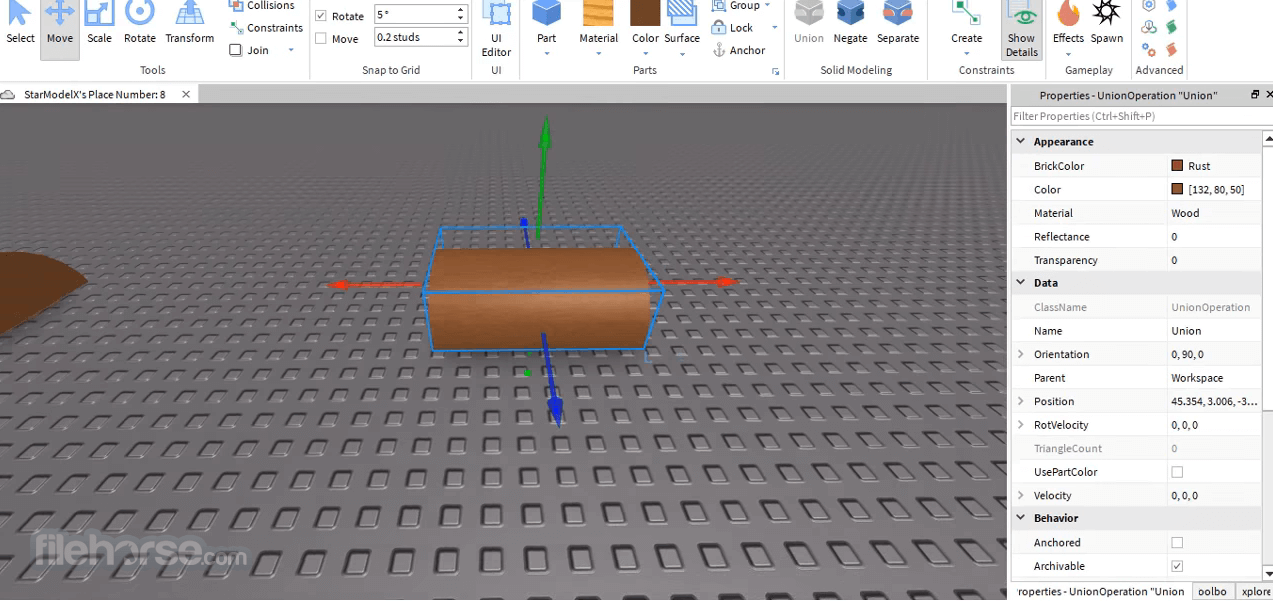
While the Roblox client itself doesn't have a universal "screenshot" button that saves to your computer like some other games, it does offer a few useful features. The **Roblox camera tool** (often found in the game menu or via specific experience controls) allows you to adjust your perspective for a perfect shot, especially useful for showcasing creations or character outfits. Additionally, some individual Roblox experiences might feature their own in-game camera or photo mode. For content creators or those wanting more control, **Roblox Studio** has a built-in "Take Screenshot" function under the "View" tab, which is primarily for development but can yield high-quality images. These options, combined with Windows' native tools, provide a comprehensive approach to capturing your Roblox world.
Ah, the classic gamer dilemma: you are deep in a thrilling Roblox experience, maybe showing off a new avatar outfit, completing a challenging parkour, or just chilling in a social hub with friends. Suddenly, something truly epic, hilarious, or beautiful happens, and your first thought is, "I need to capture this!" But then the scramble begins. Which key do I press? Where does it save? Does it even work? For the millions of US gamers who, like many of us, balance their love for gaming with demanding jobs and family life, every second of playtime is precious. You want to capture that moment without breaking the immersion or spending five minutes fumbling with controls. With 87% of US gamers regularly engaging and many dedicating upwards of 10 hours a week, sharing these digital memories across platforms like Discord or family chats is part of the fun and connection. This guide is your ultimate playbook for mastering how to take a screenshot on Roblox PC, ensuring you can snap, save, and share your best moments effortlessly, just like a pro.
We know your time is valuable. You want solutions that are quick, reliable, and get you back into the game faster. Forget complicated setups or obscure commands. We will break down every practical method, from the trusty Print Screen key to advanced tools that offer more control, all tailored for the average adult gamer looking for efficiency and quality. Let us dive in and transform you into a Roblox screenshot master, ready to preserve every unforgettable moment.
What is the Easiest Way to Take a Screenshot in Roblox on PC?
The absolute easiest way to take a screenshot in Roblox on your PC is by using the **Print Screen (PrtSc)** key, often labeled "PrtSc SysRq" or similar, found near the top-right of most keyboards. This method is a universal Windows function and requires no special software. When you press PrtSc, your entire screen is copied to your clipboard. You can then paste it into any image editing program like Paint, Paint 3D, or even directly into a messaging app like Discord or a document. For a slightly more direct approach that saves the file automatically, combine it with the Windows key.
To perform this:
- Open Roblox and navigate to the moment you wish to capture.
- Press the **PrtSc** key once.
- Open an image editor (e.g., Paint by typing "Paint" in the Windows search bar).
- Press **Ctrl + V** to paste the screenshot.
- Save the image from the editor (File > Save As).
This method is perfect for those spontaneous captures that busy gamers often need, letting you quickly immortalize a funny chat or a rare in-game occurrence.
How Do I Automatically Save a Roblox Screenshot on PC?
For gamers who want to capture a moment and have it saved automatically without the extra step of pasting into an editor, the **Windows key + Print Screen** combination is your best friend. This shortcut is incredibly efficient, allowing you to snap a picture and immediately get back to your Roblox adventure. It is ideal for those times when a quick, fuss-free save is paramount, like when you are in the middle of a fast-paced game or a social event where every second counts.
Here is how it works:
- While in Roblox, position your screen to capture the desired moment.
- Press the **Windows key + PrtSc** simultaneously. You will notice your screen briefly dim or flash, indicating a successful capture.
- The screenshot is automatically saved as a PNG file.
- To find your screenshot, navigate to your **"Pictures" folder** in File Explorer, then open the **"Screenshots" subfolder**.
This method has become a staple for many, especially those who prioritize convenience. It is a fantastic way to document your Roblox builds, character progress, or even funny bugs to report, all without breaking your stride.
What if I only want to screenshot the Roblox window, not my entire desktop?
Capturing only the active Roblox window without showing your taskbar, other applications, or desktop clutter is crucial for clean, professional-looking screenshots. This is particularly useful for content creators, or when sharing specific details without distractions. The **Alt + Print Screen** shortcut is specifically designed for this purpose, focusing solely on the window you are currently interacting with.
Follow these steps:
- Ensure Roblox is your active window (click on it once to bring it to the foreground).
- Press **Alt + PrtSc** simultaneously. This copies only the active window to your clipboard.
- Open an image editor (like Paint or Paint 3D).
- Press **Ctrl + V** to paste the screenshot.
- Save the image from the editor.
For even more control, Windows offers the **Snipping Tool** or its successor, **Snip & Sketch**. You can activate Snip & Sketch quickly by pressing **Windows key + Shift + S**. This allows you to draw a precise rectangle around the exact area you want to capture, giving you pixel-perfect control over your Roblox screenshot. This level of precision is especially valued by gamers who use screenshots for guides, tutorials, or detailed discussions within gaming communities.
How Can I Get the Best Quality Roblox Screenshots on PC?
For gamers who demand the absolute best quality from their Roblox screenshots, whether for high-resolution wallpapers, detailed guides, or impressive social media posts, the **Xbox Game Bar** is an invaluable tool. This integrated Windows feature provides robust capturing capabilities that go beyond simple static images, including video recording, and often captures at a higher fidelity than basic Print Screen functions. Its seamless integration means minimal disruption to your gameplay, a key consideration for busy adults balancing their gaming with life's other demands.
To use the Xbox Game Bar:
- While in Roblox, press **Windows key + G** to open the Xbox Game Bar overlay.
- Look for the "Capture" widget. It usually has a camera icon for screenshots and a record button for video.
- Click the **camera icon** to take a screenshot.
- The screenshot is automatically saved. To find it, click "See all my captures" within the Game Bar, or navigate to your **"Videos" folder** in File Explorer, then open the **"Captures" subfolder**.
The Xbox Game Bar is favored by many serious gamers because it often handles full-screen games better, ensuring your Roblox screenshots are crisp, vibrant, and free from common capture glitches. With social gaming trends dominating, where 87% of US gamers regularly play, capturing and sharing these high-quality moments is more important than ever for maintaining connections and showcasing achievements.
Are There Any Roblox-Specific Screenshot Features or Settings?
While the Roblox client itself does not have a universal "screenshot" button that saves directly to your computer like some standalone games, it does offer a few useful features that can enhance your screenshot-taking experience. Understanding these can help you compose more dynamic and engaging shots, especially for showcasing your builds or character designs.
- **In-Game Camera Tools:** Many individual Roblox experiences (games) include their own custom camera tools or photo modes. These are often accessible through the game's menu or via specific hotkeys within that experience. They might allow you to adjust field of view, apply filters, or hide UI elements, giving you more creative control over your shots. Always check the specific game's settings or tutorial for these features.
- **Roblox Studio's Screenshot Feature:** For creators or those working within Roblox Studio, there is a dedicated screenshot function. Under the "View" tab in Roblox Studio, you will find a "Take Screenshot" option. This is primarily for development purposes, allowing you to capture high-quality images of your creations, but it can also be used for general captures if you are in a testing environment.
- **Hiding UI (User Interface):** While not a direct screenshot feature, you can often improve your Roblox screenshots by temporarily hiding the user interface. Some Roblox experiences offer a setting to toggle the UI off (sometimes by pressing a specific key like 'H' or 'Ctrl + H', though this varies). A clean shot without health bars, chat windows, or other game elements can make your capture much more aesthetically pleasing.
These features, when combined with your Windows capture tools, empower you to truly control how you present your Roblox moments, catering to both casual players and aspiring content creators.
Why Do Busy Adult Gamers Need to Take Screenshots in Roblox?
For the average US gamer, around 36 years old, who is balancing a career, family, and other life commitments, gaming time is a cherished commodity. Taking screenshots in Roblox is not just a frivolous act; it serves several practical and deeply satisfying purposes:
- **Sharing Moments & Connecting:** Roblox is inherently social. Capturing a funny chat exchange, an epic team victory, or a beautiful sunset with friends allows these busy individuals to instantly share their experiences with their kids, spouses, or online gaming communities on platforms like Discord. It is a quick way to extend the social aspect of gaming beyond the play session.
- **Documenting Progress & Creations:** Whether it is a meticulously crafted build, a rare item acquisition, or reaching a significant milestone in a game, screenshots act as a visual diary. This is especially true for those who might not have hours to play daily but want to track their achievements and show off their hard work.
- **Troubleshooting & Reporting:** Sometimes, things go wrong. A bug, a glitch, or an unfair situation might occur. A quick screenshot provides undeniable proof, helping to report issues to developers or seek help from the community efficiently, minimizing frustration and wasted time.
- **Inspiration & Ideas:** Seeing something unique or innovative in another player's game or avatar can spark creativity. A screenshot serves as a quick reference, a digital sticky note for future builds or aesthetic choices.
- **Preserving Nostalgia:** As games evolve, so do their aesthetics and features. Screenshots are time capsules, preserving memories of how a favorite Roblox experience looked "back in the day" or remembering specific events with online friends.
In essence, taking screenshots allows busy adult gamers to maximize the value of their limited gaming time by making their experiences more shareable, memorable, and productive, fitting perfectly into a lifestyle that values efficiency and meaningful interactions.
How Can I Share My Roblox Screenshots Quickly with Friends or Online?
Once you have captured that perfect Roblox moment, the next step is usually sharing it! For the socially-minded gamer, especially those who balance online friendships with real-world responsibilities, quick and efficient sharing methods are key. You do not want to spend ages fiddling with file uploads when you could be gaming or spending time with family. Luckily, several straightforward ways exist to get your Roblox screenshots out there.
- **Direct Paste into Chat/Social Media:** If you used the **PrtSc** or **Alt + PrtSc** method, your screenshot is on your clipboard. You can often directly paste it (Ctrl + V) into chat applications like Discord, Slack, or even some social media platforms like X (formerly Twitter) or Facebook posts. This is arguably the fastest way for immediate sharing.
- **Using Cloud Storage & Link Sharing:** Once your screenshot is saved to your PC (e.g., in your "Pictures/Screenshots" folder), you can upload it to cloud storage services like Google Drive, Dropbox, or OneDrive. These services typically offer a "shareable link" which you can then send to friends or embed on forums. This is great for sharing high-quality images without direct attachment limits.
- **Social Media Platforms with Direct Upload:** Most social media platforms (Instagram, Facebook, X, Reddit) allow you to directly upload images from your computer. Simply navigate to the saved screenshot file and select it for upload. Remember to add relevant hashtags if you are sharing publicly to connect with other Roblox enthusiasts!
- **Email Attachments:** For more private sharing or sending to a specific contact, attaching the screenshot to an email is always an option. This is straightforward and ensures the recipient gets the full-quality image.
The method you choose depends on who you are sharing with and where, but with these options, your epic Roblox moments will be reaching their audience in no time.
What are Common Problems When Taking Roblox Screenshots and How to Fix Them?
Even with straightforward tools, gamers sometimes encounter hiccups when trying to capture their Roblox screens. These issues can be frustrating, especially when you are trying to capture a fleeting moment. Here are some common problems and their easy fixes, ensuring your screenshot experience is as smooth as your gameplay.
- **Problem: Screenshot is entirely black or a blank screen.**
This often happens with full-screen games, where some capture tools struggle to grab the image correctly. The system might only capture the overlay or a blank buffer.
Solution: Try playing Roblox in **borderless windowed mode** if the game or your PC settings allow. Alternatively, use the **Xbox Game Bar (Windows key + G)**; it is specifically designed to handle full-screen game captures effectively. Also, ensure your display drivers are up to date, as outdated drivers can sometimes interfere with screen capture.
- **Problem: Screenshot includes the entire desktop, not just Roblox.**
You wanted just your game, but you got your taskbar, other open windows, and desktop icons.
Solution: If using PrtSc, remember to use **Alt + PrtSc** to capture only the active window. For more precise control, activate **Snip & Sketch (Windows key + Shift + S)** and manually select the Roblox window area.
- **Problem: Screenshots are blurry or low quality.**
Your epic moment looks pixelated and unappealing.
Solution: Ensure your game is running at a decent resolution. Higher in-game resolution generally leads to higher-quality screenshots. Again, the **Xbox Game Bar** often captures at a better resolution and quality. Avoid resizing very small screenshots upwards, as this will inevitably cause pixelation.
- **Problem: Can't find where screenshots are saved.**
You know you took a screenshot, but it seems to have vanished into the digital ether.
Solution: Double-check the default locations: "Pictures/Screenshots" for **Windows key + PrtSc**, and "Videos/Captures" for the **Xbox Game Bar**. If using the Snipping Tool, you are usually prompted to save, so you dictate the location. A quick search in File Explorer for "screenshot" or by date can also help locate lost files.
- **Problem: Print Screen key doesn't seem to work.**
You are pressing it, but nothing is happening, or it is not copying to your clipboard.
Solution: On some laptops, the PrtSc key might require you to hold down the **"Fn" (Function) key** simultaneously. Check your keyboard layout or laptop manual. Also, ensure you are not running any other screen capture software that might be overriding the PrtSc key's default behavior.
By understanding these common issues and applying these straightforward fixes, you can ensure your Roblox screenshot-taking process is always smooth and successful, allowing you to focus on the fun of gaming.
Conclusion
Mastering how to take a screenshot on Roblox PC is more than just a technical skill; it is about enriching your gaming experience, preserving cherished memories, and connecting with your community. For the average US gamer balancing life's demands, efficiency is key. Whether you opt for the quick convenience of **Windows key + Print Screen** for automatic saves, the precision of **Snip & Sketch** for specific areas, or the high-quality output of the **Xbox Game Bar**, you now have a comprehensive toolkit at your disposal. Never miss another epic build, hilarious chat, or unforgettable group photo with your Roblox friends. These simple methods ensure your valuable gaming moments are captured, saved, and ready to share, enhancing your fun and keeping you current with your online world.
What's your biggest gaming challenge when it comes to capturing moments or optimizing your play? Comment below and share your best Roblox screenshot tips!
FAQ Section
Q: Can I screenshot Roblox on a laptop? A: Yes, all methods for PC, including Print Screen, Snipping Tool, and Xbox Game Bar, work on laptops. On some laptops, you might need to use the Fn (Function) key in combination with Print Screen.
Q: Does Roblox have an official screenshot button? A: Roblox's main client does not have a universal "screenshot" button that saves to your PC. However, Roblox Studio offers a "Take Screenshot" function, and individual experiences might have their own in-game camera tools.
Q: Where are screenshots saved on Windows by default? A: Screenshots taken with Windows key + Print Screen are typically saved to "This PC > Pictures > Screenshots." Xbox Game Bar captures go to "This PC > Videos > Captures."
Q: What if my screenshot comes out black? A: If your Roblox screenshot is black, try running Roblox in borderless windowed mode. The Xbox Game Bar is often more effective at capturing full-screen games without producing black screens.
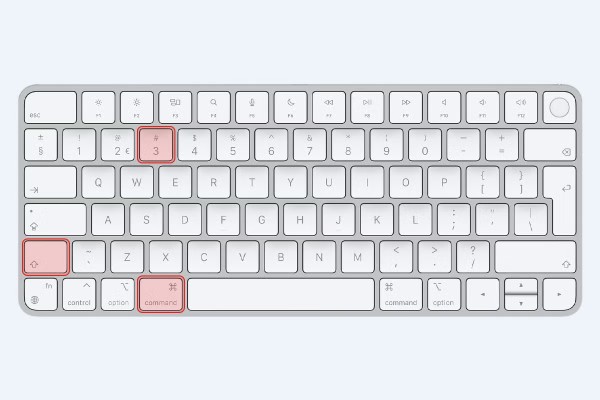
Q: Can I screenshot Roblox on Mac? A: While this article focuses on PC, Mac users can take screenshots using Command+Shift+3 (full screen) or Command+Shift+4 (selection) which save to the desktop.
Q: Is it okay to share all my Roblox screenshots? A: Always be mindful of privacy. Avoid sharing personal information, offensive content, or screenshots that might inadvertently reveal your real-world location or other sensitive details. Share responsibly!
Learn multiple ways to take screenshots on Roblox PC including Print Screen key, Snipping Tool, and Xbox Game Bar. Discover how to find and share your captured Roblox images easily. Get tips for clean screenshots and troubleshooting common issues. Understand why quick screenshots are vital for busy gamers.
35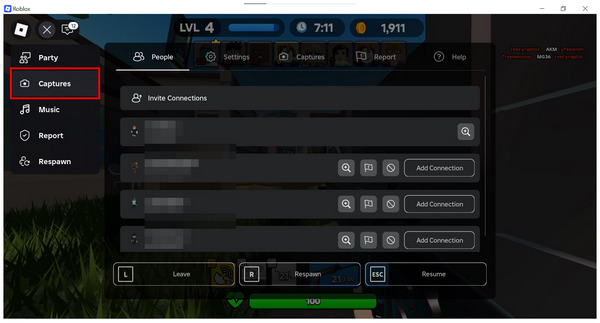
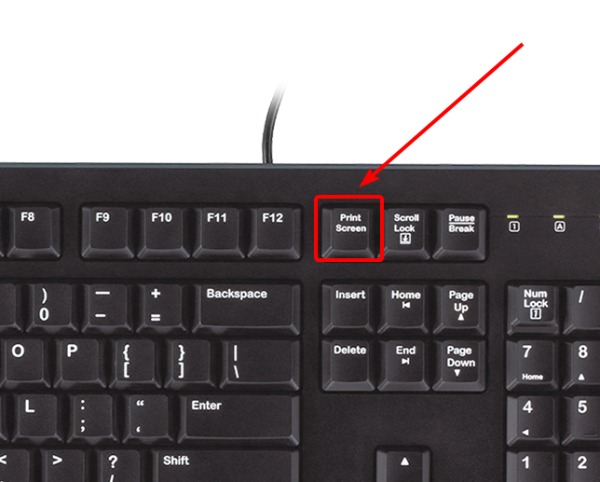


How To Take A Screenshot In Roblox On All Devices Roblox Captures Option . Roblox Memories Your Guide To Taking Screenshots Print Screen Button On Keyboard . Tips For Capturing High Quality Screenshots And Videos In Studio . How To Take A Screenshot In Roblox Studio High Quality YouTube . How To Take A Screenshot On Pc Roblox Guide Glimpse YouTube

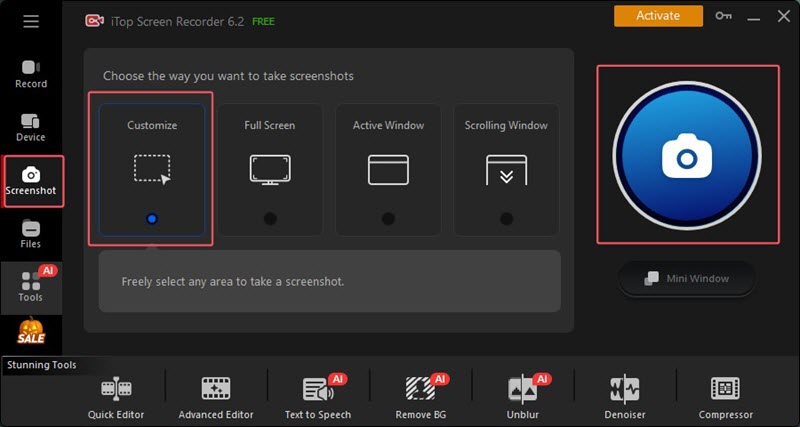
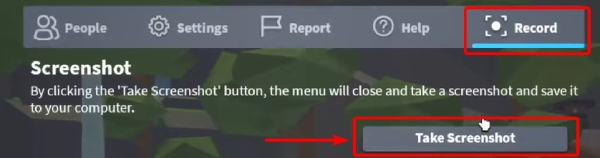
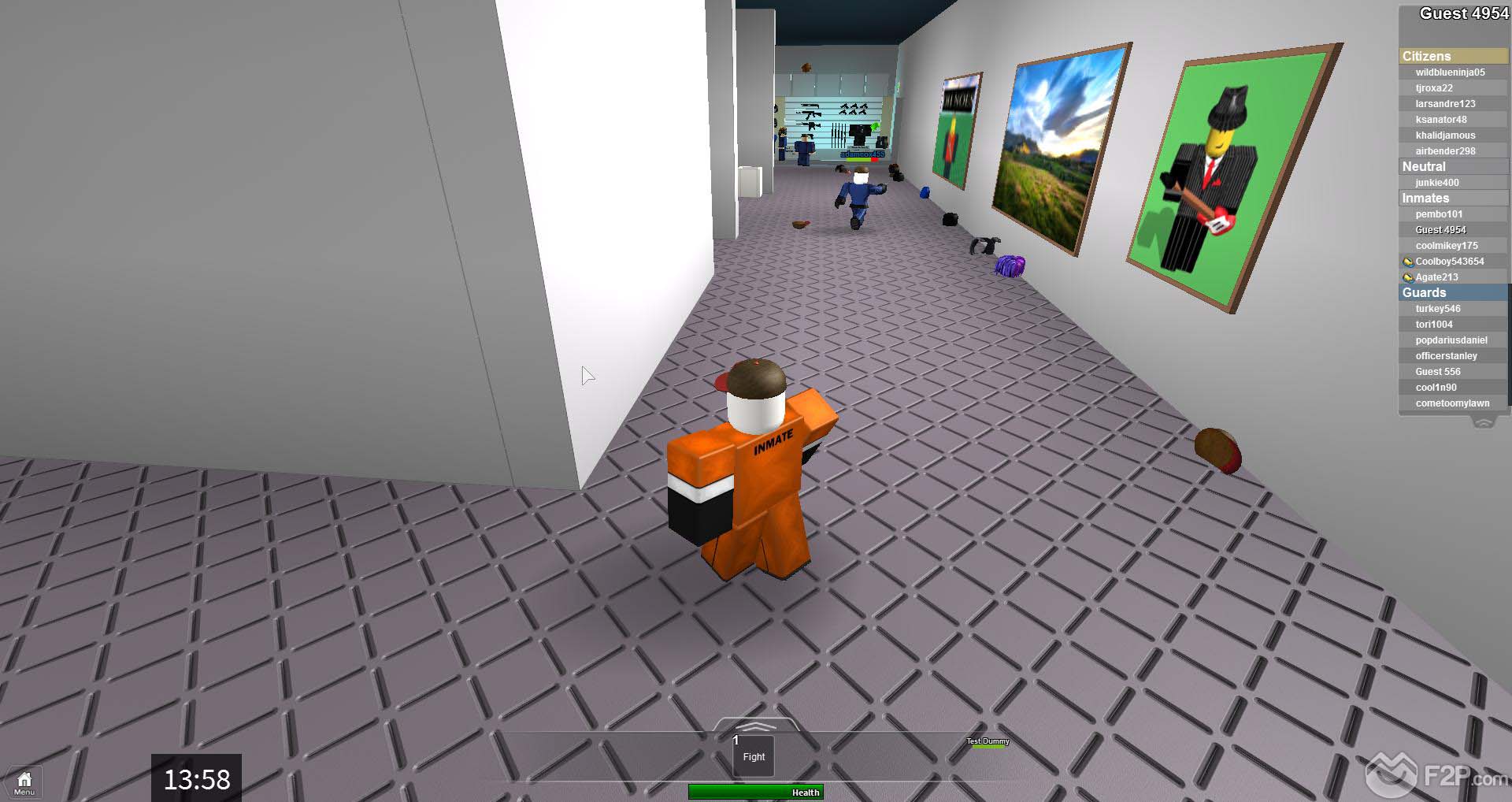

Roblox Memories Your Guide To Taking Screenshots . How To Take A Screenshot On Roblox All Device Guidance . Roblox Memories Your Guide To Taking Screenshots Roblox Record And Take Screenshot Button . Roblox Memories Your Guide To Taking Screenshots Roblox Screenshots 8 . How To Take Roblox Screenshots PC Mobile Roblox Den Image 5a3ed3219e

How To Take A Screenshot In Roblox On All Devices Roblox Screenshot . How To Take Roblox Screenshots PC Mobile Roblox Den Image 9e586858b7 . How To Screenshot On Pc Roblox At Lori Birdwell Blog . Roblox Memories Your Guide To Taking Screenshots Prtsc To Screenshot On Roblox . Roblox Memories Your Guide To Taking Screenshots
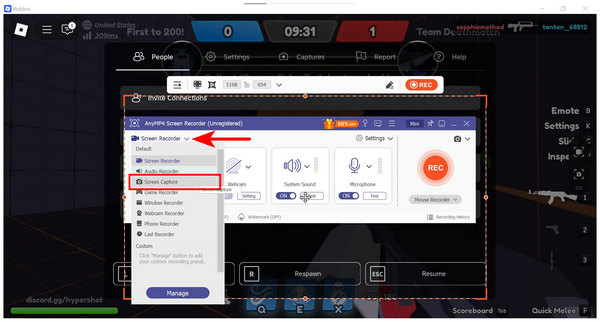

Roblox Memories Your Guide To Taking Screenshots Roblox Screenshot Folder . Roblox Memories Your Guide To Taking Screenshots Large. Roblox Memories Your Guide To Taking Screenshots . How To Take A Screenshot In Roblox On All Devices Anymp4 Screen Recorder Screen Capture . Roblox Memories Your Guide To Taking Screenshots
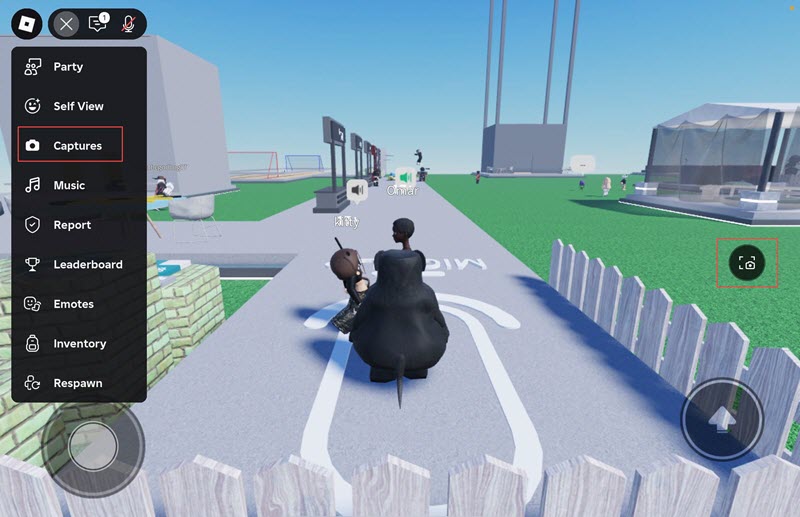

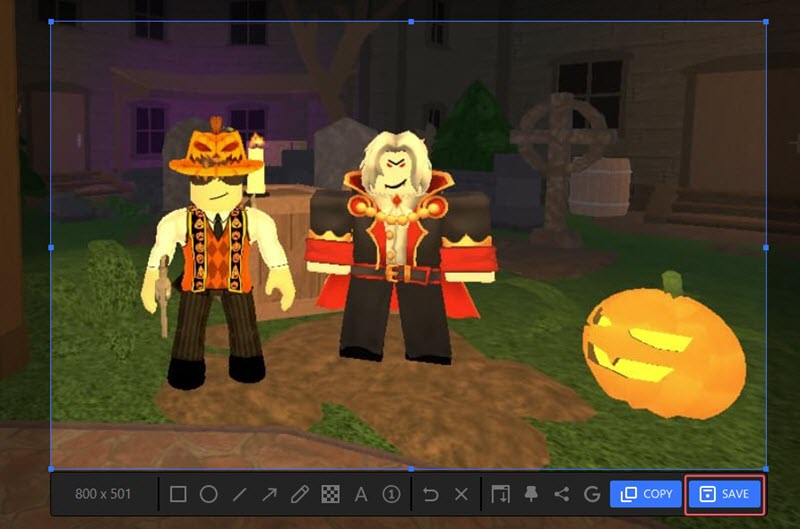

How To Take A Screenshot On Roblox All Device Guidance . How To Take A Screenshot On Roblox All Device Guidance . Roblox Memories Your Guide To Taking Screenshots . How To Take A Screenshot On Roblox All Device Guidance . Roblox Memories Your Guide To Taking Screenshots



How To Take A Screenshot On Pc Roblox . How To Take A Screenshot On Roblox PC AEANET Aeanet Technology Question Guide.webp. Roblox Memories Your Guide To Taking Screenshots Roblox Screenshots 9 . How To Screenshot On Pc Roblox At Lori Birdwell Blog . How To Screenshot On Pc Roblox At Lori Birdwell Blog


How To Screenshot On Pc Roblox At Lori Birdwell Blog Roblox Studio Screenshot 01 . How To Take A Screenshot In Roblox YouTube . How To Find Roblox Screenshot Folder Guide For PC 2026 Script For Roblox 150x150 . How To Take A Screenshot On Roblox Pc YouTube Hqdefault . Take Roblox Screenshots With 5 Effective Ways All Devices Mac Screenshot Whole Screen Roblox