Manygamerswonderdoesrobloxworkonchromebookthisguideexplainsallthewaystoinstallandplayrobloxonyourchromebookexploringperformanceoptimizationtipscommonissuefixesandcloudgamingoptionsformaximumfunwithoutbreakingthebankdiscoverhowtobalanceyourgamingpassionwithdailyliferesponsibilitiesandfindbudgetfriendlysolutionstoconsistentlyenjoyrobloxwithouttheusualtechheadacheslearnaboutthebestchromebookmodelsforsmoothgameplayandhowtoconnectcontrollersforenhancedexperiencegetreadytolevelupyoursocialgamingonchromeoswithourcomprehensivetipsandtricks
Does Roblox actually work on a Chromebook?
Yes, Roblox definitely works on Chromebooks! Most modern Chromebooks support the Google Play Store, which means you can download and play the Android version of Roblox. While it's not the same as the PC client, it provides a full and engaging experience for millions of players. Think of it as having a powerful Android tablet built into your laptop.
What are the exact steps to install Roblox on a Chromebook?
Installing Roblox on your Chromebook is straightforward if your device supports Android apps. Here's a step-by-step guide:
Check for Google Play Store: Look for the Google Play Store icon in your app launcher. If it's not there, go to your Chromebook's 'Settings' > 'Apps' > 'Google Play Store' and ensure 'Turn on' is selected.
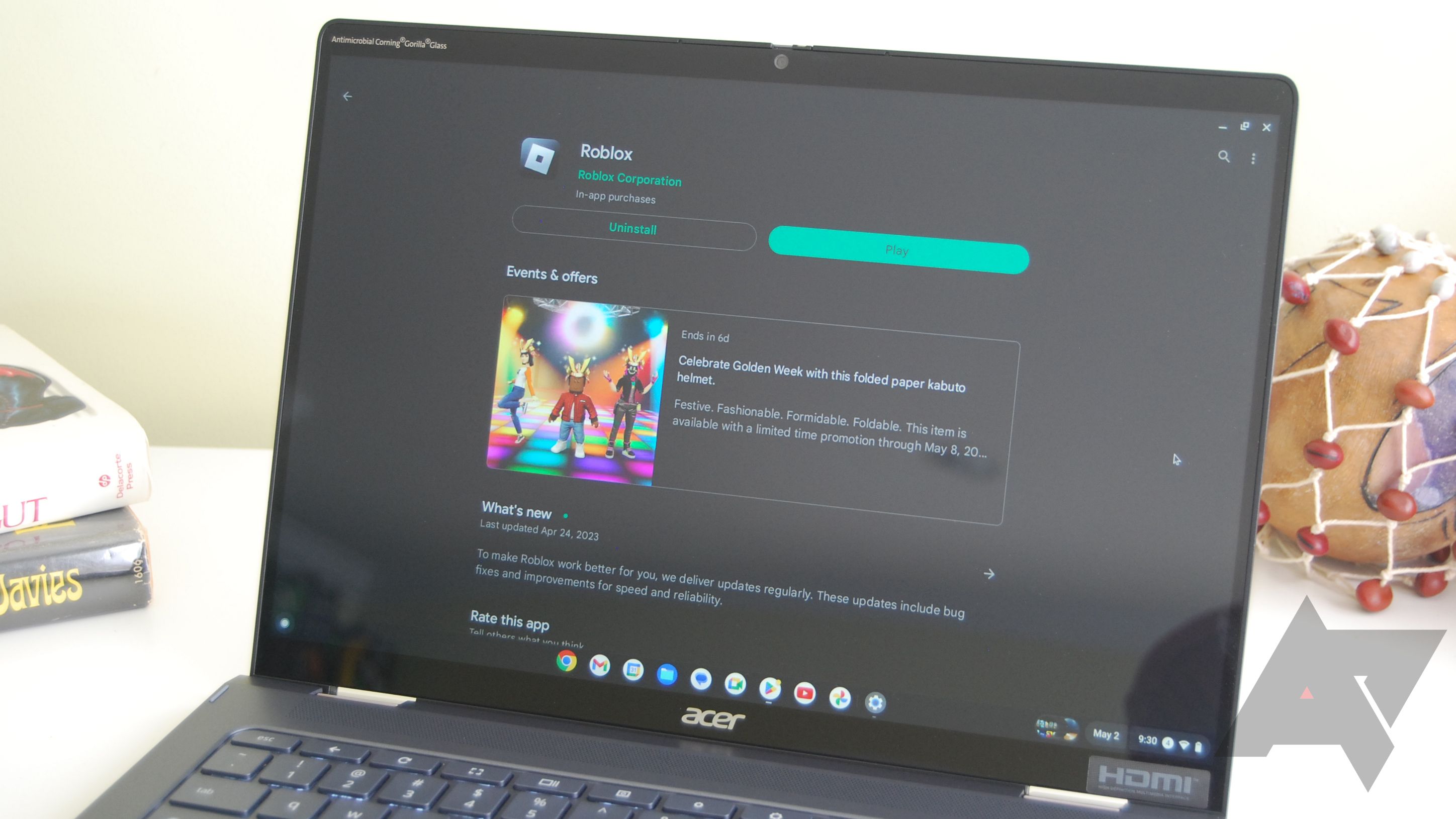
Open the Google Play Store: Click on the Google Play Store icon.
Search for Roblox: In the search bar at the top, type 'Roblox' and press Enter.
Select and Install: Find the official Roblox app, click 'Install,' and accept any permissions. The app will download and install automatically.
Launch Roblox: Once installed, you can open Roblox directly from the Play Store or find its icon in your app launcher.
For older Chromebooks without Play Store support, cloud gaming services or Linux might be alternative but more complex options.
Why is my Roblox game so laggy on my Chromebook and how can I fix it?
Lag can be frustrating, especially when you're trying to enjoy a game. Roblox lag on a Chromebook is often due to hardware limitations, too many background apps, or a poor internet connection. Here's how to tackle it:
Close Background Apps: Close any unnecessary Chrome tabs or Android apps running in the background. Each open application consumes RAM and CPU cycles.
Lower Graphics Settings: Within Roblox, go to the in-game settings (usually an icon on the top left) and reduce the 'Graphics Mode' or 'Graphics Quality' to a lower setting, like 'Automatic' or a manual lower level.
Restart Your Chromebook: A fresh reboot can clear up temporary system glitches and free up resources.
Check Internet Connection: Ensure you have a stable Wi-Fi connection. Move closer to your router, or if possible, use an Ethernet adapter for a wired connection.
Clear Cache: Regularly clear your Chromebook's browser cache and app data to keep things running efficiently.
These simple steps often provide a noticeable improvement for busy adult gamers trying to squeeze in some play time.
Do I need a powerful Chromebook to run Roblox smoothly?
While you don't need a top-tier gaming rig, a more capable Chromebook will definitely provide a smoother Roblox experience. For optimal performance, look for Chromebooks with:
Processor: Intel Core i3 (or newer) / AMD Ryzen 3 (or newer) or a powerful MediaTek/Qualcomm ARM chip.
RAM: At least 8GB of RAM. While 4GB might run Roblox, 8GB offers a much better multitasking and gaming experience.
Storage: 64GB or more internal storage for apps and game files.
Graphics: Integrated graphics are common, but a newer GPU (like Intel Iris Xe) will offer better visual performance.
Budget-conscious gamers can still enjoy Roblox on less powerful models by managing settings and expectations, focusing on less demanding games. Remember, mobile gaming dominates, and many Roblox games are optimized for diverse hardware.
Are there any specific settings I should change for better Roblox performance on ChromeOS?
Yes, tweaking a few settings can significantly boost your Roblox experience on ChromeOS. Beyond in-game graphics settings, consider these system-level adjustments:
Performance Profile: Some Chromebooks have a 'performance' mode in their settings. Check 'Settings' > 'Developers' (if enabled) or 'Power' options to see if a performance boost is available.
Disable Android App Background Refresh: Go to 'Settings' > 'Apps' > 'Manage your apps' and for apps you don't use often, consider restricting their background activity.
Keep ChromeOS Updated: Ensure your Chromebook is running the latest version of ChromeOS. Updates often include performance enhancements and bug fixes.
Screen Resolution: If you're experiencing severe lag, try lowering your Chromebook's display resolution temporarily while playing Roblox (in ChromeOS settings). Just remember to set it back for regular use!
These small changes can make a big difference for gamers trying to optimize their experience on a budget-friendly device.
What's the difference between playing Roblox via the Android app versus the web browser on a Chromebook?
This is a common point of confusion for new Chromebook gamers. Here’s the breakdown:
The **Android app (via Google Play Store)** is the official, recommended method. It provides a dedicated, optimized application that runs directly on ChromeOS's Android subsystem. This usually means better performance, more reliable controls, and a full-screen experience. Most Roblox games are well-optimized for the mobile app, leveraging touchscreen input and mobile-friendly UIs. It's essentially playing the mobile version of Roblox on a larger screen.
Playing Roblox via a **web browser (like Chrome)** is generally not supported for gameplay. While you can access the Roblox website, browse games, and manage your account, clicking
Are you a busy gamer, juggling work, family, and life, yet still crave that sweet escape into your favorite virtual worlds? Many of us, averaging around 36 years old, dedicate ourselves to balancing our passions. With 87% of US gamers playing regularly, often clocking 10+ hours a week, finding convenient ways to game without sacrificing responsibilities is crucial. You might be wondering if your everyday Chromebook, that handy device for productivity and browsing, can also be your portal to the expansive universe of Roblox. The good news is, for most Chromebook users, playing Roblox is indeed possible, but it comes with its own set of nuances and considerations. This comprehensive guide is here to cut through the hype and provide practical solutions, helping you understand exactly how to get Roblox running smoothly on your Chromebook, optimize its performance, and make smart choices so you can enjoy your gaming without the usual tech headaches or budget worries.
We know your time is precious, and getting bogged down in technical jargon isn't how you want to spend your limited gaming window. Whether you're looking to unwind after a long day, connect with friends in a social game, or even help your kids dive into creative experiences, your Chromebook might be a more capable gaming machine than you think. Let's explore how you can unlock Roblox on your device, ensuring a fun, skill-building, and social experience without compromising your daily grind.
Does Roblox Actually Work on a Chromebook?
Yes, absolutely! Roblox does work on Chromebooks, but the experience can vary depending on your specific Chromebook model and how you choose to install it. The primary method for playing Roblox on most modern Chromebooks is through the Google Play Store, which allows you to install the Android version of the Roblox app. Since around 2016, most new Chromebooks have gained support for Android apps, making this a straightforward process for many users. This is great news for gamers who want to utilize their existing hardware without needing to invest in a dedicated gaming PC. However, it's essential to remember that you'll be running the mobile version, which might have different controls or graphical settings compared to the PC version.
What's the Best Way to Install Roblox on My Chromebook?
There are generally three main ways to get Roblox onto your Chromebook, each with its own advantages and potential drawbacks. For the average gamer looking for ease of use and good compatibility, the Android app is usually the top choice.
1. Via the Google Play Store (Recommended for Most)
This is the simplest and most common method. If your Chromebook supports Android apps, you'll find the Google Play Store icon in your app launcher.
Open the Google Play Store on your Chromebook.
Search for
Roblox Chromebook compatibility installation performance tips cloud gaming options troubleshooting issues budget-friendly gaming solutions balancing life and play
35#1 Gallery does roblox work on chromebook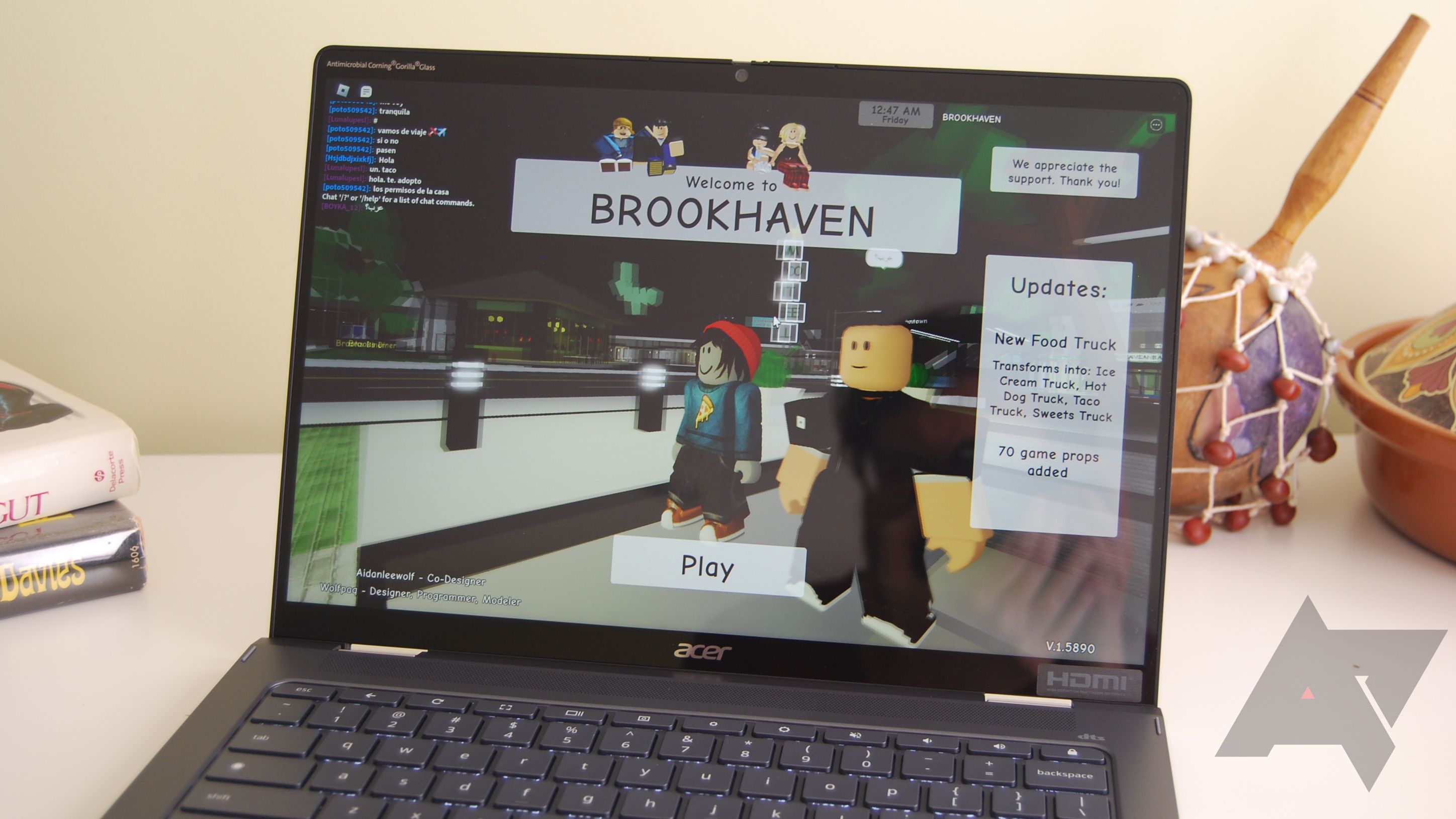
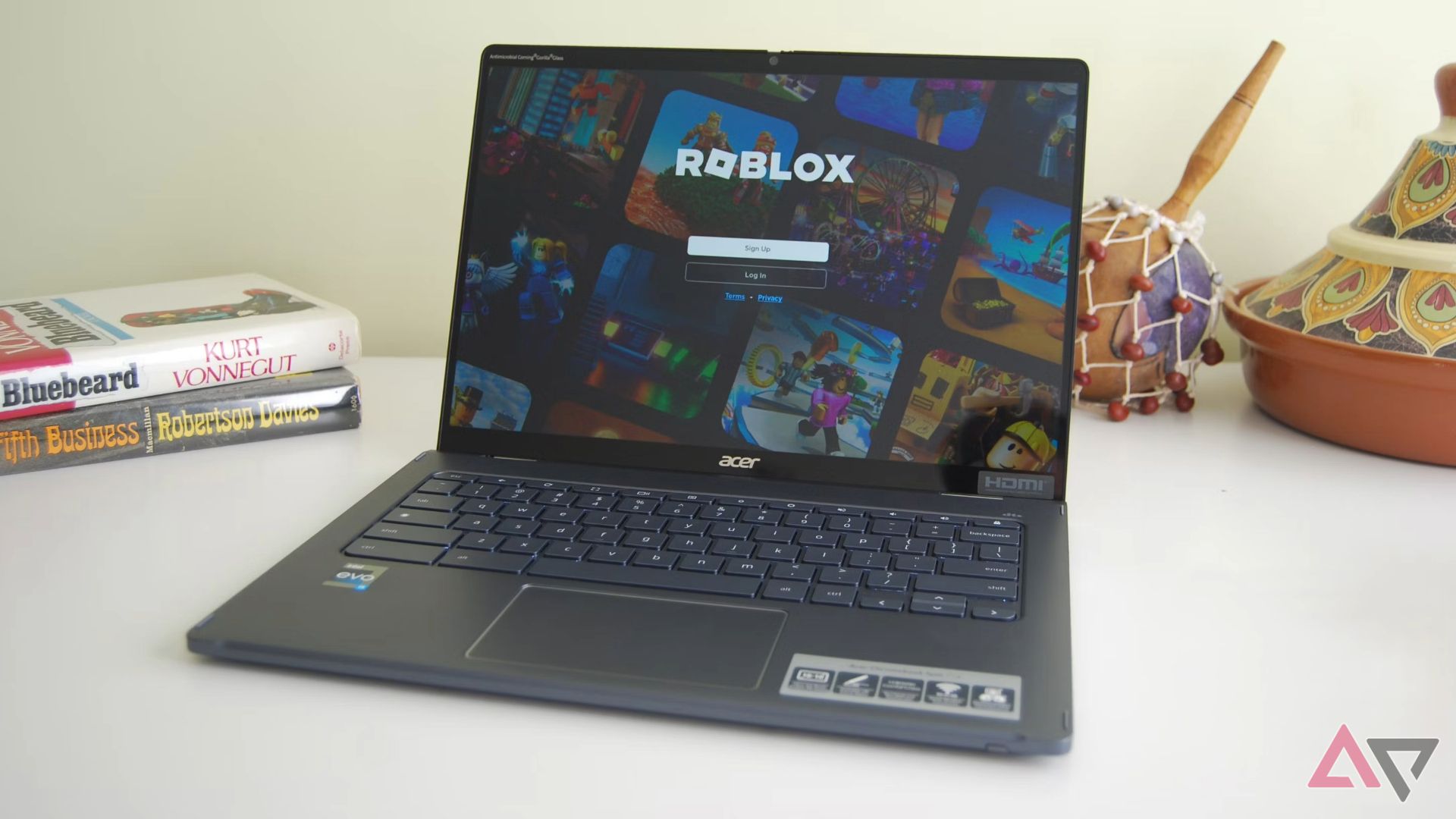

Roblox Wallpaper For Chromebook At Brent Peterson Blog Roblox Chromebook 2023 Screen 03 Wm.JPG. Can You Download Roblox On Chrome OS Discover How Roblox Chromebook Hero . Roblox For Chrome Download Is It Possible In 2026 . How To Download Roblox On Chromebook Robots Net How To Download Roblox On Chromeos 1695972604 . How To Use Any Browser On Chromebook How To Play Roblox Online Through Chrome On Chromebook
#2 Gallery does roblox work on chromebook


How To Play Roblox On Chromebook In 2026 Performance Setup Roblox. How To Download Roblox Studio On Chromebook 2025 NEW EDITION YouTube . How To Download Roblox Studio On Chromebook 2026 YouTube . Gaming Guide How To Play Roblox On Chromebook 2026 How To Download And Play Roblox On A Chromebook 696x392 . Installing Roblox On Chromebook At Antonio Baker Blog Roblox Chromebook 2023 Screen 01 Wm.JPG
#3 Gallery does roblox work on chromebook


How To Get Roblox Studio On Chromebook 2025 EASY YouTube . HOW TO EASILY PLAY ROBLOX ON SCHOOL CHROMEBOOK 2026 YouTube . How To Play Roblox ON School ChromeBook YouTube . How To Play Roblox On A School Chromebook 2024 Working YouTube Hqdefault . Can You Install The Roblox App On Chromebook In 2026 How To Play Roblox On A School Chromebook
#4 Gallery does roblox work on chromebook
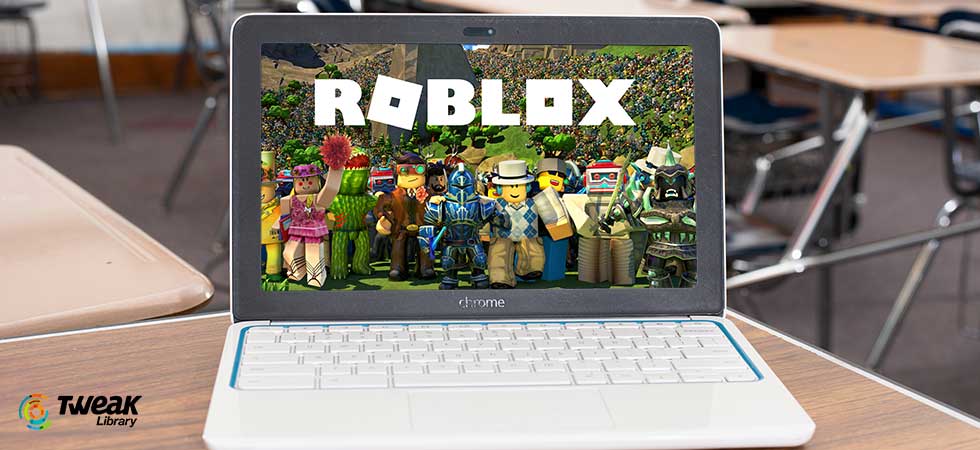
Can You Play Roblox On A Chromebook In 2026 Play Roblox On Your Chromebook . Can You Play Roblox On A Chromebook In 2026 Roblox On Chromebook . Can You Play Roblox On A Chromebook In 2026 How To Play Roblox On A School Chromebook . How To Install Roblox Studio On Chromebook In 2026 YouTube . Roblox On Chromebook Is It Possible How To Play Roblox On A Chromebook
#5 Gallery does roblox work on chromebook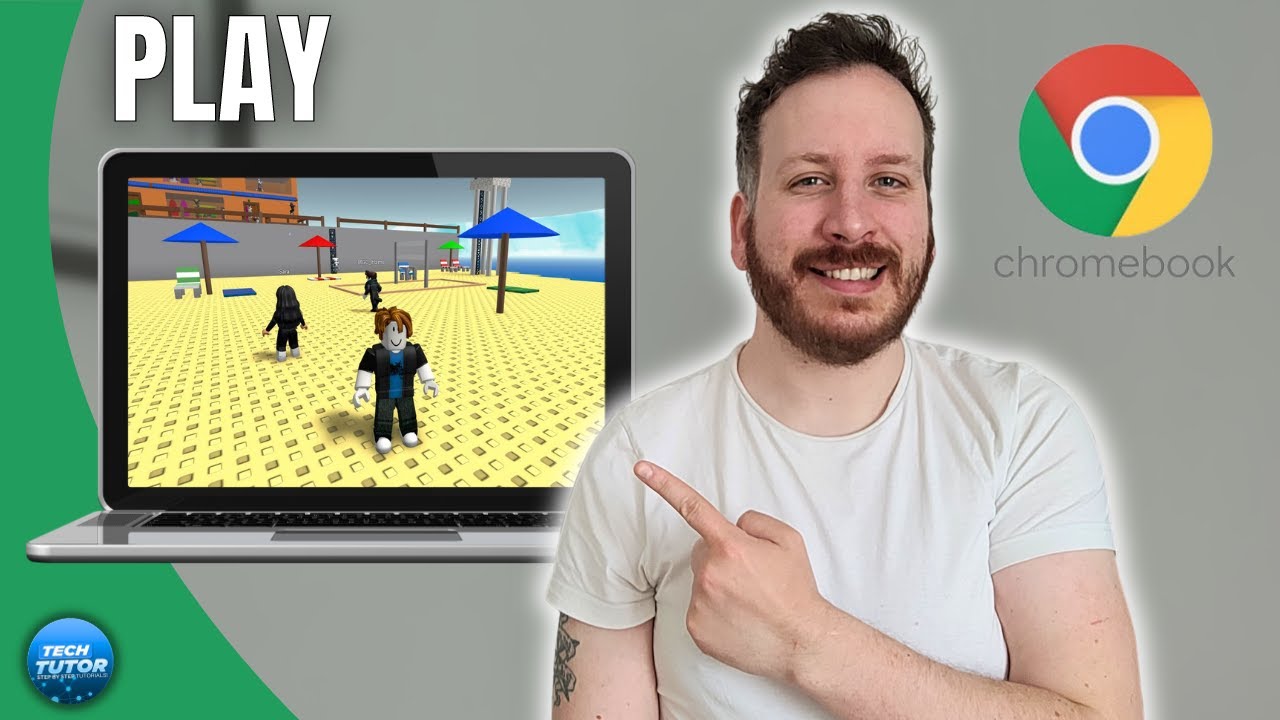

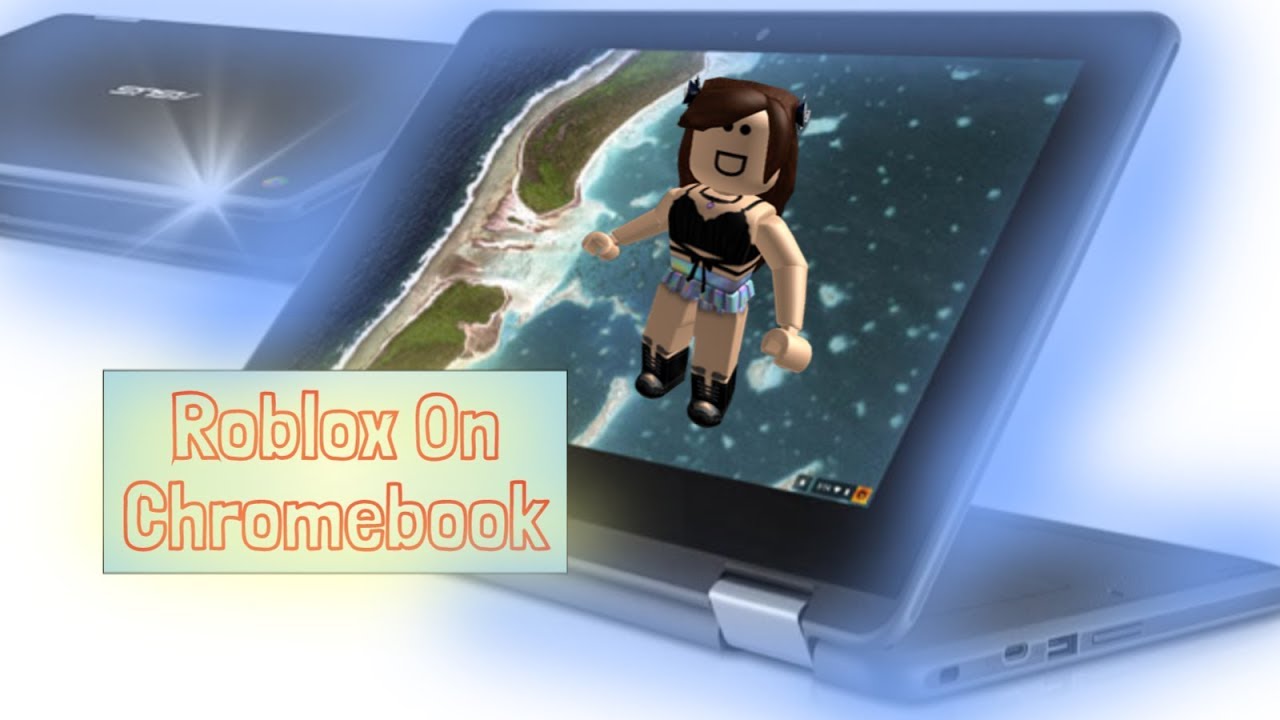
How To Play Roblox On School Chromebook 2023 YouTube . Run Roblox Studio On Chromebook 2026 YouTube . How To Play Roblox On Chromebook How To Play Roblox On School Chromebook 450x253 . How To Play ROBLOX On CHROMEBOOK 2020 EASIEST WAY POSSIBLE . Can You Play Roblox On A Chromebook In 2026 Roblox Chromebook Share
#6 Gallery does roblox work on chromebook

How To Get Roblox Studio On Chromebook 2026 WORKING YouTube . Seeking Roblox Via Google Drive Is It Safe And Smart In 2026 Choose Roblox Apk . Does Roblox Work On Chromebook Play Roblox On Google Chrome YQZF Developer Mode Play Roblox School Chromebook . What Is Hypergolic Roblox And How Does It Work 2026 1200x1769 . Does Roblox Work On Chromebook Play Roblox On Google Chrome YQZF F 64 1024x768
#7 Gallery does roblox work on chromebook


HOW TO PLAY ROBLOX ON SCHOOL CHROMEBOOK WORKING 2026 YouTube . How To Install Roblox On A Chromebook 2020 Guide YouTube . Roblox On Chromebook Is It Possible Sddefault . 100 Unofficial Roblox Annual 2026 Brand New For 2025 The Iconic SL1500 . How To Download Roblox On Chromebook 2026 Full Guide YouTube