Ever wondered how those hilarious sound effects or epic music cues enhance your Roblox experience or stream? You are not alone. As of this month, over 87% of US gamers, especially the 20-45 age group balancing life and play, spend an average of 10+ hours weekly engaging with their favorite titles. Many of these players are seeking ways to deepen their social interactions and creative expression within virtual worlds like Roblox. Learning how to use a soundboard on Roblox is a game-changer for content creators, casual players looking for a laugh, or anyone wanting to add a personal touch to their gaming sessions. This comprehensive guide will walk you through the setup, best practices, and troubleshooting for integrating a soundboard, ensuring you can elevate your Roblox interactions seamlessly and stress-free. From mobile to PC, discover the practical solutions to common pain points and stay current with the trends transforming social gaming in 2026.
Why is my soundboard not working in Roblox voice chat?
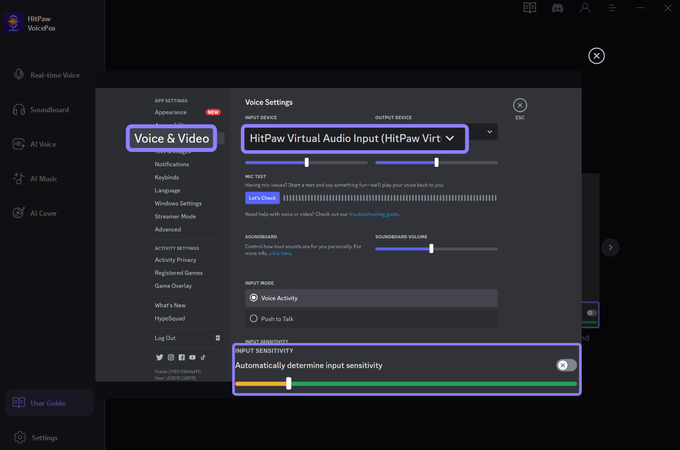
First, double-check your audio settings. In Roblox's in-game settings under Privacy, ensure your 'Microphone Input' is set to your soundboard's virtual audio device (e.g., Voicemod Virtual Audio Device). Then, in your soundboard software, confirm your actual microphone is the input and its virtual device is the output. Sometimes, simply restarting Roblox or your soundboard software can resolve minor glitches. Also, verify that the specific Roblox game you are in supports voice chat and that your account is eligible.
How can I stop my soundboard from echoing in Roblox?
Echoing often occurs when your soundboard's output is also being picked up by your physical microphone. To fix this, in your soundboard software, ensure 'Listen to Yourself' or 'Monitor' features are disabled. Also, check your Windows sound settings; go to 'Sound Control Panel,' select your microphone, go to 'Properties,' then 'Listen,' and uncheck 'Listen to this device.' Using a good headset can also significantly reduce mic bleed.
Is it safe to use third-party soundboard software with Roblox?
Generally, yes, if you download from reputable sources. Popular soundboard software like Voicemod or Soundpad are widely used by gamers and streamers and are considered safe. Always download directly from the official developer websites to avoid malware. Roblox itself does not officially endorse or integrate with specific soundboard software, but using them does not violate their terms of service as long as you are not using them to harass or exploit others.
Can I use a free soundboard for Roblox, or do I need to pay?
You can definitely use free soundboards! Many options exist. Clownfish Voice Changer and ExpSoundboard are popular free choices that include soundboard functionalities. While paid options like Voicemod or Soundpad offer more features, customization, and often better stability, free software is a great starting point to see if a soundboard fits your playstyle without investing any money. Just expect some limitations in features or sound quality.
What kind of sounds are best for a Roblox soundboard?
The best sounds are those that add humor, emphasize reactions, or enhance roleplay without being disruptive. Think short, punchy meme sounds (e.g., 'oof,' 'record scratch'), classic sound effects (e.g., 'applause,' 'crickets'), or brief musical stings. Avoid excessively long clips, extremely loud noises, or anything that could be considered offensive or spammy. Keep your sound library curated to what is relevant and funny to your friends or audience.
Will using a soundboard cause lag in Roblox?
For most modern PCs, a soundboard application should not cause significant lag in Roblox. Soundboard software typically uses minimal CPU and RAM. However, if you are running a very old or low-spec PC, or if you have many background applications open, you might notice a slight performance impact. Using high-quality (large file size) uncompressed audio files could also put a tiny bit more strain on your system. Keep your audio files optimized and close unnecessary apps to ensure smooth performance.
How do I find good sound effects for my Roblox soundboard?
There are many excellent resources for sound effects. Websites like Myinstants.com (for popular memes), SoundBible.com, or FreeSound.org offer vast libraries of free-to-use sound clips. You can also extract sounds from videos using online converters (ensure you have rights or use royalty-free content) or create your own with recording software. Always ensure the sounds you use are appropriate for your audience and respect any copyright considerations if you are streaming or creating content.
Hey there fellow gamer! Ever been in a Roblox game and suddenly heard that perfect meme sound or a dramatic sting that just absolutely made your day? Or maybe you have seen your favorite streamers or YouTubers drop hilarious audio clips at just the right moment while playing their favorite Roblox experiences. If you are anything like the millions of US gamers aged 20-45 who unwind, socialize, or even build new skills in virtual worlds, you know that sound can make or break an experience. With 87% of gamers spending over 10 hours a week immersed in games and social interaction being a key driver, enhancing your voice chat with a soundboard on Roblox is not just a trend it is a way to truly personalize your gameplay and connect with friends. Let us dive into exactly how to use a soundboard on Roblox and level up your audio game.
What Exactly Is a Soundboard for Roblox?
A soundboard, in the context of Roblox, is essentially a software application or a physical device that allows you to play pre-recorded audio clips, sound effects, or music through your microphone input, making it sound like you are speaking or singing those sounds directly. Imagine having a library of meme sounds, dramatic effects, or background music at your fingertips, ready to deploy at a moment's notice during your Roblox adventures. It is a fantastic tool for adding personality, humor, or even strategic communication to your gameplay, elevating the social aspect that Gen Z and Millennials crave in their online interactions.
Why Would I Want to Use a Soundboard on Roblox?
There are countless reasons why incorporating a soundboard into your Roblox sessions can be a total game-changer. For many US gamers, particularly those balancing work and life, gaming is about more than just playing; it is about unwinding, connecting with friends, and expressing creativity. A soundboard enhances all of these aspects. Think about:
Humor and Entertainment: Dropping a funny sound effect at the perfect moment can create unforgettable laughter and inside jokes with your squad.
Roleplaying and Immersion: If you are into roleplaying games on Roblox, specific sound effects can dramatically enhance the atmosphere and your character's presence.
Content Creation: For aspiring or established Roblox streamers and YouTubers, a soundboard is an invaluable tool for adding production value, keeping viewers engaged, and creating viral moments. In 2026, engagement is key, and dynamic audio plays a huge role.
Communication: Sometimes a sound effect conveys a message more effectively or playfully than words ever could. Think about a 'sad trombone' for a failed jump or an 'applause' for a teammate's victory.
Personal Expression: It is another layer of customization, letting you inject your unique style into your Roblox identity.
What Do I Need to Use a Soundboard on Roblox?
Before you can start dropping epic beats and hilarious memes, you will need a few things. Do not worry; most busy adults who game already have the essentials:
A Microphone: This is crucial. Your soundboard software will route its audio through a virtual microphone that then gets picked up by Roblox. A decent headset mic or standalone USB microphone works perfectly.
Soundboard Software: This is the core component. There are many options, both free and paid, for PC, and a few solutions for mobile. Popular choices include Voicemod, Soundpad, Clownfish Voice Changer, and ExpSoundboard. We will focus on software that creates a virtual audio device.
Audio Files: You will need the actual sound clips, music snippets, or effects you want to play. These are typically MP3 or WAV files. Sites like Myinstants or SoundBible offer vast libraries, or you can create your own.
Roblox Client: Obviously, you need the Roblox application installed and updated on your PC or mobile device.
How to Set Up a Soundboard on PC for Roblox? A Step-by-Step Guide
Setting up a soundboard on your PC for Roblox is generally straightforward. We will use a common approach that applies to most soundboard software.
Step 1: Choose and Install Your Soundboard Software
For PC users, options like Voicemod or Soundpad are highly recommended due to their user-friendliness and robust features. Download and install your chosen software. For this guide, let us assume a software like Voicemod or Soundpad that creates a virtual audio input device.
Voicemod: Great for voice changing and soundboards. It creates its own virtual microphone.
Soundpad: A dedicated soundboard application known for its hotkey integration and low latency.
Step 2: Configure Your Soundboard Software
After installation, launch your soundboard application.
Input Device: Set your *actual* microphone (e.g., your headset mic) as the input device within the soundboard software. This is so the soundboard can capture your voice.
Output Device: Set the soundboard's *virtual microphone* as the output device. This virtual mic is what Roblox will listen to.
Add Sounds: Import your desired audio files (MP3, WAV) into the soundboard library. Assign hotkeys to each sound for quick access during gameplay. This is crucial for seamless use.
Test Your Sounds: Use the software's internal monitor feature to ensure your sounds play correctly and at the right volume. Adjust individual sound volumes as needed.
Step 3: Configure Roblox Audio Settings
This is where you tell Roblox to listen to your soundboard.
Launch Roblox and join any game.
Open the Roblox in-game menu (usually by pressing 'Esc' or clicking the Roblox icon).
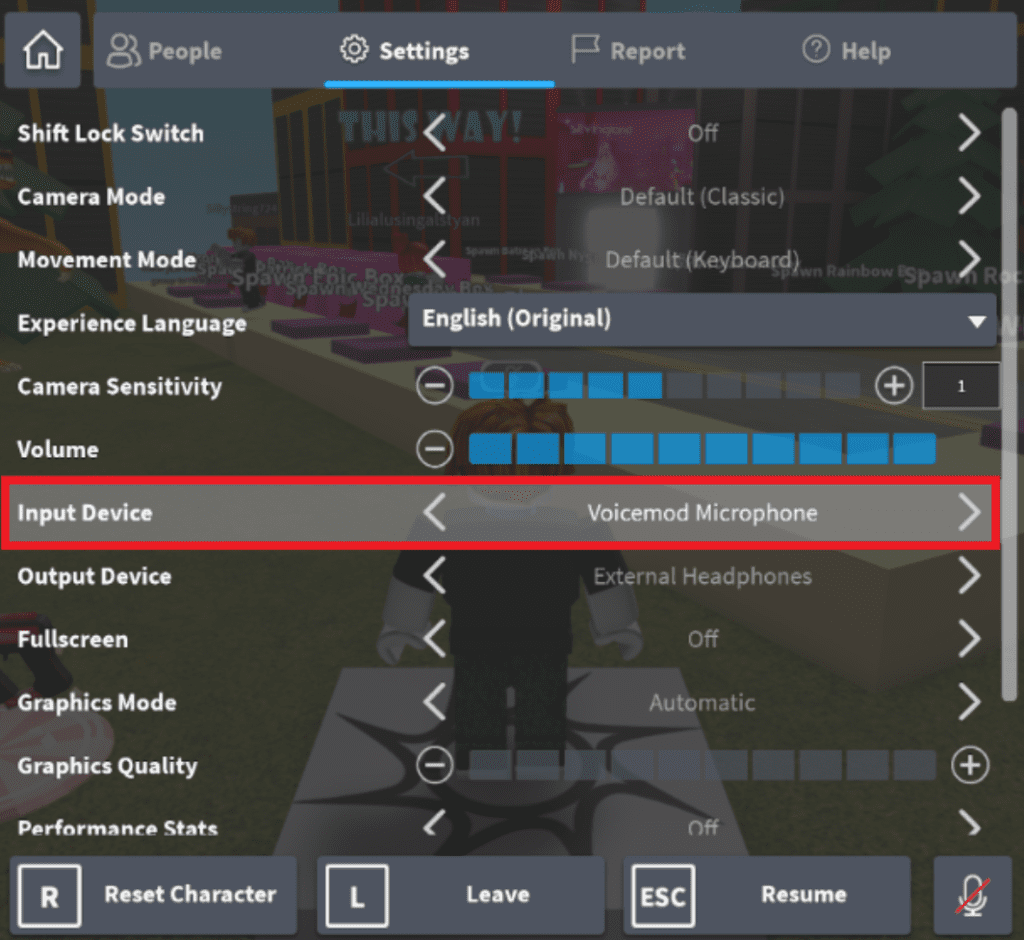
Go to 'Settings' and then 'Privacy'.
Look for the 'Microphone Input' or 'Input Device' option. Select the *virtual microphone* created by your soundboard software (e.g., 'Voicemod Virtual Audio Device' or 'Soundpad Virtual Audio Device').
Set your 'Microphone Volume' to an appropriate level. You might need to experiment with this.
Make sure your in-game voice chat is enabled if the game supports it and you intend to use it.
Step 4: Test in Roblox
Join a Roblox game with voice chat enabled. Activate a sound from your soundboard using its assigned hotkey. Ask friends if they can hear it. You might need to adjust volumes in both your soundboard software and Roblox's settings to find the perfect balance between your voice and the sound effects.
Can I Use a Soundboard on Roblox Mobile?
This is a trickier area. Unlike PC, mobile operating systems (iOS and Android) have stricter sandboxing, making it difficult for one app (a soundboard) to seamlessly inject audio into another app's (Roblox) microphone input directly. While dedicated soundboard apps exist for mobile, they often work best for recording or sharing outside of live voice chat. If you are specifically looking to use a soundboard in live Roblox mobile voice chat, your best bet currently involves:
Using a Secondary Device: Play sounds from a separate phone/tablet into your primary phone's microphone.
External Hardware Mixer: Some advanced mobile streamers use portable mixers that can blend multiple audio sources before sending them to the mobile device. This is a more complex setup.
Mobile Streaming PC Setup: The most reliable way for mobile content creators is to stream their mobile Roblox gameplay to a PC, and then use the PC's soundboard setup as described above, routing all audio through the PC's broadcast software.
As of 2026, native, easy-to-use soundboard integration for Roblox mobile voice chat remains an area for improvement by both Roblox and app developers. Keep an eye out for updates!
When Should I Use My Soundboard on Roblox for Maximum Impact?
Timing is everything! Just like a stand-up comedian knows when to deliver a punchline, you will want to deploy your sound effects strategically. Here are some pro tips:
The Perfect Meme Moment: When someone says something that triggers a classic meme sound, hit that hotkey!
Victory or Defeat: Celebrate a win with a fanfare or mourn a loss with a sad trombone. It adds character.
Jump Scares (Use Sparingly!): In horror-themed Roblox games, a well-timed, spooky sound can be incredibly effective, but do not overuse it to annoy others.
During Streams: Interact with chat requests for sounds, or use them to punctuate your commentary. This is standard practice for the 2026 gaming creator economy.
Roleplay Cues: If you are playing a character, use specific sounds to signify actions, emotions, or unique abilities.
Are There Any Rules or Etiquette for Using a Soundboard on Roblox?
Absolutely! While soundboards are fun, it is crucial to be a good sport and considerate player. The goal is to enhance the experience, not detract from it. Think about the social gaming trends this month: community and respect are paramount.
Do Not Spam: Repeating sounds constantly is annoying and can get you muted or even reported. No one wants their immersion broken by relentless noise.
Volume Control: Ensure your sound effects are not too loud or too soft. They should complement, not overpower, your voice or the game audio.
Context Matters: A funny sound in one game might be completely inappropriate in another (e.g., a serious roleplay server). Read the room!
Respect Game Rules: Some Roblox games or private servers might have specific rules against excessive soundboard use. Always check.
Be Mindful of Others: Not everyone appreciates constant sound effects. If someone asks you to stop, respect their request.
How to Troubleshoot Common Soundboard Issues with Roblox?
Even with the best setup, you might encounter a glitch or two. Here are quick fixes for common problems:
Understand soundboard basics for Roblox installation and setup on PC and mobile devices exploring popular soundboard software solutions for seamless integration with Roblox game audio mastering in game usage including hotkeys and volume controls troubleshooting common issues like audio lag or echo and discovering creative applications for enhancing social interaction and content creation
35#1 Gallery how to use a soundboard on roblox


How To Get A Soundboard On Roblox 2026 Best Soundboard For Roblox . How To Use Soundboard On Roblox VC Quick Guide YouTube . How To Use Soundboard On Roblox VC 2026 Updated Tutorial YouTube . How To Use Soundboard On Roblox VC Soundboard Setup For Roblox Voice . How To Use Soundboard On Roblox Mobile 2025 Step By Step YouTube
#2 Gallery how to use a soundboard on roblox


How To Get Soundboard On Roblox VC Full Guide YouTube . How To Use The Soundboard On Roblox VC YouTube . Level Up Your Roblox Soundboards Explained . Free Roblox Soundboard Voice Ai Roblox Soundboard . How To Get A Soundboard On Roblox ROBLOX Tutorial 2025 YouTube
#3 Gallery how to use a soundboard on roblox


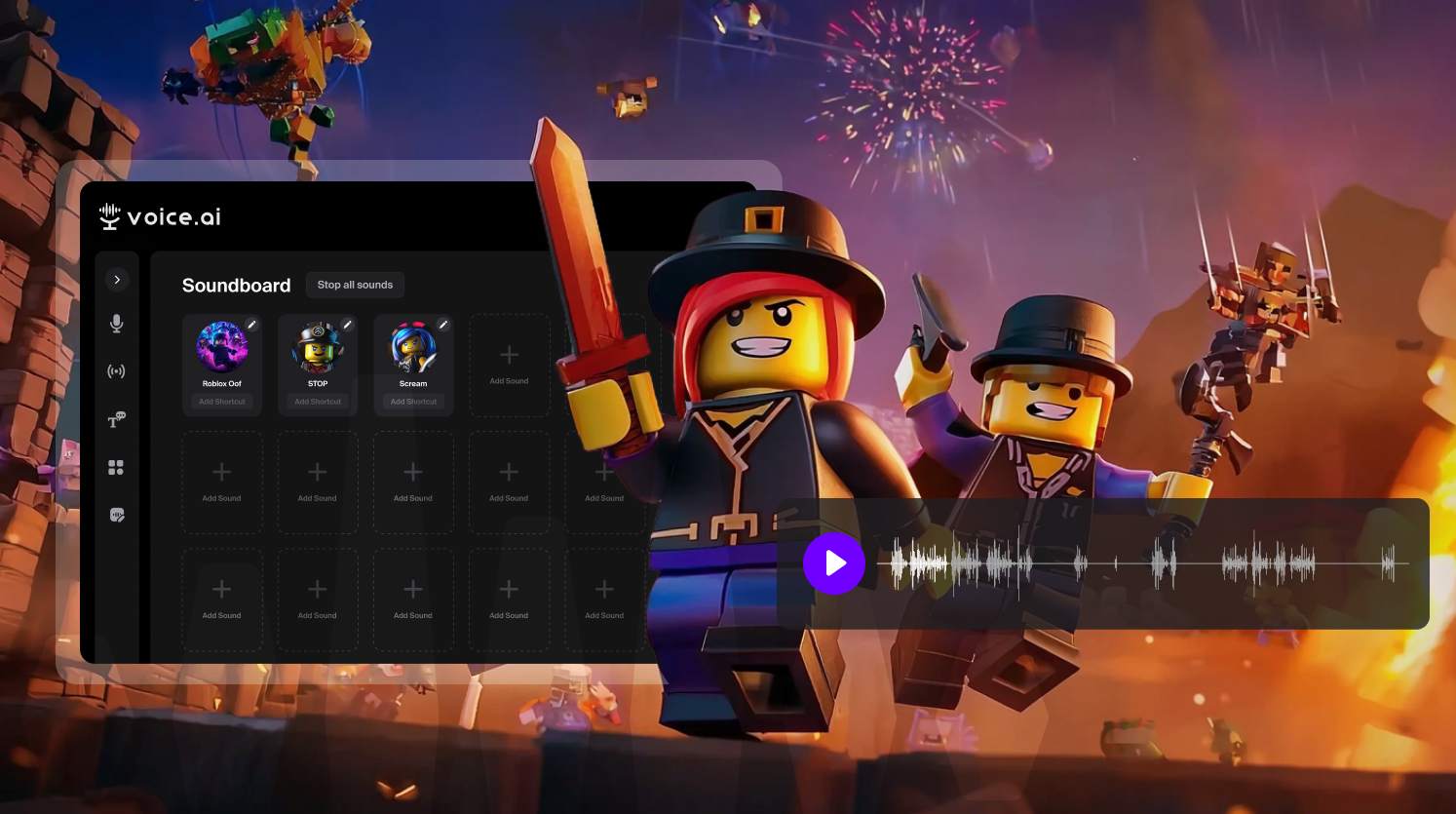
Level Up Your Roblox Soundboards Explained . How To Use SOUNDBOARD On ROBLOX VC Make Your Voice Chat LEGENDARY . Level Up Your Roblox Soundboards Explained 1024x940 . Top 6 Voice Changers For Roblox 2026 Real Time Free To Use Voicemod Roblox Voice Changer . Level Up Your Roblox Soundboards Explained
#4 Gallery how to use a soundboard on roblox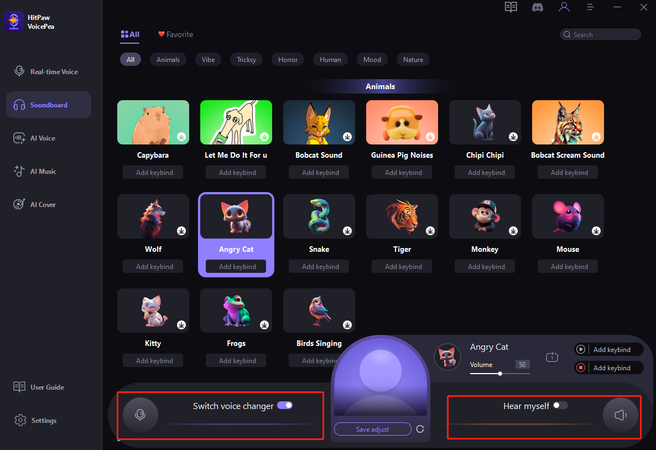
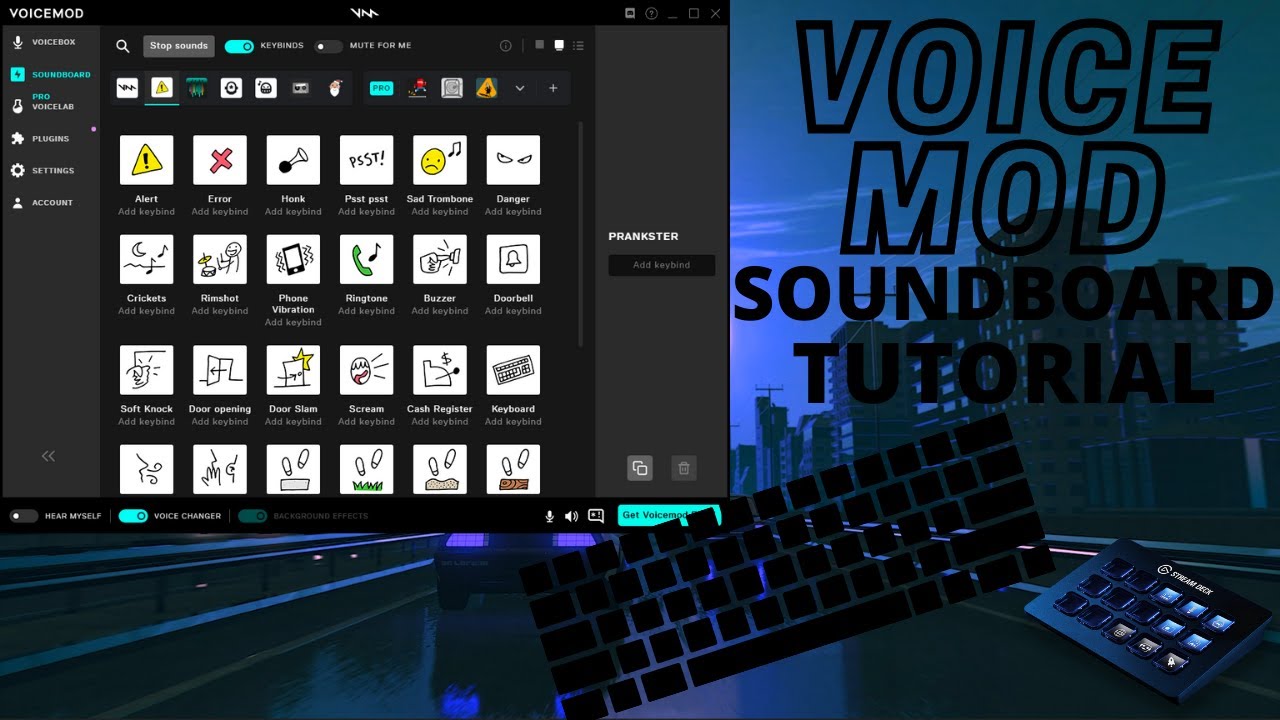

The Best Roblox Death Soundboard For Better Gaming In 2026 Soundboard 2 . Level Up Your Roblox Soundboards Explained . Level Up Your Roblox Soundboards Explained . Level Up Your Roblox Soundboards Explained . How To Use Soundboard On Roblox VC Mobile 2025 YouTube
#5 Gallery how to use a soundboard on roblox


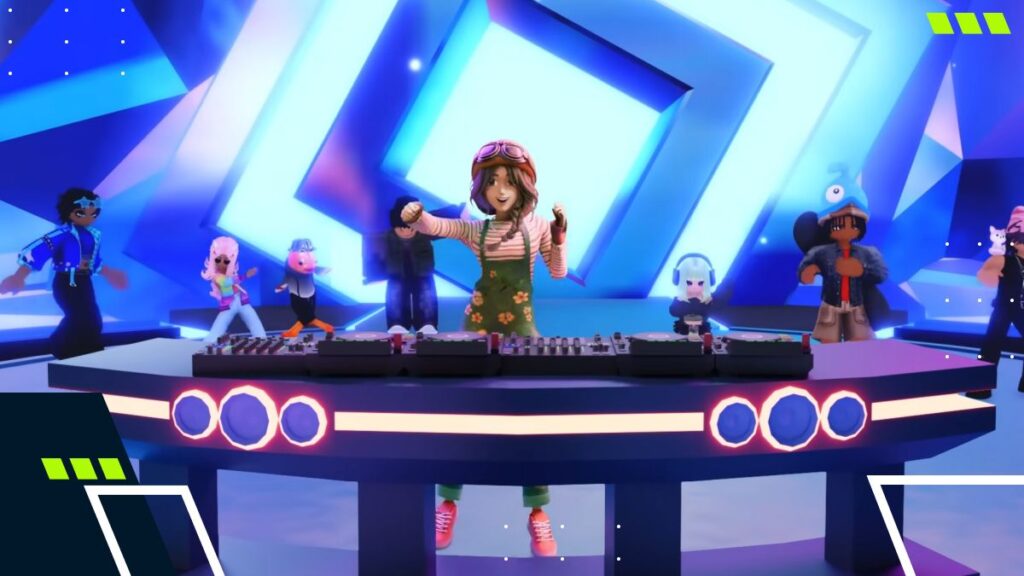

How To Use Soundboard On Roblox Vc Mobile YouTube . Level Up Your Roblox Soundboards Explained . Level Up Your Roblox Soundboards Explained . Roblox Music IDs 2026 100 Popular Music Codes How To Use Them Popular Roblox Music Codes To Use In 2026 With Full List 1024x576 . Level Up Your Roblox Soundboards Explained
#6 Gallery how to use a soundboard on roblox


How To Use Audio On Roblox Step By Step YouTube . How To Play Music And Sounds Through Mic In Roblox 2026 YouTube . HOW TO GET SOUNDBOARD ON ROBLOX VC 2026 FULL GUIDE YouTube . How To Upload Audio To Roblox 2026 FULL GUIDE YouTube . Roblox Audio Your Guide To Finding And Using Sounds 3 Upload Audio Asset
#7 Gallery how to use a soundboard on roblox



Level Up Your Roblox Soundboards Explained . How To Get A Custom Soundboard For Roblox For Free 2025 Guide YouTube . The Best Roblox Death Soundboard For Better Gaming In 2026 Soundboard 4 . Level Up Your Roblox Soundboards Explained . How To Message On Roblox 2026 A Quick Guide