Unlock the full potential of your PlayStation 5 and achieve stunning 4K gaming experiences with this comprehensive guide. Many US gamers, juggling careers and family, seek maximum visual fidelity without complicated setups. This article cuts through the noise, offering clear, actionable steps on how to optimize PS5 for 4K gaming. Discover essential display settings, understand HDMI 2.1 benefits, and fine-tune in-game options to boost graphics and frame rates. We address common pain points like screen tearing, input lag, and balancing performance with convenience. Learn to get the most out of your console and TV, ensuring every gaming session is visually spectacular and incredibly smooth. Whether you are a casual player or a dedicated enthusiast, these expert tips will transform your 4K PS5 gaming setup, making your limited gaming time more immersive and enjoyable. Get ready to elevate your virtual worlds to breathtaking new levels.
Top 5 Natural Questions about How to Optimize PS5 for 4K Gaming:
1. How do I get true 4K on my PS5?
2. What TV settings are best for PS5 4K?
3. Does HDMI 2.1 really matter for PS5 4K?
4. How can I improve PS5 4K frame rates?
5. What PS5 console settings optimize 4K visuals?
What is the ideal HDMI setup for PS5 4K gaming?
The ideal HDMI setup for PS5 4K gaming requires an HDMI 2.1 compliant cable connected to an HDMI 2.1 port on a compatible 4K TV. This ensures you can utilize features like 4K at 120Hz, Variable Refresh Rate (VRR), and Auto Low Latency Mode (ALLM) for the smoothest, most responsive visual experience. Without HDMI 2.1, your PS5 4K output will be limited to 4K at 60Hz. Look for a port labeled 'Game' or 'HDMI 2.1' on your TV, and ensure the corresponding input setting on your TV (often called 'Enhanced Format' or 'UHD Deep Color') is enabled.
Why isn't my PS5 showing 4K 120Hz even with an HDMI 2.1 TV?
If your PS5 isn't showing 4K 120Hz despite having an HDMI 2.1 TV, several factors could be at play. First, double-check that you're using a certified HDMI 2.1 cable. Second, ensure your TV's specific HDMI 2.1 port has its 'Enhanced Format' or 'UHD Deep Color' setting activated in its menu; this is a common oversight. Third, confirm that the game you're playing actually supports 120Hz output, as not all titles do. Finally, check your PS5's 'Screen and Video' settings to make sure '120 Hz Output' is set to 'Automatic' or 'On.'
How do I calibrate HDR for the best 4K visuals on my PS5?
To calibrate HDR for the best 4K visuals on your PS5, go to Settings > Screen and Video > Adjust HDR. Follow the on-screen instructions, adjusting the sliders until the PlayStation logo is barely visible in the dark and bright images. This ensures your PS5's HDR output is optimally matched to your TV's capabilities, preventing washed-out colors or overly bright highlights. Also, confirm your TV's picture settings have HDR processing enabled for the input your PS5 is using.
What are the best in-game graphics settings for PS5 4K?
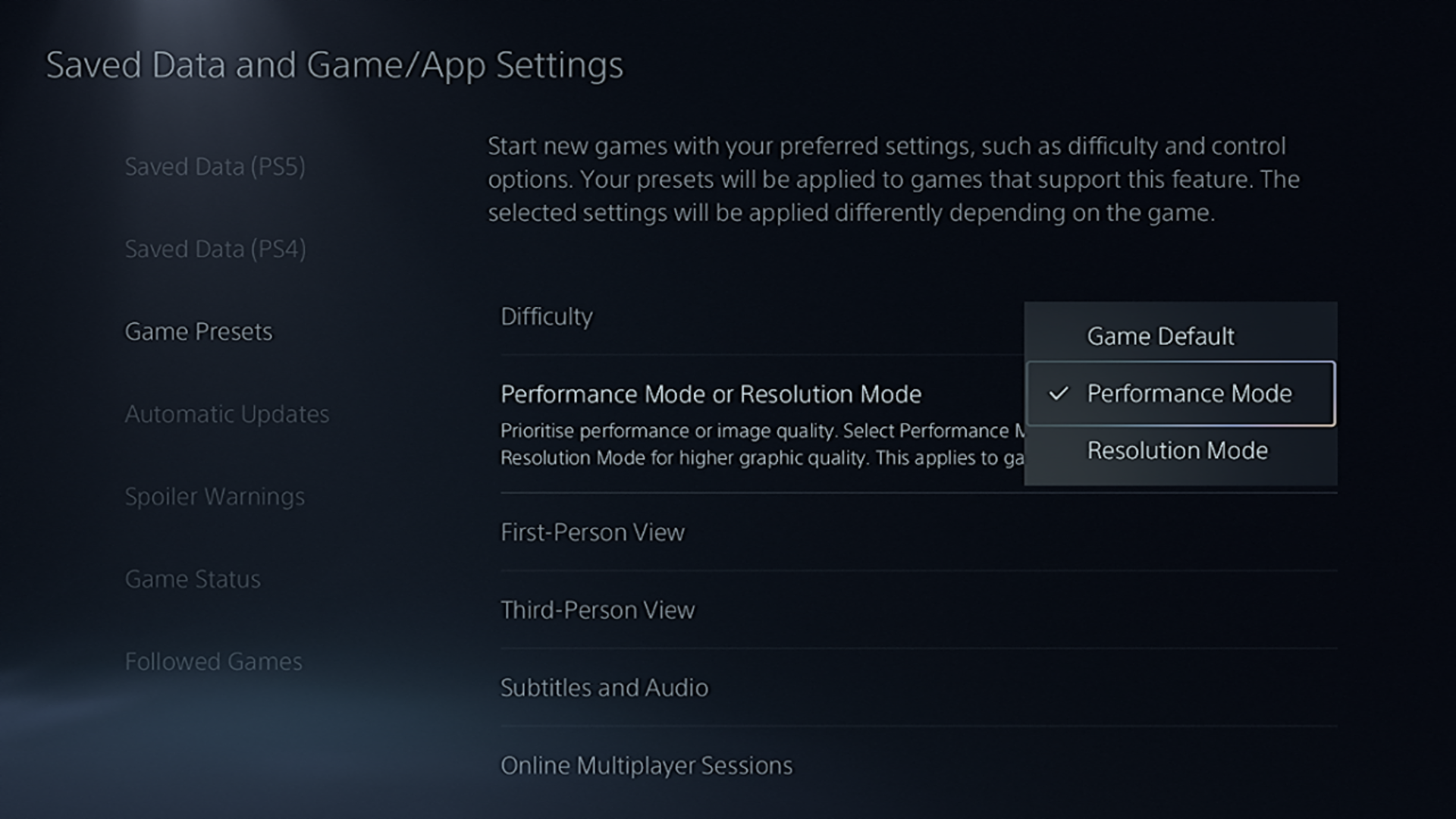
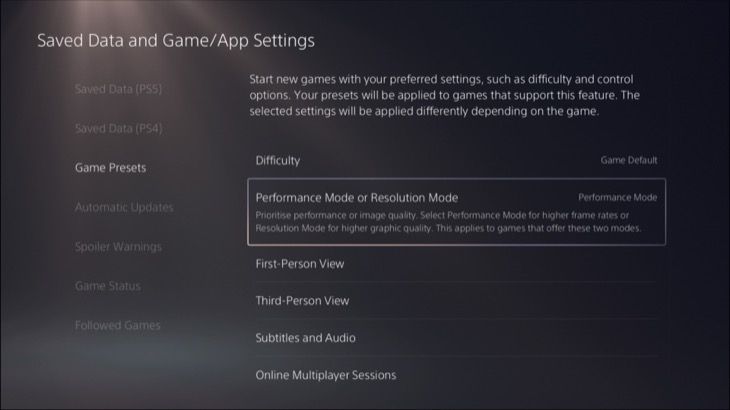
The best in-game graphics settings for PS5 4K often depend on your priority: visual fidelity or frame rate. For maximum 4K detail, select 'Fidelity Mode' if available, which typically targets native or upscaled 4K at 30 frames per second with enhanced visual effects like ray tracing. If you prefer smoother gameplay, 'Performance Mode' is usually better, offering higher frame rates (60fps or 120fps) often by dynamically scaling resolution or reducing some visual flourishes. Experiment to find the balance that suits your play style and the specific game.
When should I use 'Automatic' versus '2160p' for PS5 Resolution settings?
For most users, setting the PS5 Resolution to 'Automatic' is recommended. This allows the console to negotiate the best possible resolution and refresh rate with your connected 4K TV based on its capabilities and the game's requirements. Selecting '2160p' forces the PS5 to always output at 4K, which can sometimes lead to compatibility issues with older 4K TVs or if your HDMI setup isn't fully compliant. 'Automatic' provides greater flexibility and usually results in a seamless experience, especially for busy adults who want minimal fuss.
Who benefits most from PS5's VRR and ALLM features?
Gamers who benefit most from PS5's VRR (Variable Refresh Rate) and ALLM (Auto Low Latency Mode) are those who play a wide variety of titles, particularly fast-paced action games, competitive multiplayer, or visually demanding experiences where frame rate fluctuations are common. VRR eliminates screen tearing and smooths out frame rate inconsistencies, providing a significantly more fluid visual experience. ALLM automatically reduces input lag, making controller responses feel instant. These features are highly valuable for skill-building and immersion, ensuring every moment of gameplay is as responsive and clear as possible, without manual TV adjustments.
How can I optimize my PS5's storage for 4K game performance?
Optimizing your PS5's storage for 4K game performance involves a few key steps. First, regularly uninstall games you're not actively playing to free up space. Second, consider installing an internal M.2 NVMe SSD expansion if you're frequently running out of room; ensure it meets Sony's specifications for speed. Installing 4K games directly on the fast internal storage (or a high-speed M.2 SSD) ensures quicker loading times and smoother asset streaming compared to external HDDs, which are better suited for PS4 titles. Keeping adequate free space also helps the system operate more efficiently, preventing potential slowdowns in graphically intensive 4K games.
Are you ready to truly see your games in their full glory on your PlayStation 5? Most US gamers, averaging over 10 hours a week and with 87% playing regularly, are constantly looking for ways to make their limited gaming time count. Many of us balance demanding jobs, family commitments, and life's daily grind, meaning we value quick, effective solutions that enhance our relaxation and fun without adding more stress. If you own a PS5 and a 4K TV, you've got the hardware for an incredible visual experience, but are you really getting the most out of it? Often, default settings leave performance on the table, leading to slightly blurrier images, occasional stutters, or noticeable input lag. This guide is your trusted friend, here to walk you through exactly how to optimize PS5 for 4K gaming, ensuring every pixel sings and every frame flows smoothly. We'll cover everything from console settings to TV adjustments, making sure your adventures in recent popular titles are as breathtaking as they should be, helping you unwind and enjoy your escape into stunning virtual worlds.
We understand that you want practical advice, not technical jargon. We're focusing on tangible improvements you can implement today to elevate your 4K gaming without breaking the bank or spending hours tweaking. Whether you're diving into the latest open-world epic or just chilling with friends in a social game, getting the best visual fidelity and responsiveness from your PS5 is key to truly enjoying your passion. Let's make sure your PS5 4K setup is not just good, but exceptional.
What is 4K Gaming and Why Does it Matter on PS5?
4K gaming refers to playing games at a resolution of 3840 x 2160 pixels, which is four times the detail of standard 1080p Full HD. On the PS5, this means significantly sharper images, finer details, and more immersive visuals, especially noticeable on larger screens. For busy gamers, this enhanced clarity can make your precious gaming moments more impactful, allowing you to fully appreciate the artistry and design of your favorite titles. The PS5 is designed to render games at this high resolution, often upscaling them or delivering native 4K, bringing virtual worlds to life with incredible fidelity that enhances skill-building through clearer visual cues and simply makes the experience more fun.
How Do I Check My PS5 and TV Settings for 4K Optimization?
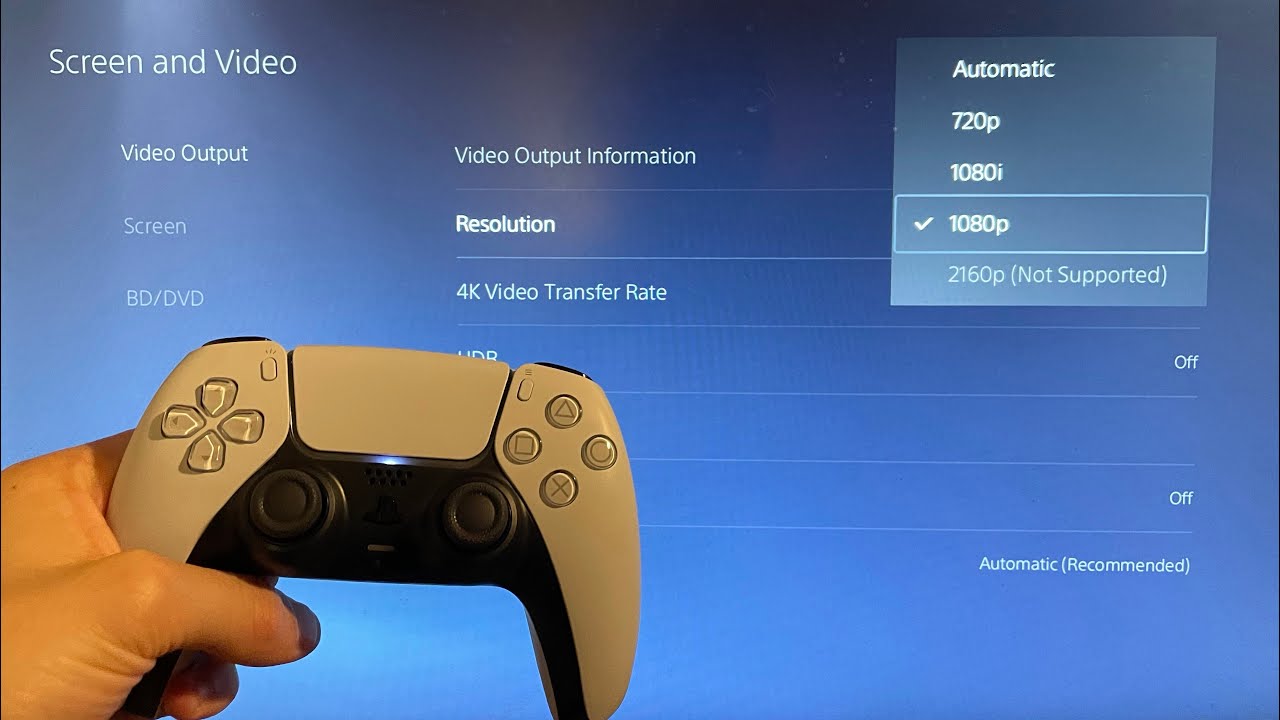
Before diving into specific adjustments, it is crucial to ensure your PS5 and TV are communicating effectively in 4K. Start by checking your PS5's video output information. Go to Settings > Screen and Video > Video Output Information. Here, you should see your TV's current resolution and refresh rate. Ideally, you want to see 3840 x 2160 (or 2160p) at the highest refresh rate your TV supports. On your TV, access its picture settings. Look for an HDMI input setting that enables 'Enhanced Format,' 'Deep Color,' 'UHD Color,' or similar. This often needs to be manually activated for the specific HDMI port your PS5 is connected to, allowing it to receive the full 4K signal. Without this, your TV might downscale the PS5's output, preventing true 4K visuals.
Which HDMI Cable is Best for PS5 4K 120Hz?
For the ultimate PS5 4K experience, particularly if you want to take advantage of 120Hz refresh rates and Variable Refresh Rate (VRR), an HDMI 2.1 certified cable is absolutely essential. The PS5 comes with one in the box, but if you're using an older cable or a longer one, ensure it is rated for HDMI 2.1. These cables support the higher bandwidth required to transmit 4K resolution at 120 frames per second, along with advanced features that dramatically reduce input lag and screen tearing. Using an older HDMI 2.0 cable will limit your PS5 to 4K 60Hz, missing out on the smoothest possible gameplay. Investing in a good quality, certified HDMI 2.1 cable, even a budget-friendly one, is a small but significant upgrade for performance-conscious gamers.
What Are the Essential PS5 Display Settings for Peak 4K?
Once your HDMI setup is correct, fine-tuning your PS5's display settings is key. Navigate to Settings > Screen and Video. Here are the critical adjustments:
- Resolution: Set this to 'Automatic' or '2160p'. Automatic usually works best, allowing the PS5 to negotiate with your TV.
- 120 Hz Output: If your TV supports it and you have an HDMI 2.1 cable, set this to 'Automatic' to enable 120Hz gameplay in compatible titles.
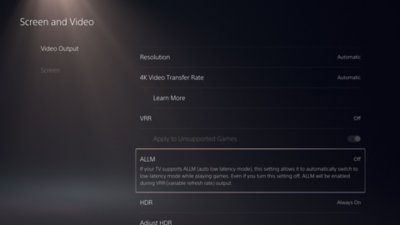
- VRR (Variable Refresh Rate): Enable this if your TV supports it. VRR dynamically matches your TV's refresh rate to the game's frame rate, eliminating screen tearing and reducing stutter for incredibly fluid motion, especially useful when frame rates fluctuate. This is a game-changer for many titles.
- ALLM (Auto Low Latency Mode): Enable this. It automatically switches your TV into game mode, minimizing input lag, which is crucial for competitive play or simply a more responsive feel.
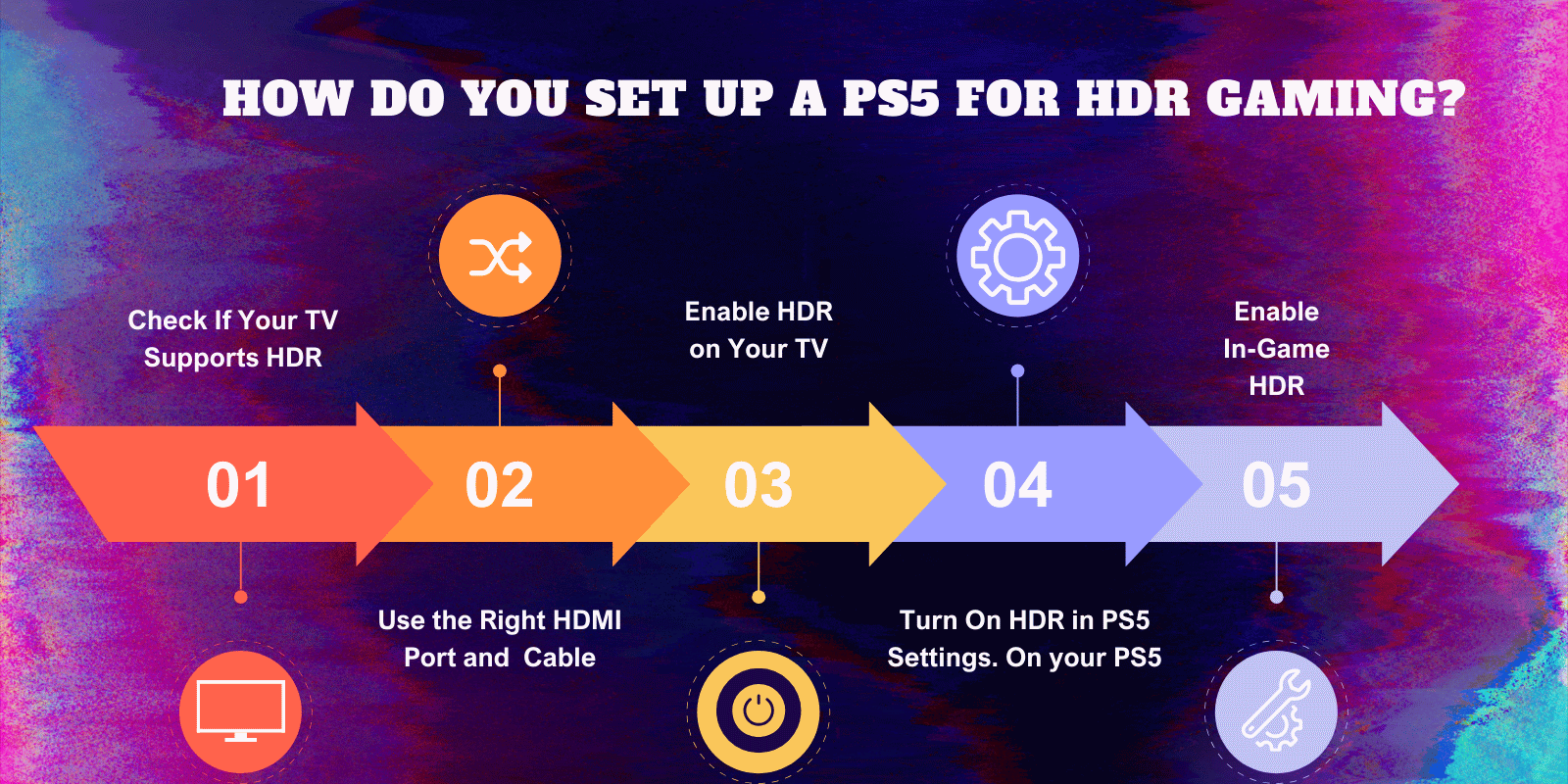
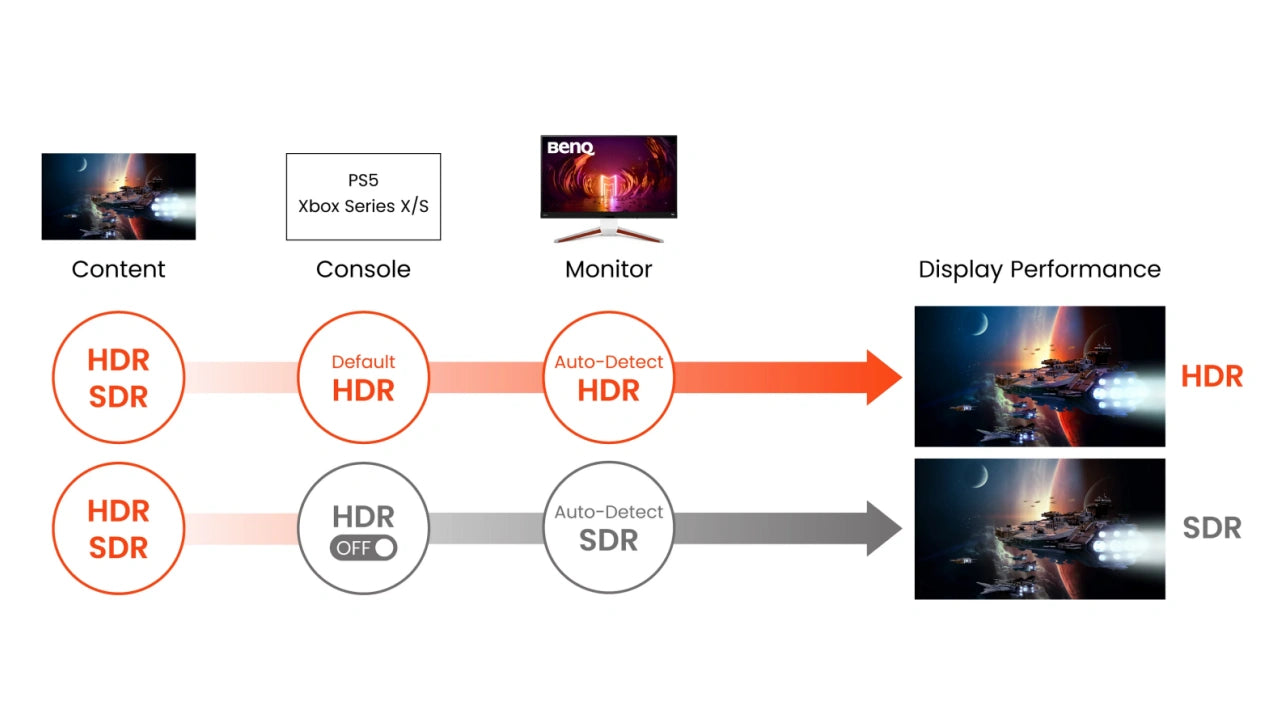
- HDR (High Dynamic Range): Keep this enabled if your TV supports it. HDR expands the range of colors and contrast, making scenes more vibrant and realistic. Go to 'Adjust HDR' to calibrate it correctly for your specific TV, ensuring highlights aren't blown out and shadows retain detail.
- RGB Range: Set this to 'Automatic' to prevent color banding issues.
How Can Game-Specific Settings Improve 4K Visuals?
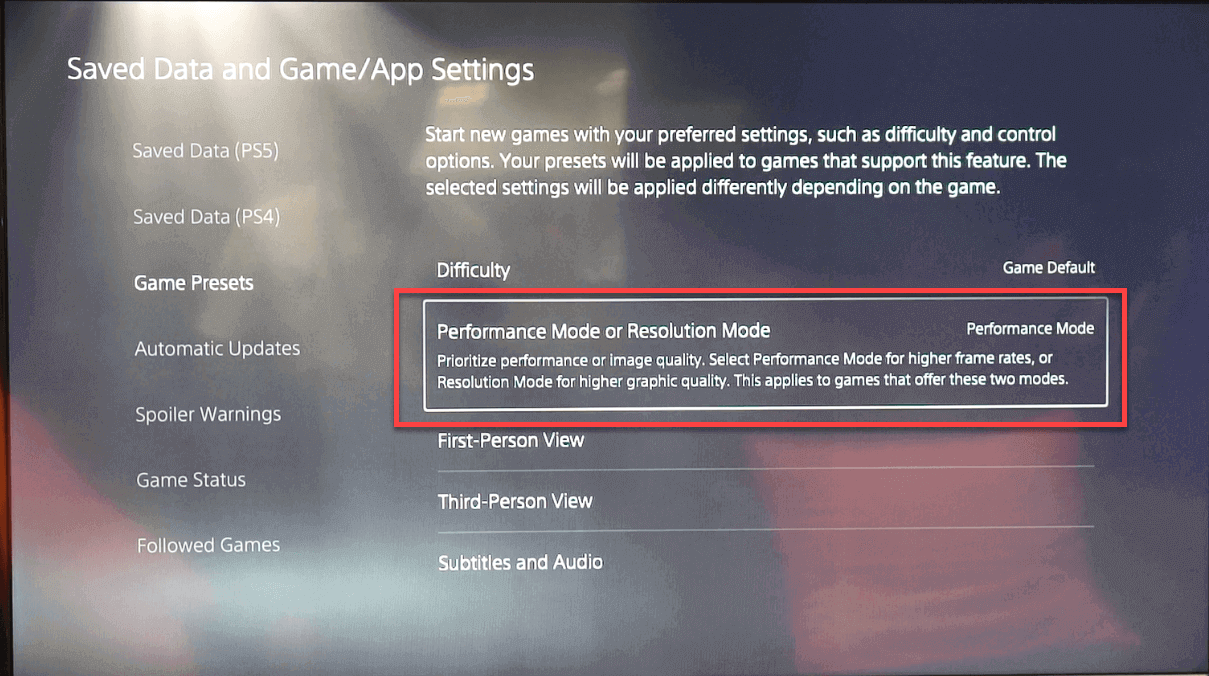
Beyond console settings, many PS5 games offer in-game graphics options that significantly impact your 4K experience. Developers often provide 'Fidelity Mode' (prioritizing resolution and visual effects, typically 4K 30fps) and 'Performance Mode' (prioritizing frame rate, often 1440p upscaled to 4K at 60fps or higher). For a true 4K visual feast, Fidelity Mode is generally preferred, but if you prioritize smooth action, Performance Mode offers a noticeable difference, especially in fast-paced games. Experiment with these settings in your favorite titles. Some games even offer hybrid modes or specific toggles for ray tracing, ambient occlusion, or anti-aliasing. Adjusting these can balance visual splendor with playable frame rates, tailoring the experience to your personal preference and balancing performance with the limited time many gamers have.
Should I Use VRR and ALLM on My PS5 for 4K Gaming?
Absolutely, if your 4K TV supports them, enabling VRR (Variable Refresh Rate) and ALLM (Auto Low Latency Mode) on your PS5 is highly recommended for an optimized 4K gaming experience. VRR virtually eliminates screen tearing and greatly reduces stutter by dynamically adjusting your TV's refresh rate to match the game's output, resulting in smoother motion. This is especially beneficial for gamers who play a mix of graphically intensive and action-packed titles, as it adapts to varying frame rates. ALLM, on the other hand, automatically switches your TV to its lowest latency 'Game Mode' whenever you start playing, significantly cutting down on input lag. This makes your controller inputs feel more responsive, which is vital for skill-building in competitive games and overall enjoyment. These features are game-changers for any dedicated PS5 gamer.
Are There Common Pitfalls to Avoid When Setting Up PS5 4K?
Yes, there are a few common traps that can hinder your PS5 4K experience. One major pitfall is not activating the 'Enhanced' or 'UHD Color' setting on your TV's specific HDMI input; this is often required for the TV to accept a full 4K signal. Another is using an old HDMI 2.0 cable instead of an HDMI 2.1 one, which will cap your refresh rate at 60Hz and prevent VRR. Incorrectly calibrating HDR can also lead to washed-out colors or overly bright highlights, ruining the visual impact. Finally, sometimes gamers overlook updating their TV's firmware, which might be necessary for full HDMI 2.1 feature compatibility. Always ensure all components are up-to-date and correctly configured to avoid these easily fixable issues, saving you frustration and maximizing your entertainment value.
How Does Network Speed Impact My PS5 4K Experience?
While network speed doesn't directly affect the local rendering of a game in 4K on your PS5, it significantly impacts several aspects of your overall 4K gaming experience, particularly for today's connected gamer. High-speed internet is crucial for quickly downloading large 4K game updates and new titles, which can easily be 100GB+. For online multiplayer in 4K, a stable and fast connection minimizes lag and ensures smooth gameplay, preventing frustrating disconnects that interrupt social gaming or competitive matches. Additionally, if you stream 4K content, like movies or game streaming services, a robust internet connection is indispensable. Considering that social gaming and staying current with trends are major aspects of the modern gaming landscape, a reliable high-speed network ensures you can fully participate without interruptions, making the most of your investment in a 4K setup.
What Accessories Can Enhance My PS5 4K Setup on a Budget?
Enhancing your PS5 4K setup doesn't always require significant spending. For budget-conscious gamers, a good quality gaming headset can transform immersion by delivering crisp audio that complements the 4K visuals, making dialogue clearer and environmental sounds more impactful without disturbing others. A high-quality, certified HDMI 2.1 cable, if not already used, is a relatively inexpensive upgrade that unlocks full 4K 120Hz and VRR capabilities. Consider a proper cooling stand for your PS5, especially during long gaming sessions, to maintain optimal performance and longevity. Finally, a comfortable gaming chair, even a basic ergonomic model, can make hours of 4K gaming more enjoyable and reduce physical strain, supporting the relaxation aspect that many busy adults seek from their gaming hobby. These additions offer great value for money and meaningfully improve your experience.
How Do I Balance PS5 4K Performance with Power Efficiency?
Balancing PS5 4K performance with power efficiency involves making smart choices without sacrificing too much visual quality. While performance modes generally consume more power to deliver higher frame rates, fidelity modes often stabilize around 4K 30fps with more detailed graphics, which can be less taxing on the system over time. You can also utilize the PS5's power saving features: enabling 'Rest Mode' only when necessary or adjusting its settings to minimize background downloads and updates. Regularly cleaning your console's vents helps maintain optimal thermal performance, meaning the fan works less intensely and consumes less power. Furthermore, consider turning off your TV when using the PS5 purely for audio streaming or background tasks. Making these conscious choices allows you to enjoy stunning 4K visuals while being mindful of energy consumption, a practical consideration for many modern households.
---
Conclusion
Optimizing your PS5 for 4K gaming isn't about complex technical wizardry; it's about making smart, informed choices that unlock the console's true potential. By adjusting your TV settings, ensuring you're using an HDMI 2.1 cable, fine-tuning console display options, and leveraging in-game graphics modes like VRR and ALLM, you can transform your gaming experience. These steps ensure you get stunning visuals, smoother gameplay, and a more immersive escape into your favorite virtual worlds, especially valuable for those of us balancing gaming with life's other demands. You've invested in a powerful console and a great TV; now make them work together seamlessly for the best possible 4K performance.
What's your biggest gaming challenge or your favorite PS5 optimization tip? Comment below and share your insights with the community!
**FAQ Section**
Q: Does PS5 really do native 4K?
A: The PS5 can render many games at native 4K resolution. However, some titles use dynamic 4K scaling or render at a lower resolution (like 1440p) and then upscale to 4K, especially in Performance Modes to achieve higher frame rates. The exact resolution depends on the game and its graphical settings.
Q: What is the best picture mode for PS5 4K gaming?
A: The 'Game Mode' on your 4K TV is almost always the best picture mode for PS5 gaming. It significantly reduces input lag, which is crucial for responsiveness. Ensure it's enabled for the HDMI port your PS5 is connected to, often automatically activated by ALLM.
Q: How do I reduce input lag on PS5 4K?
A: To reduce input lag, enable ALLM (Auto Low Latency Mode) on your PS5 and TV, ensure your TV's 'Game Mode' is active, and if possible, connect your PS5 directly to the TV's HDMI port, bypassing any soundbars or receivers that might add latency.
Q: Can I get 4K 120fps on all PS5 games?
A: No, not all PS5 games support 4K 120fps. Achieving this requires both an HDMI 2.1 TV, an HDMI 2.1 cable, and the game itself to be specifically designed and optimized to run at that resolution and frame rate. Most graphically intensive titles prioritize fidelity at 4K 30fps or 4K 60fps.
Q: Is HDR always better for PS5 4K gaming?
A: HDR generally offers a superior visual experience with wider color gamut and better contrast, making games look more vibrant and realistic. However, if your TV's HDR implementation is poor or not properly calibrated, SDR might look better. Always calibrate your HDR settings on the PS5 for the best results.
Q: Should I turn off Ray Tracing for better 4K performance?
A: If a game offers ray tracing and you're prioritizing higher frame rates in 4K, turning off ray tracing can significantly boost performance. Ray tracing is graphically intensive and often causes a drop in resolution or frame rate to maintain visual fidelity, so disabling it can lead to a smoother experience.
Optimize PS5 4K gaming performance. Adjust display settings for clarity and speed. Ensure HDMI 2.1 connectivity. Fine-tune in-game graphic options. Utilize VRR and ALLM features. Understand PS5 system settings for optimal visuals. Maximize frame rates and reduce input lag. Practical tips for busy gamers.
35


PS5 Pro How To Enable 4K Resolution 120Hz Output On Games Tutorial . How To Optimize PS5 Graphics For 4k 120 FPS YouTube . How To Optimize HDR Settings On PS5 To Improve Video Quality Of Games . How To Set Up 4k On PS5 YouTube . PS5 Tips Tricks How To Optimize Your Gaming Experience YouTube



How To Enable 4k 120hz On PS5 YouTube . How To Optimize PS5 Graphics To REALLY Get 4k 120 FPS 7 Tweaks YouTube . PS5 How To Improve Graphics Resolution Tutorial For Beginners . How To Enable And Adjust 4K Resolution On A PS5 Console Support Allm Setting 30jun22$en. How To Optimize PS5 Gaming Experience On Ultrawide Monitors Arzopa Access PS5


How To Improve Performance On Your PS5 Game Presets Ps5 Performance Mode . How To Set Up PS5 For HDR Gaming Which Settings Should I Change To Increase Console Performance . How To Setup Your PS5 For 4K 120p High Framerate Gaming YouTube . How To Enable 4K 120Hz On PS5 And XBOX AORUS Choose The Option Game Presets . PS5 How To Select Game Performance Mode Or Resolution Mode Settings




How To Improve Your PS5 Game Graphics Colors Best Settings YouTube . How To Optimize PS5 Gaming Experience On Ultrawide Monitors Arzopa Optimize Ps5 Experience On Ultrawide. PS5 Tips And Tricks For Optimal Gaming Performance Use Performance And Resolution Modes 1705270332 . How To Record 4K And 1080p60 On PS5 Settings Explained How To Record 4k And 1080p60 On Ps5 8211 Settings Explained . How To Improve PS5 Graphics For All Games 2024 YouTube





Perfect PS5 PC Monitor In 2026 The BEST 4k Monitor For 2026 PS5 . Top 10 Most Anticipated PS5 Games In 2026. PS5 Ausblick 2026 PlayStation Zeigt Fulminanten Auftakt Diese Spiele Playstation 2026 Teaser.webp. How To Improve Performance On Your PS5 All To Buzz Improve Performance On Your PS5 768x512 . How To Optimize Your PS5 Settings And Internet Speed For Gaming PS5 U D G



How To Optimize Your PS5 For Maximum Performance PlayStation Universe Picture16 . PS5 Pro Users Rejoice As 2026 Blockbuster Goes 4K 60FPS With Ray 0 PS5 Pro Copy . How To Optimize PS5 Gaming Experience On Ultrawide Monitors Arzopa Enable Hdr.webp. The PS5 Lead Architect Says The PS5 Pro Will Get An Advanced Graphics 1200 80 . How To Optimize Your PS5 For Maximum Performance PlayStation Universe Picture14


Optimize Your Xbox Or PS5 Performance Quality And Resolution Mode Ps5 Game Presets . How To Connect Ps5 To A 4k Tv In 2025 Readall . PS5 Pro Is Getting A Big Upgrade In 2026 I Asked Mark Cerny What S . These Are The PS5 Settings You Should Change First Tom S Guide . How To Optimize Your PS5 For Third Person Shooters Dominate The Leonardo Lightning XL A Splitscreen Image Showing A Gamers PS5 0