Many Roblox players, especially adults who balance gaming with work and family, often seek more control over their social interactions. The automatic friend join feature can sometimes lead to unexpected game sessions or interruptions when you prefer solo play or a specific group. This comprehensive guide provides step-by-step instructions on how to turn off auto join friends on Roblox, ensuring you can manage your privacy and gaming experience effectively. We cover various settings across different platforms, troubleshoot common issues, and offer tips for maintaining your preferred social environment without disrupting your flow. Whether you are looking for dedicated solo time, want to avoid random joins, or simply desire more privacy, understanding these settings is crucial. Dive into this guide to reclaim control over your Roblox social experience and game on your terms. Learn how to prevent friends from automatically joining your games on PC, mobile, and other devices with clear, actionable steps for 2026.
How do I prevent friends from automatically joining my Roblox game?
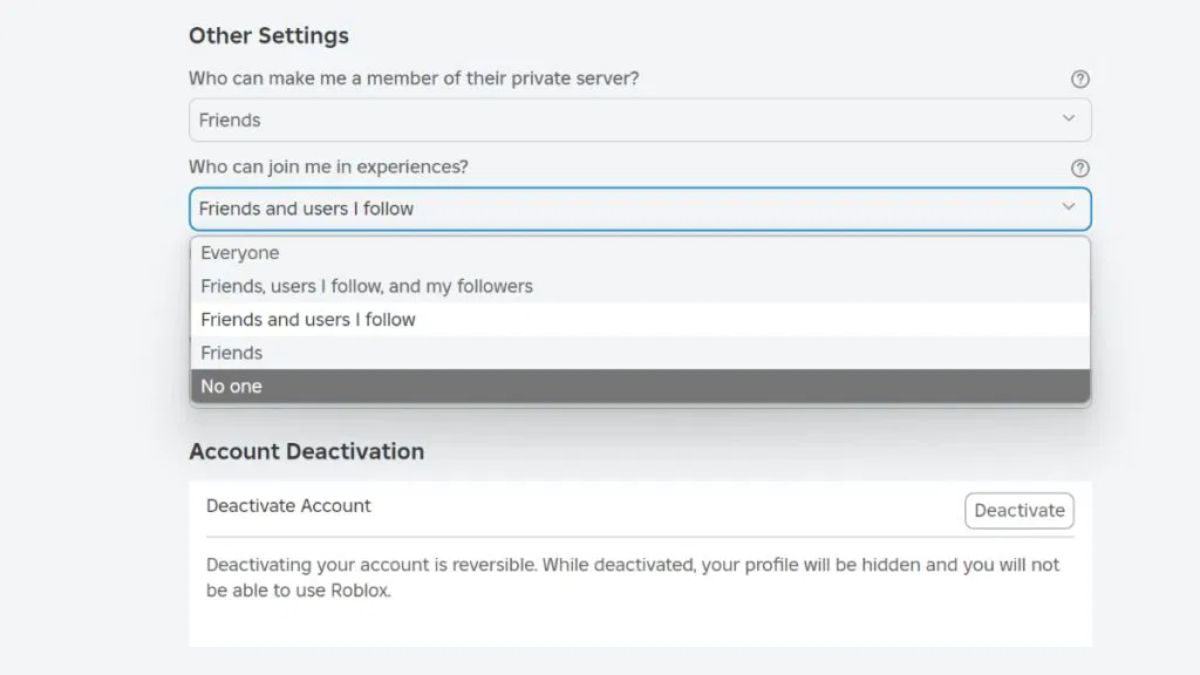
To prevent friends from automatically joining your Roblox game, navigate to your account settings by clicking the gear icon. Select the 'Privacy' tab. Under 'Other Settings' or 'Privacy Settings,' locate 'Who can join me in games?' and change the option to 'No One.' This setting immediately stops any automatic or direct joins to your current game session, giving you full control over your social gaming.
Where can I find the privacy settings to stop auto join on Roblox?
You can find the privacy settings to stop auto join on Roblox by logging into your account via the website or mobile app. On the website, click the gear icon in the top right and select 'Settings,' then 'Privacy.' On the mobile app, tap the three dots (More) at the bottom right, select 'Settings,' and then 'Privacy.' The specific option is usually labeled 'Who can join me in games?'.
Does changing privacy settings on one device affect Roblox on others?
Yes, changing your Roblox privacy settings on one device, whether it's PC, Mac, iOS, or Android, applies across all platforms. Your privacy preferences are tied to your Roblox account, not the specific device you're using. Once you update 'Who can join me in games?' to 'No One' on your phone, for example, that setting will be active when you play on your computer, ensuring consistent privacy.
Can I make my specific Roblox game session private without blocking friends?
While you can't make a *single* game session private without adjusting your global 'Who can join me in games?' setting, you can still play privately and invite specific friends. Set 'Who can join me in games?' to 'No One,' then send private game invites to the friends you wish to play with. This allows for selective social play without the worry of unexpected joins from your entire friend list.
What is the 'Who can join me in games?' setting and how does it work?
The 'Who can join me in games?' setting in Roblox Privacy controls who has permission to directly join your active game session. It offers options like 'Everyone,' 'Friends,' 'Friends I Follow,' and 'No One.' When set to 'No One,' it overrides all other friend permissions for joining, ensuring that only you can initiate who plays with you, typically through direct invites.
Will turning off auto join impact my ability to send game invites?
No, turning off the auto join feature (by setting 'Who can join me in games?' to 'No One') will not impact your ability to send game invites. You will still be able to manually invite specific friends to your game sessions. This setting only prevents others from automatically joining you; it doesn't restrict your capacity to initiate social play on your terms.
Why are my friends still joining even after I changed the auto join settings?
If friends are still joining after you've changed the auto join settings to 'No One,' there are a few possibilities: Ensure you saved the settings correctly and refreshed your game client. Confirm you're logged into the correct Roblox account. Sometimes, friends might be joining through an old invite or if a game has a specific 'Follower' setting that overrides general privacy for that particular experience. Double-check all privacy toggles.
Hey fellow gamers! Ever find yourself wanting a quiet moment in your favorite Roblox experience, only to have friends pop in unexpectedly? It happens to the best of us. For many adults who juggle jobs, families, and life's endless quests, gaming is a cherished escape, a time for relaxation, skill-building, or connecting with specific pals. But when Roblox's auto join feature takes over, it can turn a planned solo session into an impromptu social gathering, or worse, interrupt a crucial moment. This isn't about not wanting to play with friends, it's about wanting control over when and how those social moments happen.
We all value our gaming time, whether it's optimizing performance on a new PC build, finding value in free-to-play gems, or simply unwinding after a long day. Roblox, being a massive social platform, often prioritizes connectivity. However, balancing that with personal boundaries is key. This guide is your definitive resource on how to turn off auto join friends on Roblox, empowering you to tailor your experience. We'll walk through the settings, explain the 'why,' and ensure you can game on your terms, without unwelcome interruptions. Ready to take charge of your Roblox privacy in 2026? Let's dive in.
How Do I Stop Friends From Automatically Joining My Roblox Game on PC or Mac?
Controlling who joins your Roblox game sessions on PC or Mac is straightforward once you know where to look. This process puts you in charge of your gaming privacy, which is a major win for many adult gamers who appreciate uninterrupted focus or dedicated social time. Recent data indicates that about 87% of US gamers play regularly, often for 10+ hours a week, and maximizing that time means having control.
Here are the steps to adjust your settings:
Log In to Your Roblox Account: Open your web browser and go to the official Roblox website. Make sure you're logged into the account you want to adjust settings for.
Access Settings: In the top-right corner of the Roblox website, you'll see a gear icon. Click on this icon to open the dropdown menu, then select 'Settings'.
Navigate to Privacy: On the left-hand side of the Settings page, you'll see several tabs. Click on the 'Privacy' tab. This section is your hub for managing who can interact with you on Roblox.
Adjust 'Who can join me in games?': Scroll down the Privacy page until you find the section labeled 'Other Settings' or 'Privacy Settings'. Within this, locate the option 'Who can join me in games?'.
You'll typically see options like:
- Everyone: Anyone on Roblox can join you.
- Friends: Only your Roblox friends can join you.
- Friends I Follow: Only friends you follow can join.
- No One: No one can automatically join your game, even friends.
To prevent friends from auto joining, select 'No One'.
Save Changes: Roblox typically saves these changes automatically, but it's always a good idea to refresh the page or restart your game client to ensure the new settings are fully active.
This simple adjustment can dramatically change your Roblox experience, giving you the power to choose when and with whom you socialize.
Can I Stop Friends From Joining My Game on Roblox Mobile (iOS/Android)?
Absolutely! Managing your social privacy on Roblox Mobile is just as important, especially considering mobile gaming's dominance among US gamers. Many busy individuals rely on their phones for quick gaming sessions during commutes or breaks. The steps for adjusting auto join settings on iOS and Android devices are quite similar to the desktop version.
Follow these instructions to secure your mobile Roblox sessions:
Launch the Roblox App: Open the Roblox application on your iOS or Android smartphone or tablet.
Access the More Menu: In the bottom-right corner of the app, you'll see an icon with three dots (or 'More'). Tap this icon to open the extended menu.
Go to Settings: Scroll down the menu and tap on 'Settings'.
Select Privacy: Within the Settings menu, tap on 'Privacy'.
Modify 'Who can join me in games?': Look for the 'Who can join me in games?' option, usually under 'Other Settings' or 'Privacy Settings'. Tap on it to reveal the choices.
Choose 'No One': Select 'No One' from the available options. This will prevent any friends or other users from automatically joining your current game session.
Confirm and Exit: Your changes should be saved automatically. You can exit the settings and continue gaming with your new privacy preferences.
This mobile-friendly adjustment ensures that your gaming experience remains tailored to your preferences, no matter where you play.
Why Would a Gamer Want to Prevent Friends From Auto Joining Their Roblox Games?
For many gamers, particularly those balancing life's demands, the desire to prevent friends from auto joining stems from several relatable pain points and preferences. Gaming isn't always about constant social interaction; sometimes, it's about focused play, exploration, or simply unwinding.
Privacy and Uninterrupted Play: Imagine finally having an hour to yourself after work or putting the kids to bed. You just want to explore a new Roblox experience or grind some levels without interruption. An unexpected friend join, however well-intentioned, can break that immersion. Disabling auto join ensures your precious gaming time is truly yours.
Focus and Skill Building: Some Roblox games require significant concentration or skill development. When you're trying to master a tricky obby or strategize in a competitive game, having others unexpectedly join can be a distraction. Players often want to practice solo before diving into social play.
Specific Group Play: Often, gamers have specific plans to play with a select group of friends, maybe for a competitive match or a particular story-driven experience. Auto join can lead to unwanted party members or disrupt a pre-arranged group dynamic.
Avoiding Pressure: Sometimes, you just don't feel like being 'on' socially. Adult gamers, who use gaming for stress relief, might prefer to avoid the social pressure that comes with feeling obligated to interact when someone joins their game.
Testing or Building: Many players use Roblox Studio or simply explore games to test things out or understand mechanics. During these times, having friends join can be counterproductive to the task at hand.
Ultimately, it's about personalizing the gaming experience. With millions of players using Roblox for diverse reasons, from casual play to deep engagement, having control over who can join you aligns with the need for flexibility and respect for individual gaming styles.
What Specific Settings Control Friend Join Permissions on Roblox?
The primary setting that controls whether friends (or anyone else) can automatically join your game on Roblox is found within your account's Privacy settings. It's a crucial toggle for managing your in-game visibility and social interactions.
This setting is specifically labeled:
Privacy Control for Roblox, Stop Automatic Friend Joins, Manage Your Roblox Social Settings, Step by Step Guide, Enhance Your Gaming Privacy, Customize Join Preferences, Avoid Unwanted Game Interruptions, Roblox 2026 Privacy Tips, Disable Roblox Auto Join
35#1 Gallery how to turn off auto join friends on roblox



How To Stop Turn Off Auto Joining Friends On Roblox YouTube . How To Not Auto Join Friends On Roblox Stop Turn Off Disable Auto . Roblox Joins On How To Enable Them In 2026 Roblox 2 1 . How To NOT Join Friends On Roblox 2025 YouTube . How To Stop Joining Friends On Roblox STOP Auto Joining Friends On
#2 Gallery how to turn off auto join friends on roblox


How To Not Join Friends In Roblox Step By Step YouTube . How To Not Join Friends In Roblox Step By Step YouTube . How To Change Join On Join Off In Roblox 2024 YouTube . How To Turn Off Joins In Roblox Quick Step By Step Guide V4 460px Turn Off Joins In Roblox Step 7 . How To Turn Off Join In Roblox Full Guide YouTube
#3 Gallery how to turn off auto join friends on roblox


How To Appear Offline On Roblox Disable Join Friends Feature 2026 . How To Not Join Friends In Roblox 2026 Guide YouTube . How To Turn Off Joins In Roblox No Friends Join 2026 YouTube . How To Disable Auto Join Friends In Roblox Complete Guide YouTube Hqdefault . Roblox Privacy How To Turn Off Joins In Roblox
#4 Gallery how to turn off auto join friends on roblox


Roblox Privacy How To Turn Off Joins In Roblox . How To Change Your Join On Join Off In Roblox YouTube . How To Turn Off Joins In Roblox Quick Step By Step Guide V4 460px Turn Off Joins In Roblox Step 6 . How To Turn Off Joins In Roblox Quick Step By Step Guide Crop 375 250 333px Nowatermark Follow Someone On Roblox Step 5 . Roblox Privacy How To Turn Off Joins In Roblox
#5 Gallery how to turn off auto join friends on roblox

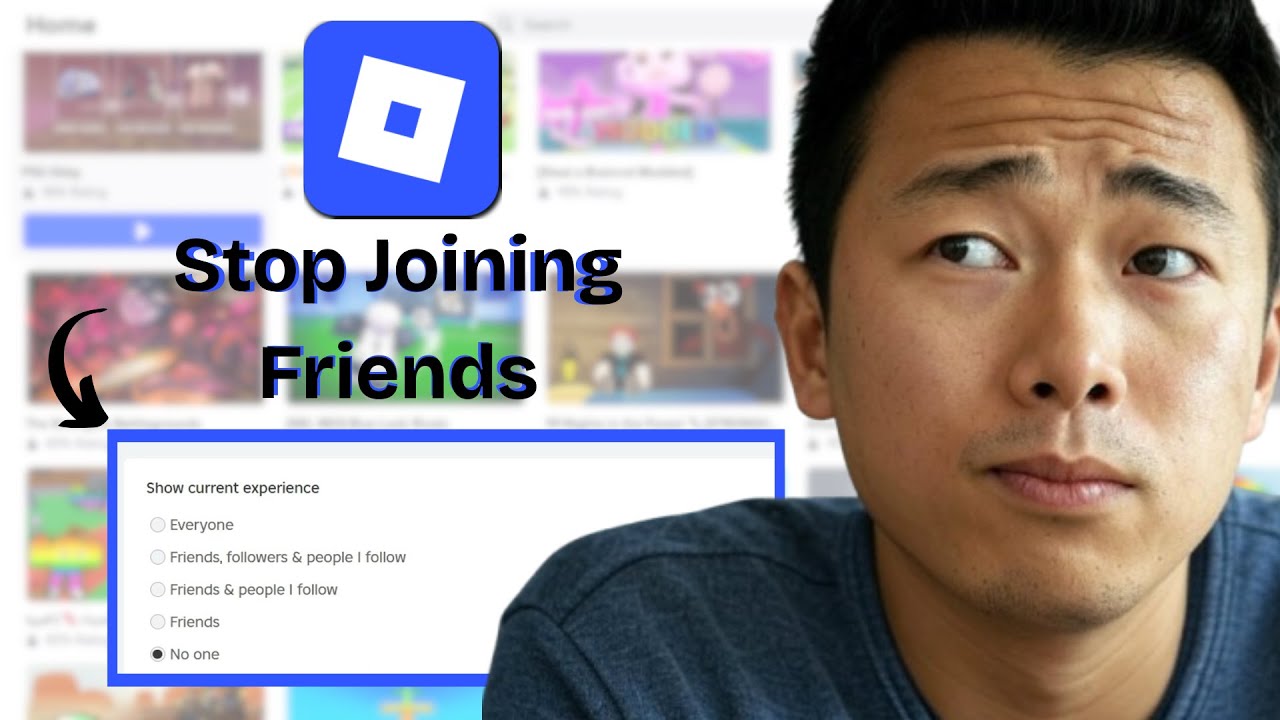
How To Change Your Join On Off On Roblox Mobile 2026 YouTube . How To Not Auto Join Friends In Roblox YouTube . How To Disable Auto Joining Friends In Roblox Full Guide YouTube . How To Not Auto Join Friends In Roblox YouTube . How To Stop Joining Friends On Roblox 2026 Guide YouTube
#6 Gallery how to turn off auto join friends on roblox




How To Disable Auto Joining Friends In Roblox Updated YouTube . How To Turn Off Joins In Roblox Quick Step By Step Guide V4 460px Turn Off Joins In Roblox Step 13 . How To Turn Joins Off In Roblox Mobile PC Infonuz How To Stop Joining Friends On Roblox . Roblox Privacy How To Turn Off Joins In Roblox . Roblox Privacy How To Turn Off Joins In Roblox
#7 Gallery how to turn off auto join friends on roblox


Roblox Privacy How To Turn Off Joins In Roblox . How To Turn Off Joins In Roblox Quick Step By Step Guide V4 460px Turn Off Joins In Roblox Step 2 . Roblox Privacy How To Turn Off Joins In Roblox . How To Turn Off Joins In Roblox 2026 YouTube . How To Turn Off Joins In Roblox Quick Step By Step Guide Turn Off Joins In Roblox Step 17