Navigating Roblox can sometimes involve managing browser data, and understanding how to change Roblox cookies is a crucial skill for security, account management, and troubleshooting. This comprehensive guide delves into the practical aspects of browser cookie management specifically for Roblox users. We'll explore why you might need to adjust these settings, the potential benefits for account security and privacy, and detailed, step-by-step instructions across popular web browsers. Whether you're aiming to resolve login issues, enhance your privacy online, or simply curious about how browser data impacts your gaming experience, this article provides clear, actionable advice. Learn about clearing specific site data, understanding what cookies do, and best practices for maintaining a secure and smooth Roblox experience. Our aim is to empower you with the knowledge to manage your digital footprint effectively, ensuring your time on Roblox remains enjoyable and secure amidst the ever-evolving landscape of online gaming. This guide is crafted for the modern gamer who balances their passion with real-life responsibilities, valuing practical solutions over technical jargon.
What are Roblox cookies and why would I need to manage them?
Roblox cookies are small data files your browser stores to keep you logged in and remember your preferences on Roblox.com. You might need to manage them for troubleshooting login issues, enhancing account security (especially after using a shared device), or improving your online privacy by controlling what data is stored locally. They're essential for a smooth gaming experience, but sometimes need a refresh.
How do I clear specific Roblox cookies in Google Chrome?
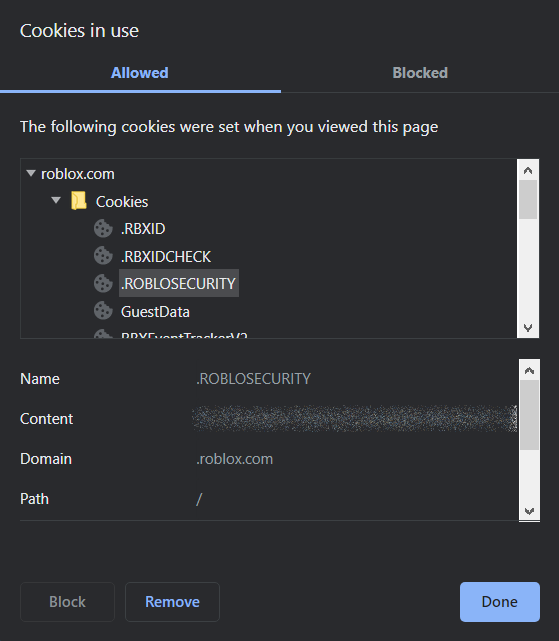
To clear Roblox cookies in Chrome, open your browser settings, navigate to "Privacy and security," then "Site Settings," and "Cookies and site data." Click "See all cookies and site data," search for "roblox.com," and then delete the associated entries using the trash can icon. This logs you out and forces a fresh connection, often resolving glitches.
Does deleting Roblox cookies remove my Robux or game progress?
No, absolutely not. Deleting Roblox cookies only affects your local browser session, meaning you'll be logged out and any local preferences will reset. Your Robux balance, game progress, items, and account data are all stored securely on Roblox's servers and remain unaffected by cookie management.
Is using a third-party Roblox cookie editor safe for my account?
Using third-party Roblox cookie editors is highly risky and strongly discouraged. These tools can violate Roblox's terms of service, leading to account bans, and often expose your account to malware, phishing, or unauthorized access. Stick to official browser settings for managing your cookies to ensure account security.
What steps should I take to enhance my Roblox account security beyond cookies?
Beyond managing cookies, enhance Roblox security by enabling two-step verification, using a strong and unique password, being wary of suspicious links or messages, and never sharing your login credentials. Regularly review your account settings and keep your email associated with Roblox updated and secure.
How often should a busy gamer typically clear their Roblox cookies for optimal performance and security?
For busy gamers balancing life, clearing Roblox cookies proactively every few months or whenever you encounter a login issue is usually sufficient. If you frequently use shared devices, clearing them after each session is a smart security practice. This helps maintain a clean, secure, and smoothly performing Roblox experience without constant intervention.
Can clearing Roblox cookies on my phone's browser help with in-app glitches?
If you're accessing Roblox via your phone's *web browser*, clearing its cookies (through browser settings) can help with web-based glitches. However, for issues within the dedicated *Roblox app*, you'll typically need to clear the app's cache and data via your phone's system settings (e.g., "Apps" menu on Android) or by reinstalling the app on iOS to resolve in-app glitches.
Hey fellow gamers! Ever found yourself staring at a Roblox login screen, puzzled why your account isn't quite right, or maybe you're just keen on tightening up your online privacy? You're not alone. In today's interconnected gaming world, where 87% of US gamers regularly dive into their favorite titles, often for 10+ hours a week, understanding the nuts and bolts of your online experience is key. Roblox, a massive hub for creativity and social play, relies on something called 'cookies' to make your experience smooth. But what happens when these cookies become a problem? Or when you simply want more control over your digital footprint?
Many of us, balancing careers, families, and life's demands, appreciate gaming as a way to unwind, connect with friends, or even build new skills. We value efficiency and security, preferring clear solutions over complex tech jargon. This month, with social gaming trends continuing to dominate and mobile gaming thriving, ensuring your online accounts are secure and performant is more important than ever. That's why diving into how to change Roblox cookies isn't just a technical tweak; it's a proactive step towards a safer, smoother, and more controlled gaming life. Whether you're looking to troubleshoot a persistent login glitch, enhance your privacy, or just understand how things work under the hood, this guide is for you. We'll walk through exactly what Roblox cookies are, why you might need to manage them, and provide simple, actionable steps to get it done across your favorite browsers. Let's make sure your Roblox adventures are always on your terms.
What Exactly Are Roblox Cookies and Why Do They Matter?
Roblox cookies are small text files stored by your web browser when you visit Roblox.com. They act like a memory for the website, remembering information like your login session, preferences, and activity. These cookies are crucial because they allow you to stay logged in without re-entering your credentials every time you switch pages or revisit the site. Without them, your Roblox experience would be frustratingly fragmented, constantly asking for your login. They also help Roblox understand user behavior to improve site functionality and personalize your experience.
For gamers, especially those juggling busy schedules, cookies ensure a seamless transition from work to play. Imagine having to log in every five minutes while trying to enjoy a quick game during a break – it would defeat the purpose of relaxation! Understanding their role is the first step in effective management, ensuring your gaming remains hassle-free and your account secure.
Why Would a Gamer Need to Change or Manage Roblox Cookies?
Gamers often need to change or manage Roblox cookies for several key reasons, primarily revolving around security, troubleshooting, and privacy. A common scenario is when you're experiencing persistent login issues, like being unable to access your account despite correct credentials; clearing cookies can often resolve these glitches by removing corrupted or outdated session data. Another critical reason is account security. If you've used Roblox on a shared computer or suspect unauthorized access, changing your Roblox cookies (often by logging out and clearing them) immediately severs the active session, preventing others from using your account. Privacy is also a major concern for many, especially given today's digital landscape where personal data is highly valued. Managing cookies allows you to control the information Roblox stores about your browsing habits, aligning with a more proactive approach to online privacy. For the busy gamer, these actions are quick, effective ways to maintain control and peace of mind.
How Do You Safely Change Roblox Cookies Without Losing Data?
Safely managing Roblox cookies doesn't involve "changing" them in the sense of editing their content directly, but rather managing your browser's interaction with them. The safest and most effective method is to clear existing Roblox-specific cookies, which forces the website to generate new ones upon your next login. This process doesn't cause data loss on your Roblox account itself (like game progress or Robux balance) because that data is stored on Roblox's servers, not in your browser cookies. Instead, clearing cookies will simply log you out and reset your local site preferences. To minimize impact, avoid clearing all browser cookies unless absolutely necessary; focus on just the Roblox-related ones. Always ensure you have your Roblox account credentials handy before proceeding, as you will need to log back in. This targeted approach ensures security and troubleshooting without disrupting your overall browser experience, making it a smart move for any gamer.
What Are the Step-by-Step Methods to Clear Roblox Cookies on Chrome?
Clearing Roblox cookies in Google Chrome is a straightforward process vital for troubleshooting or securing your account. First, open Chrome and type chrome://settings/content/cookies into the address bar, then press Enter. Alternatively, navigate via Settings > Privacy and security > Site Settings > Cookies and site data. Look for "See all cookies and site data." In the search bar provided, type "Roblox.com" to filter specific cookies. Click the trash can icon next to each Roblox-related entry to delete them individually, or choose "Remove All Shown" if multiple Roblox entries appear. After deletion, close and reopen your browser before attempting to log back into Roblox. This targeted approach effectively clears old session data, helps resolve login issues, and enhances security without affecting other websites you frequent. It's a quick, efficient fix that empowers you to take control of your gaming experience.
How to Manage Roblox Cookies in Mozilla Firefox?
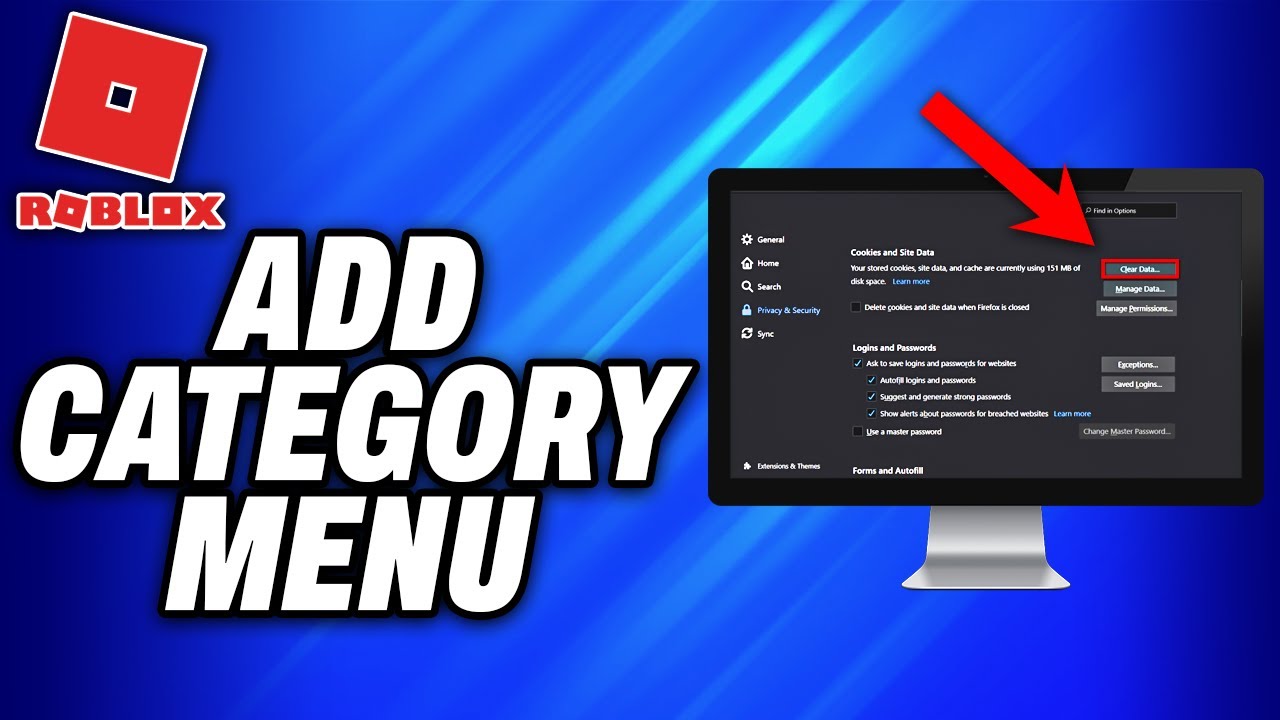
Managing Roblox cookies in Mozilla Firefox is quite intuitive. Begin by opening Firefox and clicking the menu icon (three horizontal lines) in the top-right corner. Select "Settings," then navigate to "Privacy & Security" on the left sidebar. Scroll down to the "Cookies and Site Data" section and click on "Manage Data..." A new window will appear showing stored websites. In the search bar, type "roblox.com" to find all associated entries. Select "Roblox.com" from the list and then click "Remove Selected." If multiple entries appear, ensure you select all Roblox-related ones. Confirm your action by clicking "Save Changes" and then "Remove" when prompted. After this, restart Firefox. This method precisely targets Roblox cookies, allowing you to refresh your login session and enhance privacy without broadly impacting your browsing experience. It's a simple yet powerful tool for any Firefox-using gamer.
Are There Any Risks Involved When Changing Roblox Cookies?
While "changing" or more accurately, clearing Roblox cookies is generally a safe and beneficial practice, there are minor considerations. The primary risk is temporarily losing convenience: you'll be logged out of your Roblox account and any other settings or preferences stored locally by those specific cookies will revert to default. This means you'll need to re-enter your username and password the next time you visit Roblox. For gamers who use two-factor authentication, ensure you have access to your verification method. There's no risk to your actual game progress, Robux, or items, as these are stored on Roblox's servers, not in your browser. The process is designed to improve security by severing old sessions and can often fix persistent login glitches. Always make sure you're using official browser settings for cookie management to avoid any third-party tools that could pose security risks. For the busy gamer, understanding these small trade-offs ensures you can manage your digital privacy confidently.
Can Using a Roblox Cookie Editor Improve My Gaming Experience?
The concept of a "Roblox cookie editor" often refers to third-party browser extensions or tools claiming to modify Roblox cookies. While these tools might promise enhanced features or access, using them carries significant security risks and is strongly discouraged. Roblox's terms of service generally prohibit the modification of client-side data in unauthorized ways, and using such editors can lead to account suspension or even permanent bans. More critically, these third-party tools are often vectors for malware, phishing attempts, or unauthorized access to your account, compromising your personal and financial information. Instead of seeking "improvements" through risky cookie editors, focus on legitimate methods for optimizing your Roblox experience: ensuring a stable internet connection, keeping your browser and system updated, and utilizing official Roblox features for performance. For responsible gamers, prioritizing account security and adhering to platform guidelines is paramount for a sustained and enjoyable experience.
What About Mobile Devices? How Do I Clear Roblox Cookies on My Phone?
Managing Roblox cookies on mobile devices, where many US gamers spend significant time, is slightly different but equally important. Since Roblox has dedicated apps for iOS and Android, the concept of "browser cookies" doesn't directly apply to the app itself. However, if you're accessing Roblox via a mobile web browser (like Chrome or Safari on your phone), the process is similar to desktop browsers: navigate to your mobile browser's settings, find the "Privacy" or "Site Data" section, and clear data specifically for "roblox.com." For the Roblox app, troubleshooting often involves clearing the app's cache and data through your device's operating system settings. On Android, go to "Settings > Apps > Roblox > Storage > Clear Cache / Clear Data." On iOS, there isn't a direct "clear cache" for individual apps; typically, you uninstall and reinstall the app to achieve a similar effect, which clears local data. These steps help resolve in-app glitches and refresh your session effectively.
Does Clearing Roblox Cookies Affect My Robux or Game Progress?
Absolutely not! This is a common concern among gamers, but rest assured, clearing Roblox cookies does not affect your Robux balance, game progress, purchased items, or account statistics. All of that crucial data is stored securely on Roblox's servers, not locally in your browser's cookies. Cookies are primarily responsible for maintaining your login session and remembering minor preferences on your local device. When you clear them, you are simply telling your browser to forget that you were logged in and to discard any temporary site settings. The next time you visit Roblox and log in, the website will retrieve all your account-specific information from its servers and issue new cookies to your browser. Think of it like a library card: if you lose your card, the library still has all your borrowing history; you just need a new card to check out books. So, feel free to manage your cookies for security or troubleshooting without fear of losing your hard-earned progress or Robux.
How Often Should I Consider Managing My Roblox Cookies?
The frequency for managing your Roblox cookies depends on your usage habits and security needs. For most casual gamers, clearing them every few months or whenever you experience a login issue is sufficient. If you use Roblox on shared computers, such as at a friend's house or a public library, it's highly recommended to clear cookies (or at least ensure you're logged out) immediately after each session to prevent unauthorized access. If you're particularly privacy-conscious, a monthly clear can help maintain a cleaner digital footprint. More active gamers who frequently switch accounts or encounter performance glitches might find value in clearing them more often, perhaps weekly. Ultimately, there's no strict rule, but being aware of when and why to manage them empowers you to maintain a secure and optimal experience. Regular maintenance, especially after major system updates or if you notice unusual behavior, is a good habit for any digital citizen.
Can Browser Extensions Help with Roblox Cookie Management?
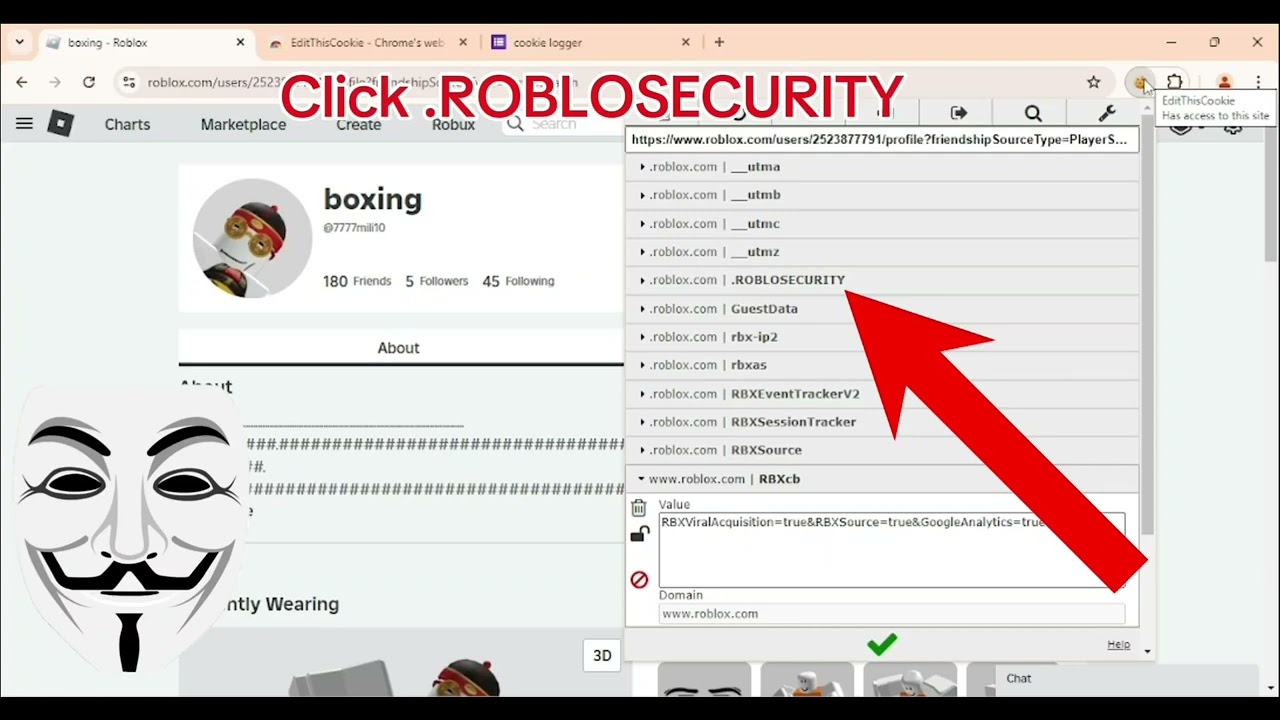
Yes, certain browser extensions can assist with cookie management, but it's crucial to choose reputable and well-reviewed options. Extensions like "Cookie AutoDelete" or "EditThisCookie" (use with extreme caution and only if you know what you're doing) allow for more granular control over cookies, letting you automatically delete them when you close a tab or manage specific site cookies more easily than through native browser settings. However, be extremely wary of extensions that claim to "hack" or "edit" Roblox cookies for in-game advantages. These are almost always malicious, violating Roblox's terms of service, and can severely compromise your account security, leading to bans, data theft, or malware infections. Stick to established privacy-focused cookie managers from trusted developers. Always research an extension thoroughly, check its reviews, and understand its permissions before installing. For the average gamer, mastering the built-in browser tools for cookie management is usually sufficient and safer.
Phew! We've covered a lot about how to change Roblox cookies, from understanding their fundamental role to hands-on steps across different browsers and crucial security considerations. In an era where US gamers value both immersion and security, taking control of your browser data isn't just a technical chore; it's a vital part of maintaining a healthy and secure online gaming presence. By understanding how to manage these small but mighty files, you empower yourself to troubleshoot issues, enhance your privacy, and ensure your Roblox adventures remain on your terms.
Remember, your game progress and Robux are safe on Roblox's servers, so managing local cookies is about optimizing your interaction with the platform, not risking your valuable in-game assets. Stay vigilant, stay secure, and keep enjoying the vast, creative world of Roblox!
What's your biggest gaming challenge when it comes to online privacy or account security? Comment below!
Q: Is it safe to clear all cookies in my browser for Roblox?
A: It's generally safe to clear all cookies, but it will log you out of all websites, not just Roblox. For targeted action, it's better to clear only Roblox-specific cookies to avoid unnecessary re-logins elsewhere.
Q: Will clearing Roblox cookies fix my login loop problem?
A: Often, yes. Login loop problems can be caused by corrupted or expired session cookies, so clearing them forces a fresh connection and can frequently resolve the issue.
Q: Can Roblox track my activity if I clear my cookies regularly?
A: Clearing cookies reduces local tracking by removing session identifiers and preference data. However, Roblox, like any online service, uses other methods (e.g., IP address, account activity) for analytics and security, so it doesn't make you completely anonymous.
Q: What's the difference between clearing cache and clearing cookies for Roblox?
A: Clearing cache removes temporary files (images, scripts) to speed up loading, while clearing cookies removes session and preference data. Both can help with troubleshooting, but cookies are specifically for login and site preferences.
Learn to safely change Roblox cookies for enhanced security and privacy. Understand the purpose of Roblox cookies and how they impact your login. Discover step-by-step methods for managing cookies across major browsers. Troubleshoot common login issues by clearing specific Roblox data. Implement best practices for maintaining a secure and optimized Roblox gaming experience. Gain insights into protecting your account from unauthorized access.
35


HOW TO FIND ROBLOX SECURITY COOKIE 2026 FULL GUIDE YouTube . 2025 MOBILE HOW TO EASILY COOKIE LOG INTO SOMEONE S ACCOUNT IN . How To Clear Cookies On My Computer For Roblox 2025 Guide YouTube . COOKIE REFRESHER MARCH 2023 ROBLOX COOKIES YouTube . Roblox Cookie Clicker Codes June 2026 Free Cookies More Dexerto Cookie Clicker Rainbow 1024x576





How To Clear Your Cookies On Your Computer Roblox YouTube . Roblox Cookie Logging Explained 2025 YouTube . How To Clear Your Cookies On Your Computer Roblox EASY YouTube . HOW TO EASILY COOKIE LOG INTO SOMEONE S ACCOUNT IN ROBLOX September . Roblox Steal Cookies Codes March 2026 10 New Codes Available Roblox Steal Cookies Codes 768x432


How To Change Roblox Avatar 2026 YouTube . How To Find Roblox Security Cookie 2026 YouTube . Tutorial How To Get Your ROBLOX Cookie YouTube Hqdefault . How To Clear Your Cookies On Your Computer Roblox 2024 YouTube . How To Clear Your Cookies On Your Computer Roblox Quick Tutorial




Roblox Cookie Clicker Codes June 2026 Free Cookies More Dexerto Roblox Cookie Clicker Cover . How To Change Password In Roblox Change Roblox Password 2026 Full . Roblox How To Get Cookie YouTube . HOW TO COOKIE LOG IN ROBLOX 2025 STILL WORKING YouTube . HOW TO MAKE COOKIES IN ROBLOX YouTube


How To PM On Roblox Your 2026 Guide To Direct Messaging Dc16406f 9d07 44f6 B2a3. How To Cookie Log Someone Easily On Roblox DECEMBER 2024 STILL WORKING . Roblox Cookie Login Extension README Md At Main Severityc Roblox Roblox Cookie Login Extension. NEW HOW TO CHANGE COOKIE RUN KINGDOM SERVER IN 2026 EASY GUIDE YouTube . How To Change Roblox Username For Free 2026 UPDATED YouTube


Roblox Cookie Clicker Codes April 2026 Deltia S Gaming Desktop Screenshot 2025.06.15 20.47.09.43 . How To Edit Cookies On Roblox YouTube Hqdefault . What Is Crumbl Roblox And Why Is It Popular In 2026 Red And Black Geometric Background Flyer 4. How To Change Roblox Game Icon 2026 Updated YouTube . How To Change Roblox Keyboard Controls Keybinds NEW 2026 YouTube



HOW TO COOKIE LOG ANYONE YOU WANT ON ROBLOX YouTube . HOW TO COOKIE LOG ROBLOX ACCOUNTS 2025 UNPATCHED METHOD YouTube Hqdefault . Ro Py . What Is Crumbl Roblox And Why Is It Popular In 2026 Crumbl 1.webp. How To Clear Your Cookies On Your Computer Roblox 2025 Easy Fix