








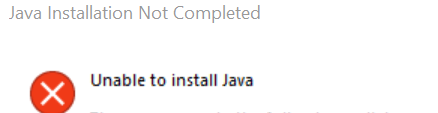





Why am I unable to download Java on my computer
Users are often unable to download Java due to various reasons including unstable internet connections restrictive browser security settings active firewalls or antivirus software blocking the installation Corrupted previous Java installations and insufficient administrative permissions on the computer can also impede a successful download and setup ensuring these common culprits are addressed is the first step.
How do I fix Java not installing on Windows 10
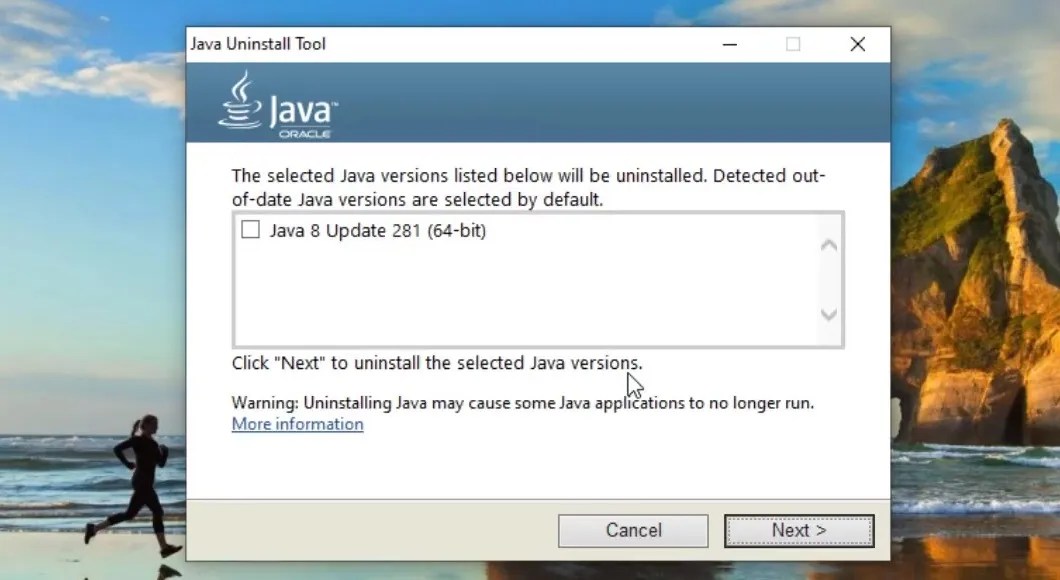
To fix Java not installing on Windows 10 first ensure you have administrative rights Then clear your browser cache and cookies temporarily disable your antivirus and firewall programs and try downloading the Java offline installer from the official Oracle website Performing a clean uninstall of any existing Java versions before a fresh installation often resolves persistent issues.
What is the best way to manually install Java
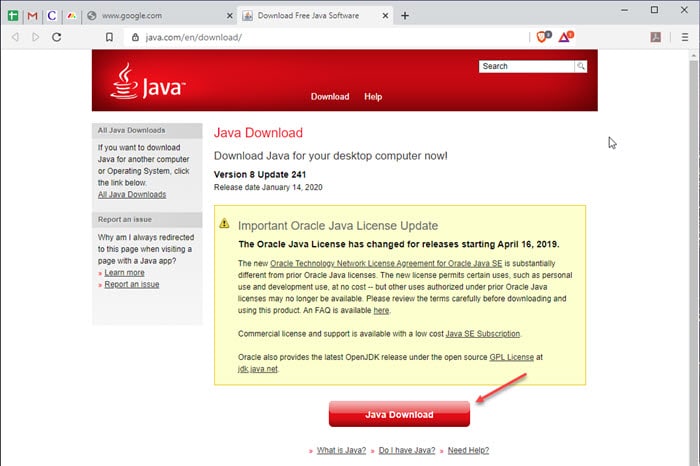
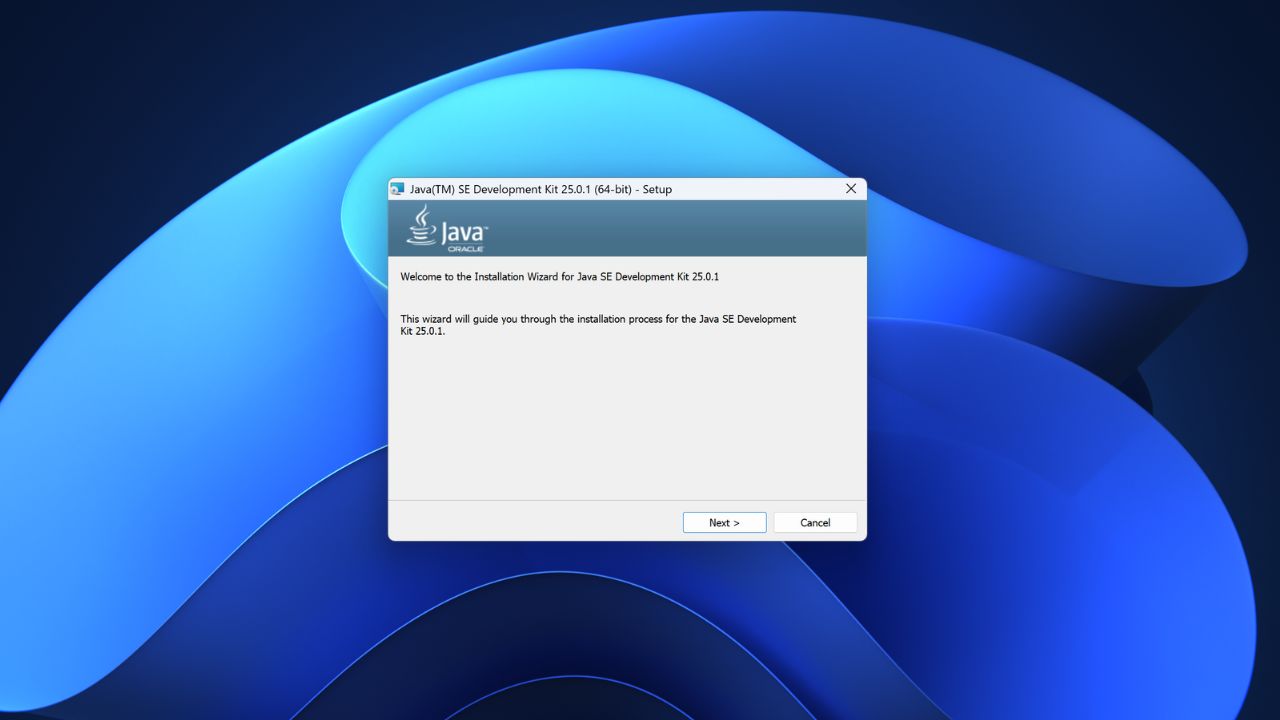
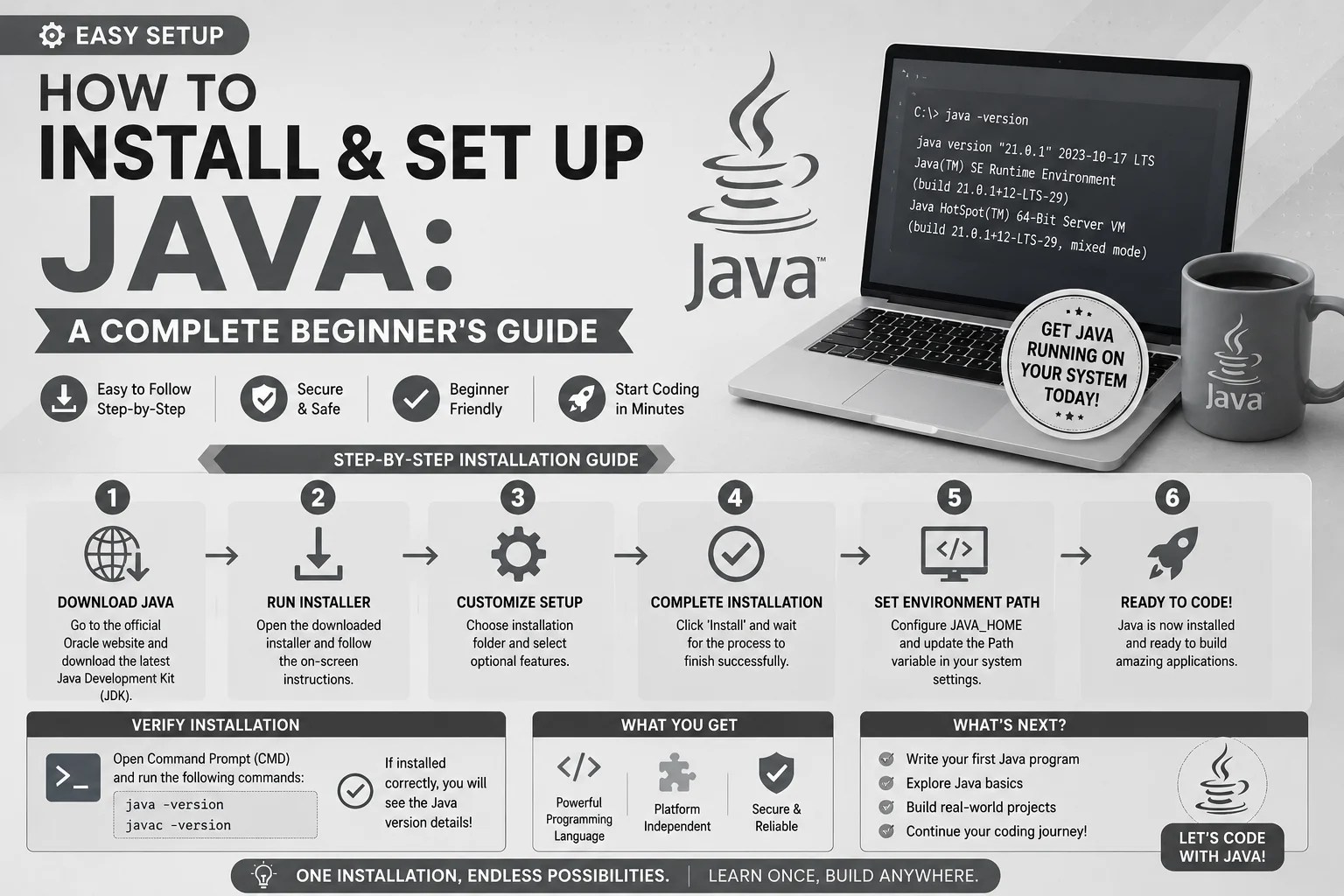
The best way to manually install Java involves downloading the official offline installer typically an EXE file for Windows from the Oracle website After downloading close all browsers and running applications then execute the installer with administrative privileges Follow the on-screen prompts carefully to complete the installation ensuring all components are properly set up on your system.
Why does my Java installer get stuck during download
A Java installer getting stuck during download usually indicates an issue with your internet connection server overload or interference from security software Check your internet stability and try downloading from the official Oracle site again during off peak hours Temporarily disabling antivirus or firewall and clearing browser data can also prevent the installer from freezing.
What are common Java download errors and how to fix them
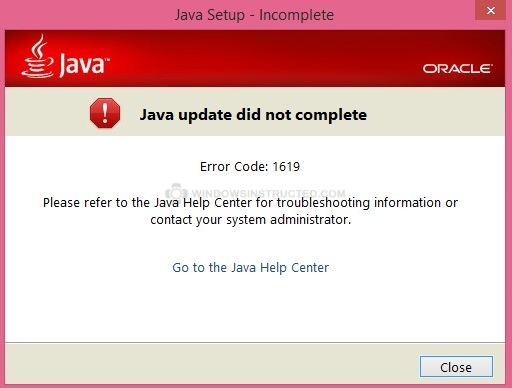
Common Java download errors include network failed blocked by antivirus or file corrupted Fix these by verifying your internet connection temporarily disabling security software clearing browser cache and ensuring you are downloading the correct Java version for your system architecture Using the official Java offline installer often bypasses many of these prevalent download complications effectively.
Can I install an older version of Java if the new one fails
Yes you can install an older version of Java if a newer one fails or if a specific application requires it However be aware that older versions may have security vulnerabilities It is crucial to download older versions from official archives like Oracle's Java SE archive to ensure legitimacy and always understand the security implications before proceeding with an older Java release.
How do I ensure Java downloads securely without viruses
To ensure Java downloads securely without viruses always download directly from the official Oracle Java website This is the most trusted source for legitimate and uncompromised installers Avoid third party download sites which may bundle malware or provide outdated versions Additionally keep your web browser and operating system updated and use reliable antivirus software actively.
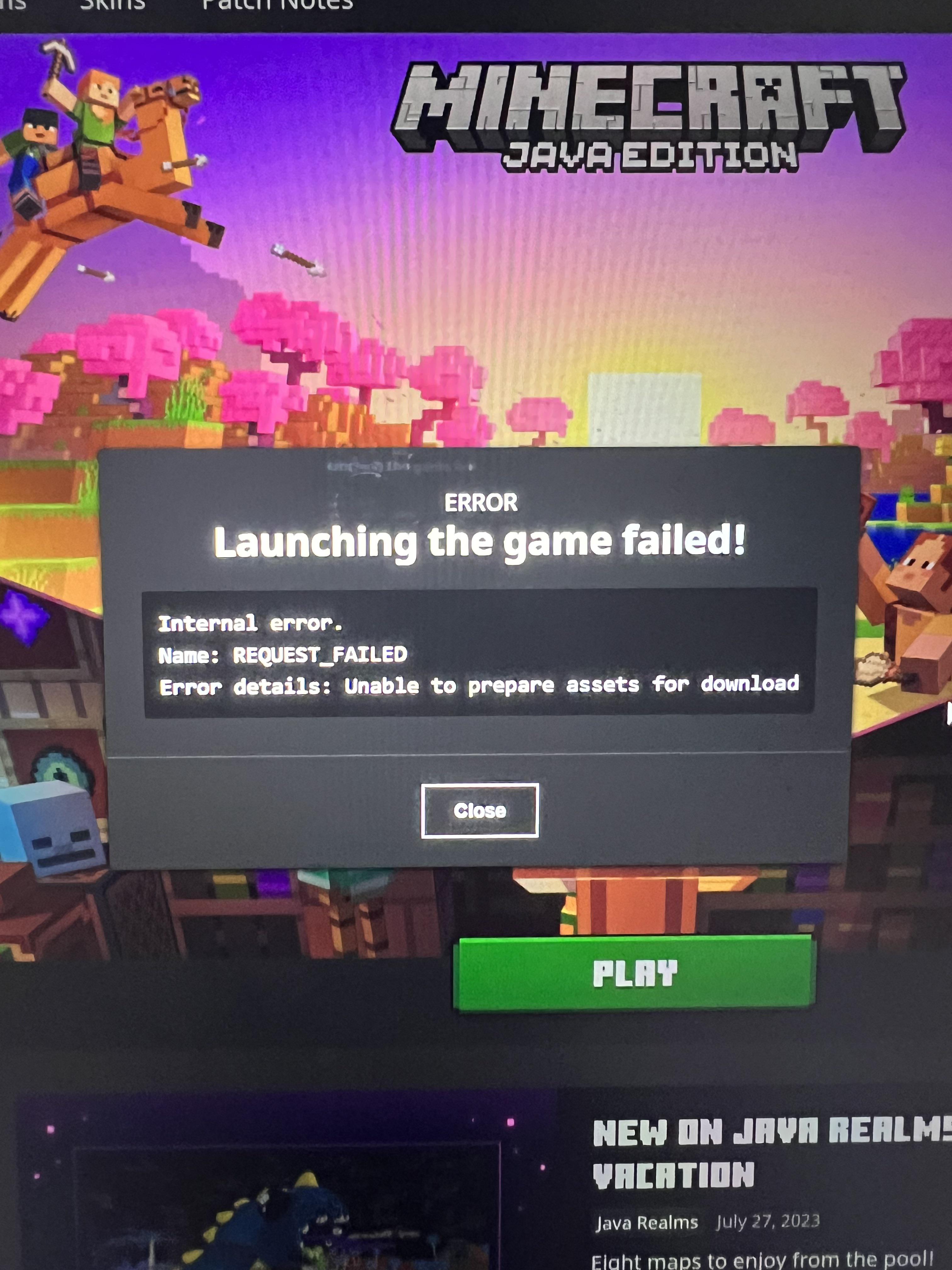
Discover a complete guide to resolving all common problems preventing Java downloads and installations on your system preventing frustrating interruptions and software access issues This comprehensive resource empowers you with expert strategies for troubleshooting Java download failures addressing installation errors and ensuring a smooth successful setup We cover essential steps like checking browser compatibility adjusting security settings clearing cache and even understanding manual installation methods for various operating systems Gain immediate solutions and regain full functionality for your Java dependent applications and online experiences by following our clear easy to understand instructions today preventing future headaches and maximizing your digital productivity Our actionable advice guarantees you can overcome these technical hurdles with confidence and efficiency quickly getting your Java environment operational without expert assistance
Experiencing trouble installing Java on your computer Many users face the frustrating challenge of Java downloads failing or getting stuck preventing access to essential applications and websites This guide cuts through the confusion offering clear actionable steps to diagnose and resolve common Java download issues and restore full functionality Whether you are encountering browser related blockages system conflicts or unexpected errors we provide a roadmap to a successful Java installation so you can seamlessly run your applications and browse Java dependent content effectively Understanding the root cause is the first critical step towards a lasting solution enabling a more stable computing experience overall.
Successfully installing Java is crucial for running many modern applications and browsing interactive web content When the download process falters it can halt productivity and create significant inconvenience This comprehensive article details various troubleshooting methods from basic checks to more advanced system adjustments ensuring you can overcome any installation hurdle Our goal is to equip you with the knowledge and tools necessary to not only fix the immediate download problem but also understand preventative measures for the future helping you maintain a robust and functional computing environment with ease.
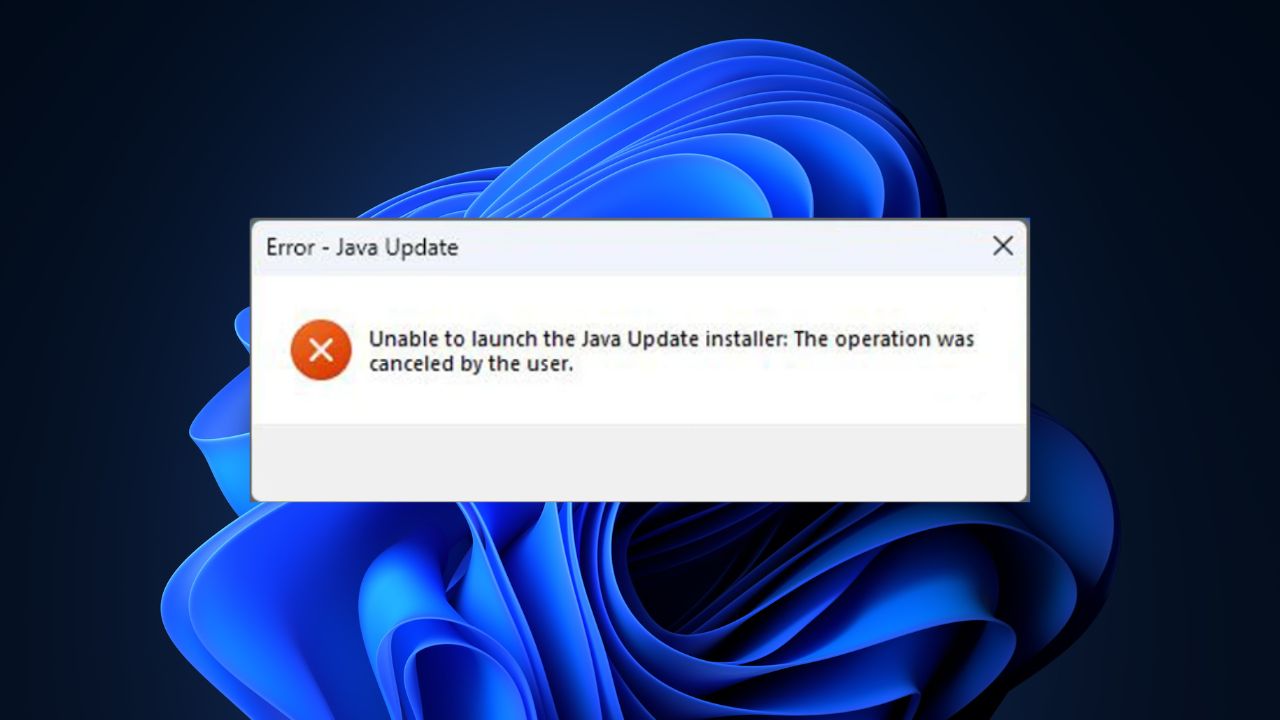
Many factors can contribute to Java download problems including outdated browser versions restrictive security settings and even corrupted previous installations Recognizing these potential culprits is essential for effective troubleshooting Our expert advice guides you through each possibility offering precise instructions to rectify the situation efficiently and permanently You will learn how to identify specific error messages interpret their meaning and apply the correct fixes ensuring your Java download and installation proceed without a hitch This proactive approach minimizes downtime and enhances your overall computing satisfaction significantly.
Core Understanding Fixing Java Download Fundamentals
Understanding why Java downloads fail often involves a careful look at your system and its interaction with the Java installer Sometimes a simple network glitch can interrupt the download while other times a more complex software conflict is at play We explore the fundamental reasons behind these common failures providing context that empowers you to approach the troubleshooting process with confidence and clarity Knowing the underlying mechanics of Java installation helps demystify the errors you might encounter making the path to resolution much smoother and more intuitive for every user. This foundational knowledge is key to preventing recurring problems and ensures a stable Java environment going forward.
Java a powerful programming language and computing platform is essential for a wide array of applications and web content When you encounter issues downloading it the problem often stems from a few core areas These include an unstable internet connection insufficient disk space or a previously corrupted Java installation Knowing these basics allows for targeted troubleshooting rather than random attempts at fixing the problem We guide you through verifying these fundamental aspects helping you establish a solid starting point for resolving the download difficulties you are currently experiencing This methodical approach is highly effective in pinpointing and eliminating the root cause of the Java installation failure.
A critical step in fixing Java download problems involves verifying your computer meets the minimum system requirements and has the necessary permissions The Java installer requires specific operating system versions adequate RAM and sufficient processor speed to function correctly Additionally administrative privileges are often needed for a successful installation without interruption Our guidance helps you check these essential prerequisites ensuring your system is prepared for Java installation and preventing common errors related to incompatible hardware or restricted access Addressing these basic conditions first can save considerable time and frustration in the troubleshooting process by ruling out the most straightforward causes.
Why Does Java Download Fail So Often
Java downloads frequently fail due to a combination of factors including outdated browser versions aggressive antivirus software and lingering remnants of prior Java installations These issues can block the installer prevent files from downloading completely or cause the setup process to terminate unexpectedly Identifying the specific reason for failure is paramount in applying the correct fix We delve into common scenarios explaining how each contributes to the problem and offering tailored solutions to address them effectively Understanding these recurring patterns of failure allows you to diagnose problems faster and implement more reliable solutions ensuring a smoother installation experience next time. This proactive knowledge is invaluable.
One major reason Java downloads encounter problems is often related to internet connectivity or network restrictions An unstable Wi-Fi connection a restrictive firewall or a proxy server can all impede the download process leading to incomplete files or corrupted installations We explain how to check your internet stability temporarily disable firewalls or adjust proxy settings to ensure a clear path for the Java installer These network related troubleshooting steps are often overlooked but are critical for successful downloads especially in corporate or highly secured home network environments Addressing these network specific challenges can often resolve many stubborn download failures quickly and efficiently.
Another frequent cause of Java download failures involves conflicts with existing software or system settings Your antivirus program or Windows Defender might mistakenly flag the Java installer as a threat blocking its execution or quarantining necessary files Additionally incompatible browser settings particularly for older versions can prevent the download page from functioning correctly We provide clear instructions on how to temporarily adjust security software settings or use a different browser to facilitate a successful download These adjustments are typically temporary and ensure that your system security remains intact after the Java installation is complete safeguarding your computer.
Checking Your System Prerequisites for Java
Before attempting any complex troubleshooting steps always confirm your system meets the basic requirements for the Java version you are trying to install This includes verifying your operating system is compatible checking for sufficient disk space and ensuring your internet connection is stable Java installers have specific demands and failing to meet them will inevitably lead to download or installation failures We guide you through a checklist of these essential prerequisites making sure your computer is adequately prepared for the Java environment you wish to implement This foundational check can prevent a myriad of potential problems down the line saving you significant time and effort in the long run.
Proper system preparation extends beyond just operating system compatibility it also involves ensuring your computer has enough free disk space and adequate memory Java installations require a certain amount of space for temporary files and the installed runtime environment and insufficient memory can cause the installer to crash We outline how to quickly check your disk space and memory usage helping you free up necessary resources if needed This proactive approach ensures a smoother installation process minimizing the chances of unexpected errors related to resource constraints allowing Java to install without any hitches.
Verifying your internet connection stability and speed is a crucial prerequisite for any successful software download An intermittent or slow connection can lead to corrupted Java installer files or prolonged download times that eventually time out We recommend performing a quick internet speed test and if possible using a wired connection during the download process for maximum reliability Our advice helps you ensure your network environment is optimized for downloading Java preventing common issues that arise from an unreliable internet link This simple yet effective step can significantly improve your chances of a hassle free installation experience every single time.
Step by Step Troubleshooting Java Download Errors
When you face Java download errors a systematic approach to troubleshooting is your best strategy This section provides a clear step by step guide to address the most common issues from clearing browser data to adjusting system security settings Each step is designed to isolate and resolve potential problems efficiently getting you closer to a successful Java installation We walk you through each phase with detailed instructions ensuring you can confidently navigate through the process and overcome any obstacle that arises making the entire experience less daunting and ultimately more successful for every user.
The first critical step in troubleshooting Java download issues involves isolating the problem to determine its source We encourage users to try downloading Java from a different browser or using an offline installer if available This helps determine if the issue is browser specific network related or a broader system conflict By systematically testing these variables you can quickly narrow down the potential causes of the download failure enabling you to focus your efforts on the most likely solutions and avoid unnecessary troubleshooting steps ensuring a faster resolution for your specific situation and getting Java installed efficiently.
After identifying the potential source of the problem the next step is to implement targeted solutions based on your findings This might involve temporarily disabling antivirus software adjusting firewall settings or even performing a clean uninstall of any previous Java versions before attempting a fresh download We provide precise instructions for each scenario guiding you through the necessary changes to your system settings or software configurations Our goal is to empower you with the knowledge to not only fix the immediate issue but also understand the reasons behind it fostering greater technical independence and confidence with your computer.
Clear Browser Cache and Cookies for Java Download
One of the simplest yet most effective troubleshooting steps for Java download problems is to clear your browser cache and cookies Stored data can sometimes interfere with new downloads or cause rendering issues on the Java download page leading to unexpected errors or failed attempts We provide easy to follow instructions for clearing cache and cookies in popular browsers ensuring a clean slate for your download This refresh often resolves minor browser related glitches that impede the Java installation process making it a crucial first step in your troubleshooting journey and preventing recurring problems associated with old browsing data effectively.
Clearing browser cache and cookies removes potentially corrupted temporary files that might be preventing Java from downloading correctly These files can sometimes conflict with the new download process leading to an incomplete or stalled installation By performing a thorough browser clean you eliminate these common impediments creating a fresh environment for the Java installer to function optimally Our guide walks you through the exact steps for various browsers ensuring you can execute this important maintenance task with confidence and ease significantly improving your chances of a successful Java download and installation process.
After clearing your browser cache and cookies it is advisable to restart your browser completely before attempting to download Java again This ensures that all temporary files are fully purged and your browser is running with its most current settings without any lingering data interference A fresh browser session provides the ideal conditions for the Java installer to proceed smoothly minimizing the chances of any previous browsing anomalies affecting the download process Our comprehensive instructions make this entire process straightforward and user friendly helping you quickly prepare your system for a successful Java installation.
Adjusting Security Settings and Firewalls for Java
Aggressive security settings and firewalls are common culprits behind Java download and installation failures These protective measures can sometimes block the Java installer mistaking it for a threat preventing necessary files from being accessed or installed We offer clear guidance on how to temporarily adjust your antivirus software and firewall settings to allow the Java download to proceed without interference Our detailed instructions ensure you can make these critical adjustments safely and effectively allowing for a successful Java installation while maintaining your systems security integrity post installation by reverting the changes.
Windows Defender and third party antivirus programs often have real time protection features that can scan and block executable files including the Java installer Learning how to temporarily disable or create an exception for the Java download in these security applications is vital for a smooth installation We provide specific steps for popular security software helping you navigate these settings and ensure Java can be downloaded and installed without being mistakenly flagged or quarantined This targeted approach resolves conflicts without compromising your computers overall protection.
Beyond antivirus programs your computers firewall whether built into your operating system or provided by a third party can also prevent Java from downloading or accessing necessary network resources during installation We explain how to check your firewall settings and create specific rules to allow the Java installer to communicate freely ensuring all components download and install correctly These adjustments are typically straightforward and our instructions simplify the process guaranteeing that your firewall does not inadvertently block the crucial Java setup ensuring a complete and functional installation.
Understanding Different Java Versions and Downloads
Understanding the distinctions between various Java versions and their respective downloads is crucial for a successful installation Many users encounter problems because they are attempting to install an incompatible version of Java for their operating system or application needs We clarify the differences between Java Runtime Environment JRE and Java Development Kit JDK and explain how to select the correct version for your specific requirements This knowledge ensures you download the appropriate installer preventing compatibility issues and streamlining the entire installation process significantly.
Choosing the right Java version means considering your operating system architecture 32-bit or 64-bit and the specific application that requires Java Installing the incorrect architecture can lead to errors even if the Java download completes successfully Our guide helps you identify your systems architecture and select the corresponding Java installer guaranteeing optimal performance and compatibility for your applications This careful selection process is a key step towards avoiding future complications and ensuring Java functions flawlessly on your machine for all your needs.
For situations where online downloads are problematic or an older specific Java version is needed using an offline installer is often the best solution An offline installer contains all necessary files allowing for installation without an active internet connection after the initial download We explain where to find official offline installers and how to use them effectively providing a reliable alternative for users facing persistent online download issues This method is particularly useful in environments with restrictive network policies or when installing Java on multiple machines consistently and efficiently.
Frequently Asked Questions About Java Download Issues
Why is my Java download not starting at all
Java downloads might not start if your browser has strict security settings or an ad blocker is interfering Try temporarily disabling these browser extensions or use a different browser Also ensure your internet connection is stable and not being blocked by a firewall clearing browser cache and cookies can also resolve immediate download start failures effectively.
How can I fix a Java installation that keeps failing
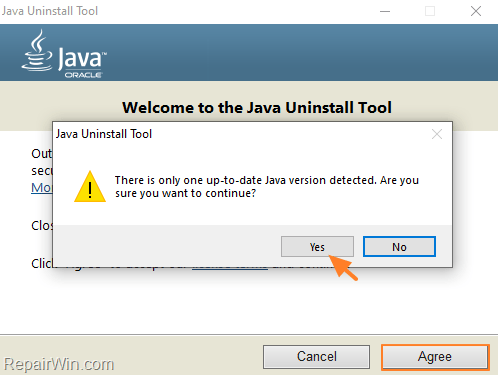
A failing Java installation often points to conflicts with existing software or corrupted previous installations Try performing a clean uninstall of any old Java versions using a dedicated uninstaller tool then restart your computer Temporarily disable your antivirus and firewall before attempting a fresh download and installation with the latest Java version from the official website.
Is there an official Java offline installer available
Yes Oracle provides official offline installers for Java Runtime Environment JRE and Java Development Kit JDK These allow you to download the complete installation package once and install it without an active internet connection The official Oracle Java website is the best source for these offline installers ensuring you get a legitimate and secure version for your system.
What should I do if my browser blocks the Java download
If your browser blocks the Java download it is likely due to enhanced security features or an ad blocker Try allowing pop-ups and downloads from the Java website in your browser settings Alternatively temporarily disable your ad blocker or use a different browser known to be less restrictive for downloads Always ensure you are downloading Java from the official Oracle website to prevent security risks.
Can antivirus software prevent Java from downloading
Yes antivirus software can definitely prevent Java from downloading or installing It might quarantine the installer file or block its execution mistaking it for a threat Temporarily disabling your antivirus program or creating an exception for the Java installer before downloading and installing can often resolve this issue Remember to re-enable your antivirus software once Java is successfully installed.
How do I know which Java version I need to download
To determine the correct Java version identify your operating systems architecture 32-bit or 64-bit and the specific application requirements If unsure the 64-bit version is generally recommended for modern systems For development purposes you need the JDK for running applications the JRE is sufficient Always download from the official Oracle Java website.